I’ve counted, and there are approximately two bajillion videos on YouTube. Searching for what you want is easy enough, but what if you want to just stay up-to-date on a couple of channels? The YouTube website provides a Twitter feed-style stream of updates to your subscriptions, but it could use some improvements. YouTube Video Deck makes it easier and faster to follow YouTube channels.

Using YouTube Video Deck

First grab the YouTube Video Deck app from the Chrome Web Store. Getting started is fairly straightforward. You’ll need to log in to your Google account and grant YouTube Video Deck access. Logging in is simple; you can’t miss it.
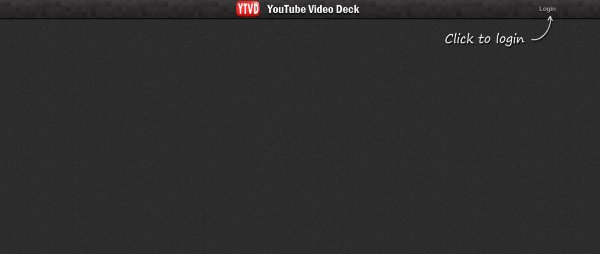
Video Deck Login

After you sign in to your YouTube account, you can immediately begin adding your subscriptions. Just head to the “Add Subscription” button in the top left.

Video Deck Add

A window will pop up displaying all of your subscriptions. Here is a taste of what I like to watch. It should come as no surprise that I’m a bit of a tech geek.
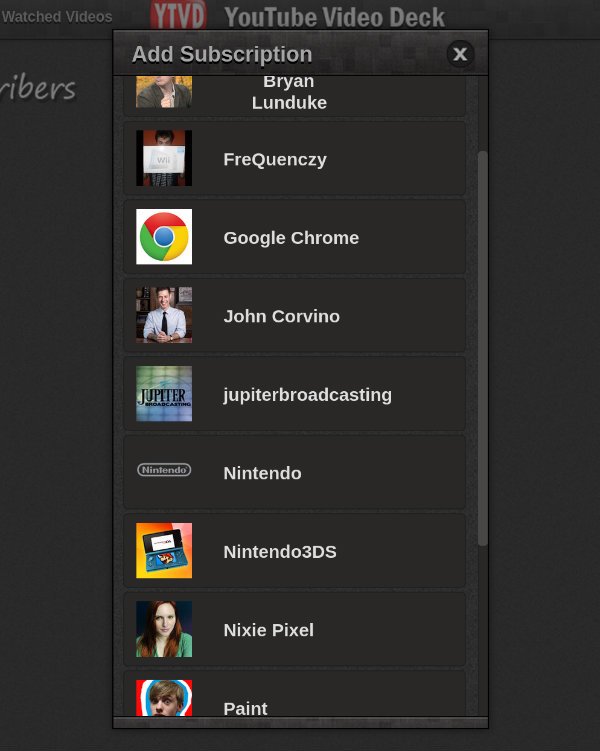
Video Deck Subscriptions

To follow YouTube channels, click on the subscriptions you want to have easy access to, and they will each appear inside YouTube Video Deck in a series of columns. Below I have dedicated one column to Jupiter Broadcasting programming, another to Wii reviews, and a third to car reviews. Each column displays the latest episodes, their length, brief descriptions, and their number of views.
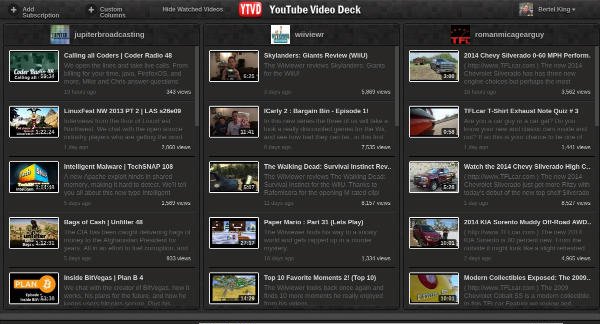
YouTube Video Deck Columns

After a certain number of channels have been added, you will have to scroll horizontally to see all of your content. If you would rather keep everything accessible on one page, you have the option to combine multiple subscriptions under one column. Just return to the toolbar and click “Custom Columns.”

A window will appear displaying a list of your subscriptions on the left and your custom column on the right. Select the feeds you want to keep up with, give the new column a name, and click “Add Column.”
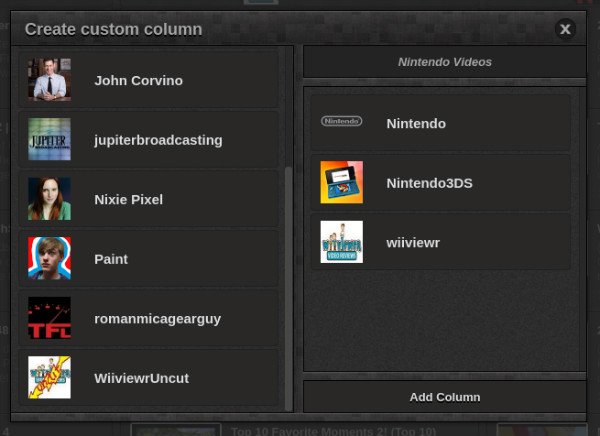
Video Deck Custom Columns

You can now sit back and enjoy your favorite content at your leisure. If you’re still not fine with the interface, there are a limited number of options available under the settings menu. Columns can be arranged horizontally instead of vertically, and notifications can be enabled.
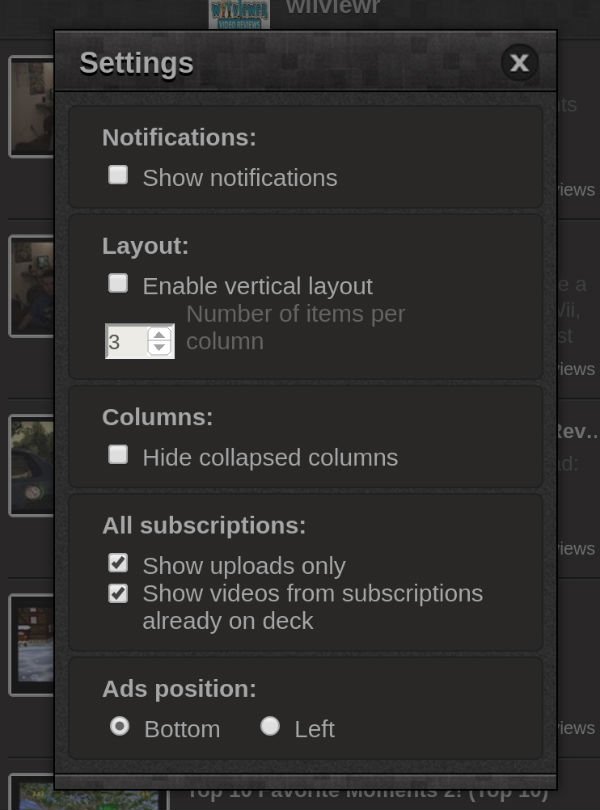
Video Deck Settings

Limitations

YouTube Video Deck makes managing your subscriptions easier, but it is not an all-in-one solution. When it comes time to watch a video, the app will bump you back out to the YouTube website. YouTube Video Deck is a great tool for managing YouTube within your browser, but don’t expect it to offer a dedicated media streaming experience.

YouTube Video Deck is also an ad-supported program. If you want to have a clean interface, you’ll have to upgrade to the pro version, oherwise you are left with large banners strung across the bottom or the left side of the screen. Ads may not bother you, but they completely yank me out of what would otherwise be an immersive experience.

Conclusions

If you’ve used TweetDeck before, YouTube Video Deck should look and feel familiar. The interface is largely the same, and so is the concept. YouTube Video Deck isn’t without its limitations, but if you follow YouTube channel, and by this I mean multiple channels, this app can make your life a tad easier. If you have tried other means of managing YouTube, let us hear about it below.

Edit Google Drive Videos Inside Chrome With WeVideo

What if you left your laptop at home and there is an urgent need to edit a video that you saved in Google Drive? Thankfully you can make use of WeVideo to edit the video directly in Google Drive.

4 Things You Should Know About Digital Cryptocurrencies (Bitcoin, Litecoin, PPCoin, Etc.)

The Internet has entered a new era in which people can start trading in currencies that are not run by governments, called cryptocurrencies. If you have heard all the hype and wanted to get involved, it’s best that you find out more before investing in digital cryptocurrencies.

How to Share Clipboard Items Between Chrome Browsers

For those of us who use multiple computers for one reason or another, being able to copy from one of them to another is extremely beneficial. Clipboard Sync for Google Chrome provides a good solution for users to copy and paste information between the browser from PC to PC.

Add Events to Google Calendar From Anywhere in the Web

One of the biggest complaints about Google Calendar is that you can’t add events to Google Calendar without visiting the site. With Spot – Calendar’s Best Friend, you will be able to add events to Google Calendar, whenever you come across one anywhere in the Web.

How to Quickly Close Multiple Tabs in Browser

There are times when you opened too many tabs in your browser and it is causing the whole system to slow down. A quick and easy way to fix this is to close as many unused tabs as possible to minimize the memory usage. However, it can be a chores if you have tons of opened tabs. Luckily, most browsers come with a way for you to quickly close multiple tabs with a single click.

How to Enable Two-Step Verification for Evernote

Add an extra layer of protection to your Evernote account by enabling two-step verification. A code will be sent to your mobile phone whenever you log in.

How to Enable Two-Factor Authentication in Buffer

Buffer has added a new 2-Step Login security feature to their web app. This tutorial will show you how to enable two-factor authentication in Buffer.

Don’t Like Gmail’s New Always Display External Images Feature? Here’s How to Disable It

By default, Google has decided to make it so that Gmail will always display external images in your email. If you don’t like this, here’s how to disable it.

How to Fix Chrome’s Extension Security Problems

Some of the extensions in Chrome store are using hidden adware to make money off of you. Here are some fixes for you to tackle the extension security problems.

What You Need to Know About Future Web Standards (That are Making the Internet Better)

The Internet started 40 years ago and many things have changed since then. Let’s take a look at the future web standards and how they improve the Internet.

Protect Your Privacy and Browse Securely with HideMyAss VPN

HideMyAss VPN lets you access videos from any country, evade hackers and surf privately. Come read about all its features and enter to win 6 months free!

8 Common Browser Error Messages That You Should Know

While surfing the web, you probably have come across error codes like 404, 502, etc. Here are some of the most common browser errors that you should know.