Do you remember back when you had to know how words were spelled? Back before word processors introduced spell check and before red squiggly lines started appearing in our web browsers and smartphones, we had to haul out physical dictionaries just to double-check how to spell particular words. Now the dictionary has been relegated back to its primary purpose of defining what words mean. Yet it should come as no surprise that checking the dictionary even for definitions isn’t quite the task it used to be. Here is a selection of dictionary tools for Google Chrome.
Google Dictionary
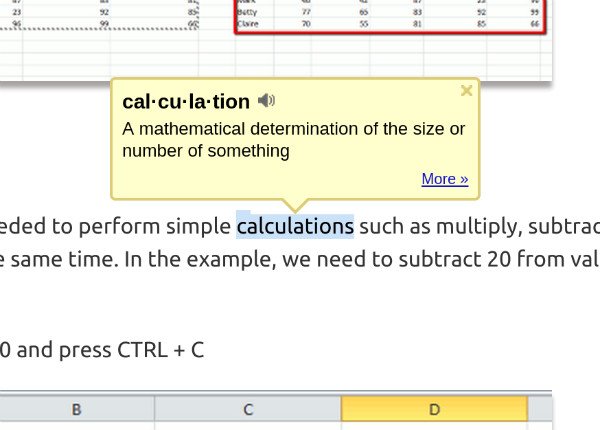
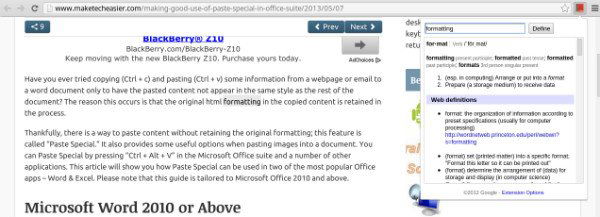
The Google Dictionary extension is by far the fastest way to find the definition of a word. You can simply double-click on any word to open up its definition in a pop-up. If the definition provided doesn’t offer enough of an explanation, clicking the “More” link will shoot you out to another page with more information. If you don’t want to leave the page you’re on, highlight the word that you want to look up and press the Google Dictionary button in your toolbar. A pop-up will appear with several more definitions.
Dictionary.com
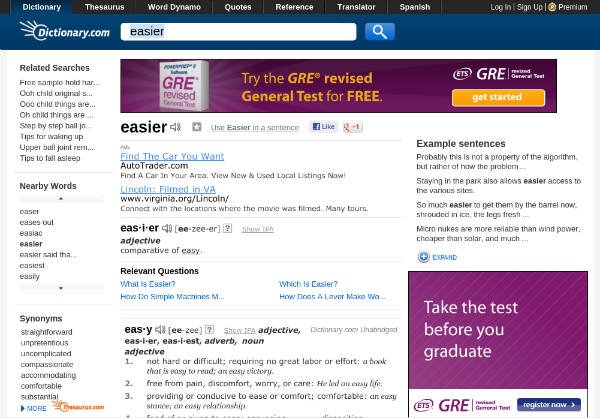
Dictionary.com is one of the more obvious resources out there. You can go to the website manually, but there’s a Dictionary.com Chrome app available that reduces the effort necessary to just a single click. If you’d like more functionality, try out the Dictionary.com extension instead. The extension adds an icon to your toolbar that allows you to pull up a minimal version of Dictionary.com within a pop-up. If this isn’t convenient enough, the extension also lets you right-click on any word on a webpage and pull up Dictionary.com’s definition without leaving the page.
Dictionary Instant
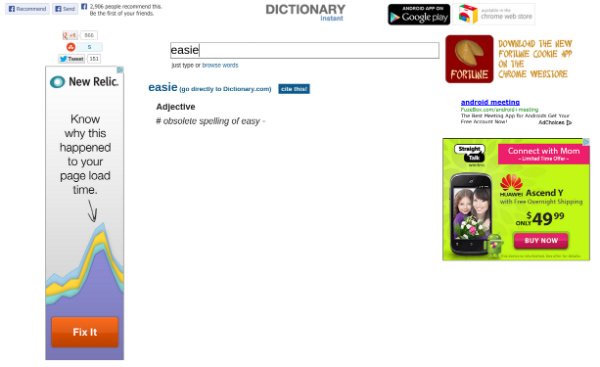
The Dictionary Instant Chrome app isn’t particularly attractive. It’s just a webpage, and it’s a bare bones, ad-ridden one at that. But the app does what it says. Unlike Dictionary.com, Dictionary Instant loads definitions as you type them. This can be very useful if you’re not quite sure how a word is spelled and don’t want to have to move over to another window to check your spelling.
Offline Dictionary
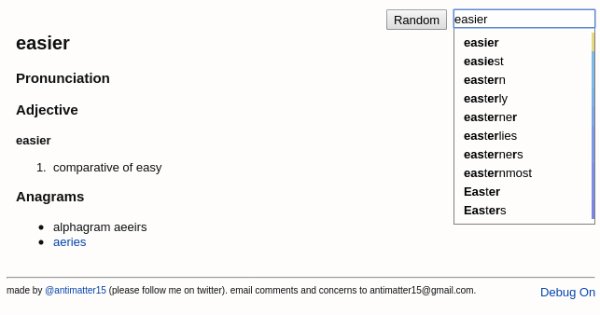
The Offline Dictionary Chrome app takes a moment to install, but it’s worth the wait. Just as the name reveals, this dictionary works even when you’re offline. It pulls down definitions as you type, doing a better job of being “instant” than Dictionary Instant does. To top it all off, the app is ad-free. Offline Dictionary comes the closest of these dictionary tools for Google Chrome to replicating the appeal of having a physical dictionary present.
Dictionary Search
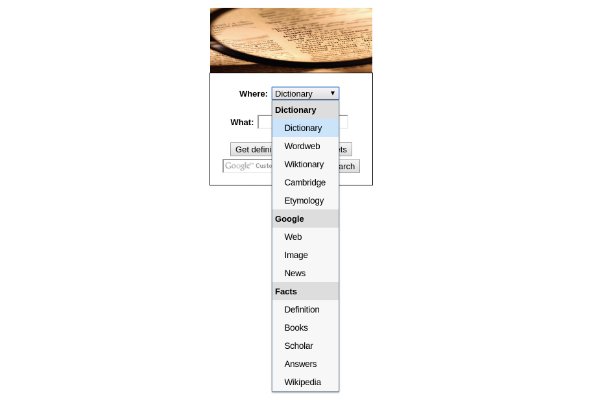
The Dictionary Search Chrome app takes a different approach than the others. Every app thus far allows you to look up the definition of a word, but what do you do if the definition provided isn’t clear enough? Dictionary Search allows you pull in definitions from a variety of sources, including Dictionary.com, Wordweb, Wiktionary, Cambridge, and Etymology. You can search Google News from within the same app or search for facts from another assortment of websites. If you want a Google-like experience without the full range of results that Google supplies, give Dictionary Search a try.
Conclusion
The Internet has exposed all of us to more information than previous generations could ever imagine, and the plethora of dictionary tools for Google Chrome that are available make understanding that information easier as well. If you have an even quicker way of looking up words, let us hear about it in the comments below.