2014 has just barely arrived and many people are still scrambling to find that perfect 2014 calendar to get them through the coming twelve months. You can comb the stores or head to any number of photo-sharing services that allow you to create your own calendar – most will even print in high quality and drop in the mail to you.

You could also take the Office route – there are a number of Word templates that allow you to create and print your own. But, if you need just a bit more than what Microsoft can provide, then there is also dedicated software that can do a lot more. Pically is a free program that you can grab and use to create beautiful calendars using your own photos. The app works with Windows, Mac and Linux. It does require Java to be installed on your system, just so you know.

The interface is fairly simple – you’ll have access to all of the months of the year, along with the ability to add images to each one. A drop-down box at the bottom of the screen lets you select the year.
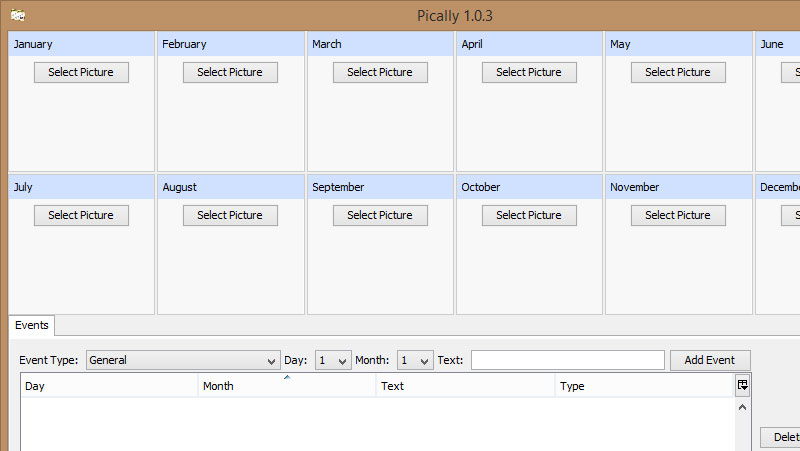
pically-main-screen

You will also want to add events – don’t forget mom’s birthday, you’ll need to put it on your calendar. To do this, there’s a box at the bottom of the screen with a number of options open to you.

To get started, click on the event type – the only option is “Holiday”, but you can enter text to cover no matter what it is – not just public holidays, but birthdays, anniversaries and more. You will need to choose the date of the event, both month and day, even enter the text you wish to appear, such as “John’s Birthday”. When you have everything just the way you want it then click “Add event” to enter it into your new calendar.

pically-add-event

It’s not too terribly much works, just a matter of picking and choosing images and then some data entry to take care of the holidays. Once it’s all done, you can click on “Generate” at the bottom of the screen to view your finished creation. From there, you can print it out for mounting on the wall or refrigerator.

Conclusion

Pically is far from the only way of creating a calendar, but it makes things clean and simple, with few options (not always bad). You can get your images and special days added with no hassle. You’ll need a decent printer, as getting this out looking right is the final step, and it’s not as easy as it sounds. It’s also free, which is an enormous bonus when it comes to any computer program.

There are other options, if you so choose. Templates for Word can provide nice results, or can take the paid route with a service, which gives you good professional printing. But for home use, Pically is certainly my favorite option.

4 Reasons Why A Third Party DNS Server Is Better Than What Your ISP Gives You

You’ve probably heard of alternate DNS servers and how they could probably help you in some way or another. You may also wonder why you need to switch over. I’m going to give you some reasons why you probably should be using third party DNS server. You will end up wondering why you haven’t done it yet.

4 Popular Bitcoin Alternatives and How They Compare to Bitcoin

The cryptocurrencies is here to stay. Bitcoin may be receiving the most attention at the moment, but it is definitely not the only one around. There are tons of Bitcoin alternatives. Here we will take a look at the 4 popular Bitcoin alternatives and see how they compare to Bitcoin.

How to Quickly Close Multiple Tabs in Browser

There are times when you opened too many tabs in your browser and it is causing the whole system to slow down. A quick and easy way to fix this is to close as many unused tabs as possible to minimize the memory usage. However, it can be a chores if you have tons of opened tabs. Luckily, most browsers come with a way for you to quickly close multiple tabs with a single click.

How to Create QR Code in Google Drive

There are tons of ways to create QR code. If you are a Google Drive user, here is one quick way to create R code in Google Document

Need a QR Code? Quickly Generate a QR Code With This URL

Need a QR code? Here is one quick way to generate a QR code with a URL.

How to Enable Two-Factor Authentication in Buffer

Buffer has added a new 2-Step Login security feature to their web app. This tutorial will show you how to enable two-factor authentication in Buffer.

Add Any Website to the Chrome App Launcher with this Trick [Windows]

If there’s a website that you visit frequently, you can now add it to the Chrome App Launcher for easy access, thanks to this quick trick.

How Image Compression Works: The Basics

Do you know that you can easily compress your high-res images to smaller size without affecting its image quality? Here’s how image compression works.

Hands-on with Github’s Atom Text Editor

The developers of Github decided to come out with its own text editor – atom. Let’s check out Atom text editor and see how it fares with other text editors.

How to Copy Multiple Texts in Firefox

For those who like copying text from multiple web pages, Text MultiCopy for Firefox allows you to copy multiple texts and paste them all at the same time.

How to Return a WordPress Multisite Setup to a Single Site Setup

It is easy to create WordPress multisite, but not the reverse. Here is how to return a child site of a multisite setup to a WordPress single site.

8 Common Browser Error Messages That You Should Know

While surfing the web, you probably have come across error codes like 404, 502, etc. Here are some of the most common browser errors that you should know.