There are a variety of tools for managing downloads within your browser. Some focus on speed, multiple file options, extra organization features and other things that the built-in browser’s download panel doesn’t have.

There are some tools, however, that focus on doing only one or two things at a time. Such is the case with the Chrome extension, uSelect iDownload.

As the name implies, uSelect lets you select one or more download links and provides you the option to either open the links or download them. There are many extensions similar to this, but it stands out because it lets you select links in a more visual, user-friendly way with just a few mouse clicks.

Also read: 7 of the Best Chrome Extensions You Need to Try

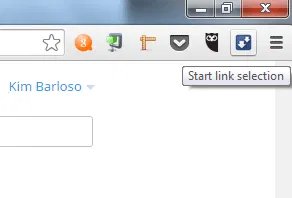
After installing the extension, you will notice the uSelect icon on the add-on bar (top-right corner). If you hover over the icon, you will see a label that says “Start link selection”. Click on this first before selecting links.
uselect_icon
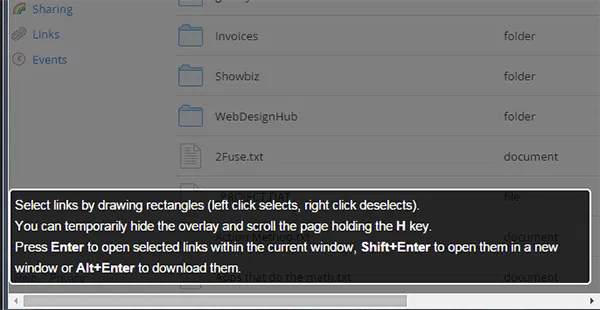
After clicking the uSelect icon, a set of instructions will appear on the bottom of the browser screen.
uselect_prompt

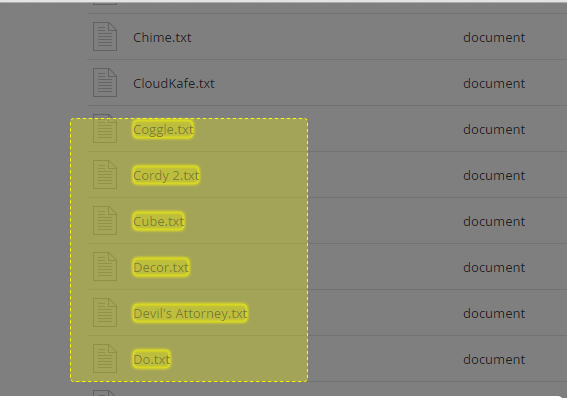
As indicated, you can draw a rectangle around the links you want to select. This will highlight the links in yellow. From there you can either hit Enter to open the selected links in the same window, “Shift + Enter” to open in a new window, or “Alt + Enter” to download them.

If you need to scroll down or simply want to get rid of the pop-up box, you can hold down the H key.
uselect_highlight-links

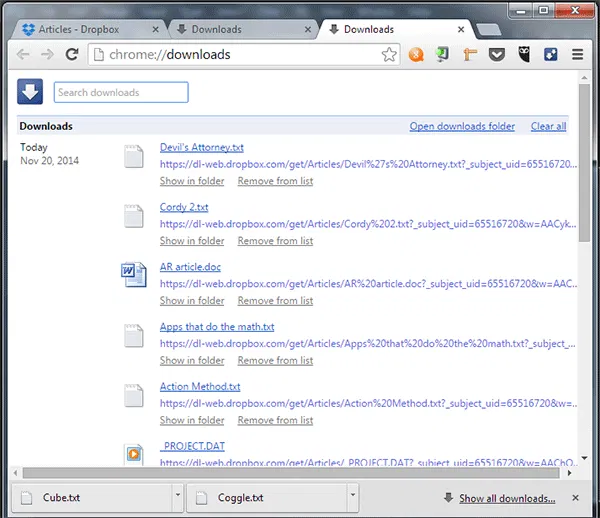
In the example below, I’ve chosen to download files from my Dropbox account. Hitting “Alt + Enter” automatically brings me to the Downloads page, where all selected files are downloaded. The downloads also appear on the bottom of the browser window.
uselect_downloads

The files will be saved in Chrome’s default Downloads folder, or wherever you have configured it within the browser settings. Unfortunately, this cannot be changed when using the extension.

Note that not all links may download files as expected. The link would need to be a direct file source, not a link to another page, otherwise the download might just be the HTML of that page and not the file itself.

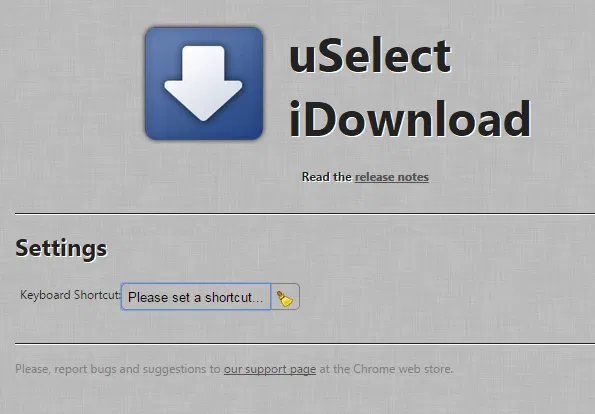
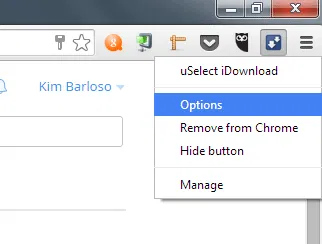
You can assign a shortcut key for activating this add-on. To do this, right-click on the uSelect icon again and select Options.
uselect_options

In the page that loads, click on “” beside Keyboard Shortcut. The box should change to say “Please set a shortcut”. Enter the shortcut keys you want to use.

uselect_keyboard

Make sure the shortcut keys you specify is not already being used by Chrome or any other extension.

uSelect is a great way to save time on downloading multiple files, but it’s also made for websites that display links to actual source files. Selecting files is made easy with simply dragging a rectangle around them as opposed to highlighting each and every link.

If you work with downloading multiple files from direct links, then uSelect is a simple tool you can use with ease. It doesn’t take much to learn, and it gets the job done with just a few clicks.

Edit Google Drive Videos Inside Chrome With WeVideo

What if you left your laptop at home and there is an urgent need to edit a video that you saved in Google Drive? Thankfully you can make use of WeVideo to edit the video directly in Google Drive.

4 Popular Bitcoin Alternatives and How They Compare to Bitcoin

The cryptocurrencies is here to stay. Bitcoin may be receiving the most attention at the moment, but it is definitely not the only one around. There are tons of Bitcoin alternatives. Here we will take a look at the 4 popular Bitcoin alternatives and see how they compare to Bitcoin.

4 Ways to Embed and Email Web Pages to Your Friends

If you want to email web pages to friends, you can either send them the URL or use any of these 4 ways to embed the web page directly in the email.

Quickly Access Your History in Mobile Firefox For Android

If you are using mobile Firefox in your Android devices, here is one neat trick that you can use to quickly access your browsing history.

How Does ICANN’s Relationship with the US Affect You?

You’ve probably heard on the news something about ICANN and its “cozy relationship with the United States.” So how does that affect both you and me?

Do Sentences Make Better Passwords?

One proposition that security experts made recently was to use short sentences as passwords, rather than a complicated string of characters. Let’s see if this is a more secure method.

3 Reasons Why Encryption Is Not as Safe as You May Believe

What if I tell you that your encrypted data may already be cracked by the hackers? Here are some examples why encryption is not as safe as you may believe.

How to Manually Install Extensions in Google Chrome

If you want to install any extension in Google Chrome, that is not in the Chrome store, here is a way to manually install extensions in Google Chrome.

Reader vs iReader: The Battle of the Readability Extensions

Reader and iReader for Firefox are two great extensions to implement a “Reader mode” in Firefox, but which is better? Let’s find out.

How to Check Links for Viruses in Google Chrome

If you frequent links but want to be sure that they are safe and virus-free, Dr. Web Link Checker for Google Chrome can help you check links for viruses.

How Anonymous Are You on the Internet, Really?

If you really want to be anonymous on the web, here are a few things you got to know and also learn a couple of tenets.

Just How Secure Is Your Bank Account?

You probably have an online banking account. What if someone decided to hack into your account and steal from it? How secure do you think your bank account is?