There are no lack of text editors, be it for Linux, Mac or Windows. However, the developers of Github feel that all the existing text editors are not up to their standard and decided to build their own text editor. As a result, Atom was born. Termed as “a hackable text editor for the 21st century,” Atom comes with plenty of useful features not found in other text editors, and within the short time that it has been around, it has already won praises from many developers. Let’s check it out and see how it fares with other text editors.
Note: This review is done on Ubuntu Linux. Installation instructions differ in different OS.
Installation
At the moment, installing Atom is not an easy task, regardless of whether you are using Windows, Mac or Linux. You can follow the build instructions here to install Atom in your OS.
In Ubuntu, you can use the PPA (provided by WebUpd8, for 64-bit machine only) to install Atom:
sudo add-apt-repository ppa:webupd8team/atom
sudo apt-get update
sudo apt-get install atomNote: Non Ubuntu users can pull the custom Atom build from here, extract it and double click the “atom” executable.
Overview
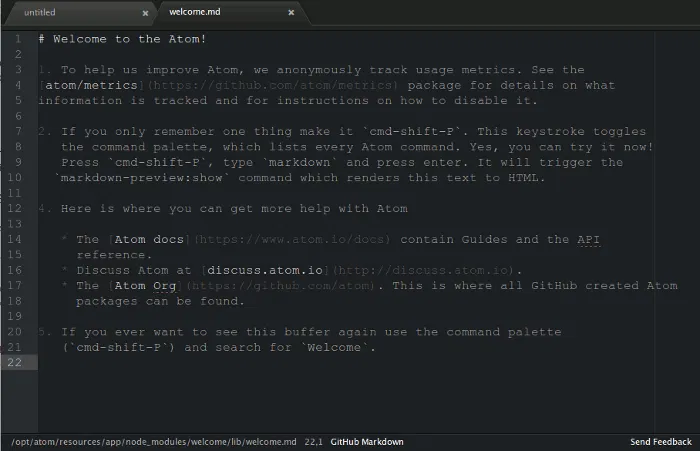
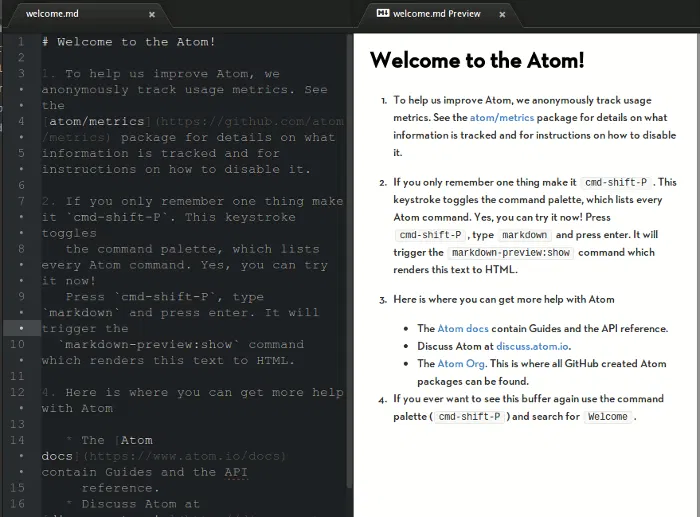
As you can see from the screenshot below, the main interface is very similar to Sublime Text. You get a tabbed interface with a dark background, and the filepath of the currently opened file is shown in the bottom status bar. On the first run, it will show a Welcome message.
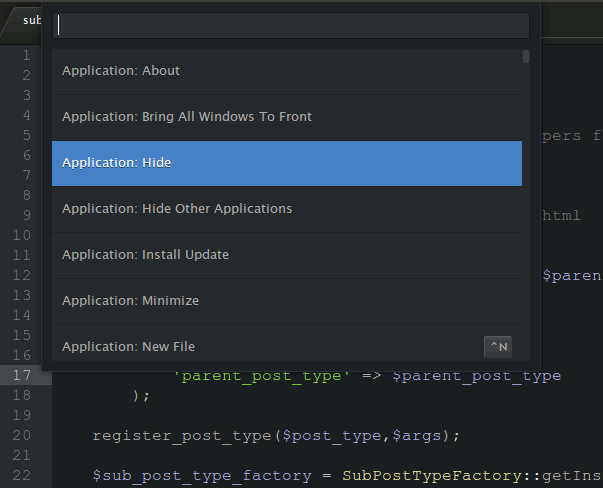
Another thing that makes it similar to Sublime Text is the Command Palette where you can use it to search for infrequent use commands. They even share the same keyboard shortcut (Command + Shift + P / Ctrl + Shift + P).
Language Support and syntax highlighting
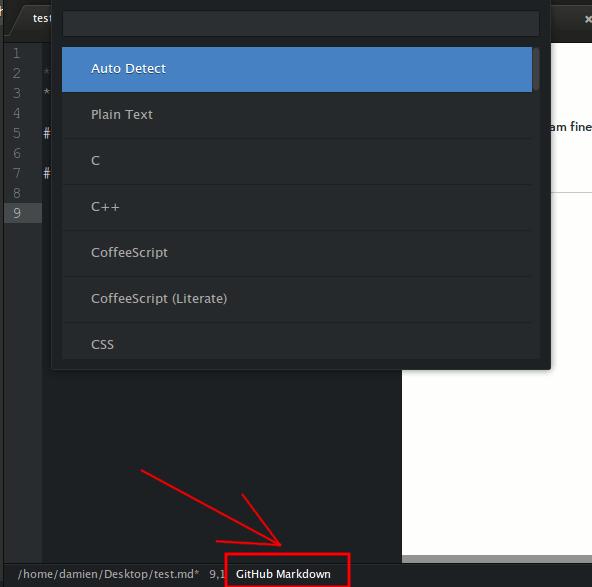
Other than the integrated node.js support, Atom also supports many programming languages like php, javascript, HTML, CSS, Sass, Less, Python, C, C++, Coffeescript, etc. To see the full list of language supported by Atom, simply click the Language indicator at the bottom of the status bar.
Yes, it does support syntax highlighting as well, which is essential in programming IDE. You can change the syntax color in the Theme section too.
Packages
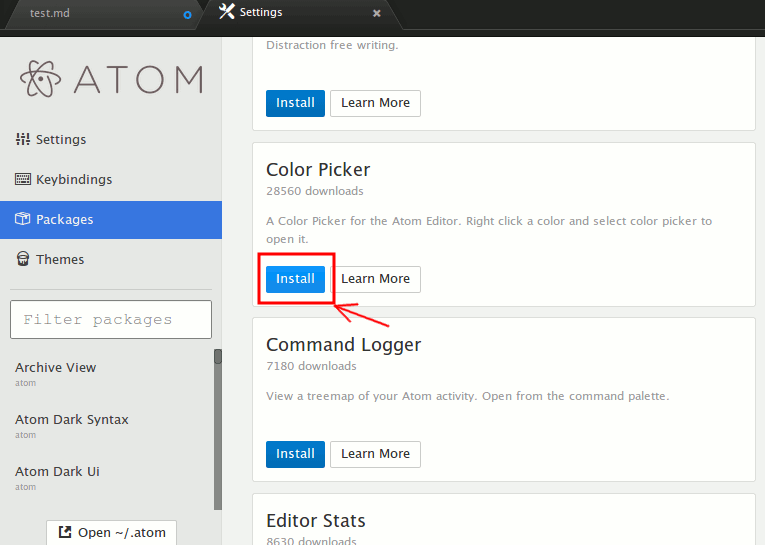
Packages are what makes Atom useful and powerful. Packages are like extensions, or plugins, that you can install to extend the functionality of Atom. The default installation comes with a good library of packages, like Markdown Preview, bracket matcher, Git diff, etc, and you can install additional packages right within the “Preferences -> Packages” section. For example, to install a color picker package, all you have to do is to click the “Install” button beneath the package name.
Other features
Since Atom is developed by the developers of Github, it is no surprise that it comes with Git support and Github integration. It also supports the markdown syntax and comes with a markdown live preview feature.
Chrome Dev Tools
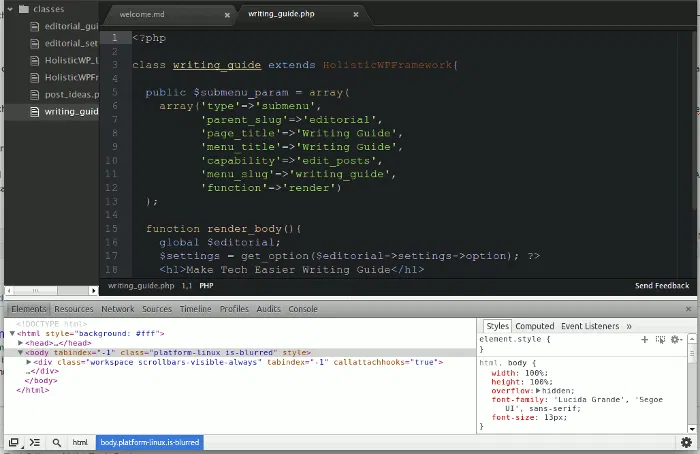
Chrome Dev tool is a useful tool that is only available in Google Chrome. To test the scripts, we often have to load it in Chrome before we can debug it using the Chrome Dev Tool. In Atom, the Chrome Dev tool is built into it, so you can easily debug your code right within Atom. Of all the features, this is the one that got me excited.
Themes
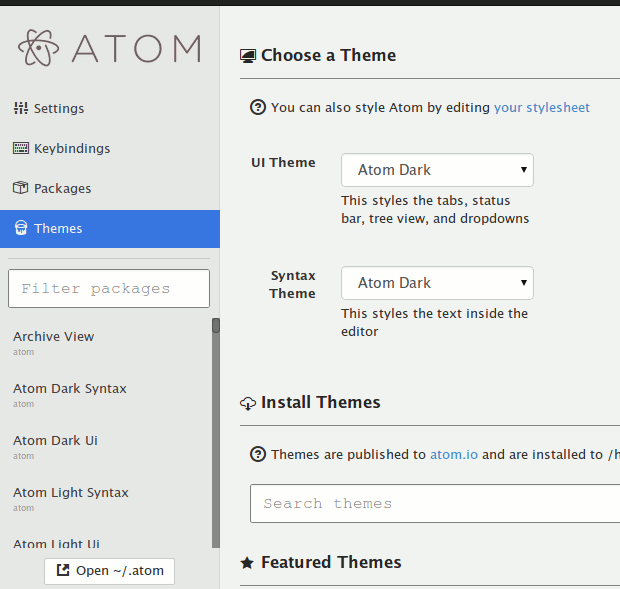
Like many other text editors, you can change the look and feel of Atom text editor. The Theme section under Preferences is where you can change the theme to one that you prefer. There are only a few pre-installed themes, but you can download additional themes from https://atom.io/themes. Alternatively, you can edit the stylesheet of the existing theme to get what you want.
Conclusion
Even though Atom is still in beta, it is impressive. The fact that it is built on Web technologies makes it fully customizable and extensible. Modelling after Sublime Text’s look and feel is also a good idea, as it can reduce (or eliminate) any learning curve when switching from another text editor. I can definitely see it getting better in the future. If you have not tried it, do give it a try. I am sure you will love it.