When it comes to the web browsers, like other software, there is a plethora of choice. While most Windows users stick with Internet Explorer – perhaps largely because it comes bundled with the operating system, and they don’t really know about others – Chrome and Firefox have also become popular selections. Even Opera and Safari are available, to name only a couple of alternatives to the big three.
One of several draws in Chrome is the ability to sync the browser. Install it on a new PC or open it on a second system and you are just a Google account log-in away from having your history, passwords, tabs and more. It’s a brilliant and easy solution, and one that should be part of every web browser.
Now Mozilla is testing the waters in Firefox with an improved version of its own – you won’t see it quite yet, unless you happen to reside on the bleeding edge of technology. In that case, you will discover Mozilla Firefox Accounts, which is aiming to be competitive with the Google feature.
Background
I would be remiss if I didn’t spend a moment explaining things here. Firefox comes in four different versions – stable, beta, aurora and nightly. Those names represent the descending path of stability. When beta becomes stable and gets released, then aurora moves to beta – it’s a steady test bed of ideas and features.
Firefox Aurora and Accounts
If you wish to experiment with this new addition to the browser, then you’ll need to be running aurora – a step down in stability from beta, but it isn’t going to simply fail and crash all the time – don’t worry. For the most part, it remains solid, though the occasional glitch is not unheard of.
Sync isn’t entirely new to the platform as Mozilla points out. The company has simply gone to greater lengths to improve the service.
Firefox Sync enables you to take your browsing data like passwords, bookmarks, history, and open tabs across devices, just as it always has. But now we’ve made it even easier to set up the service and add multiple devices, while still delivering the same browser-based encryption“
To get started, head to the “Tools” menu – it’s the three bars at the top right on the screen – and click on Options. This pops up a window with tabs spread across the top. The obvious one here is “Sync,” and this is what you want to click.
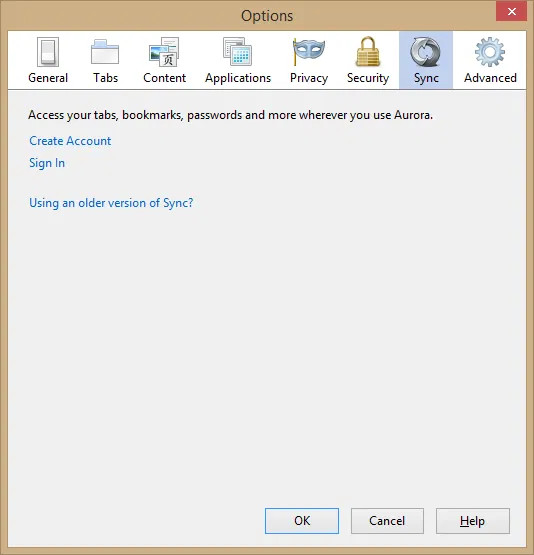
If you have an account, then go ahead and sign in. If not you will need to create one. This requires the usual email and password, but for some strange reason also a year of birth. Depending on your age, this is not precise, as it only goes back to 1991 and then offers a “1990 or prior” option.
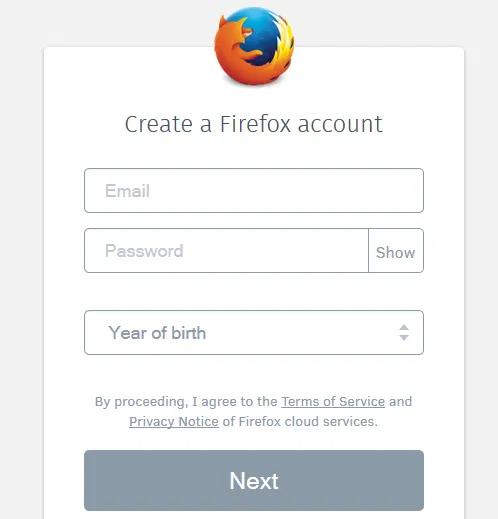
Fill in the necessary information, and you may also want to check the box for choosing what you wish to sync. You will get an email that you will need to take care of in order to finish the setup – just click the big blue “verify” button.
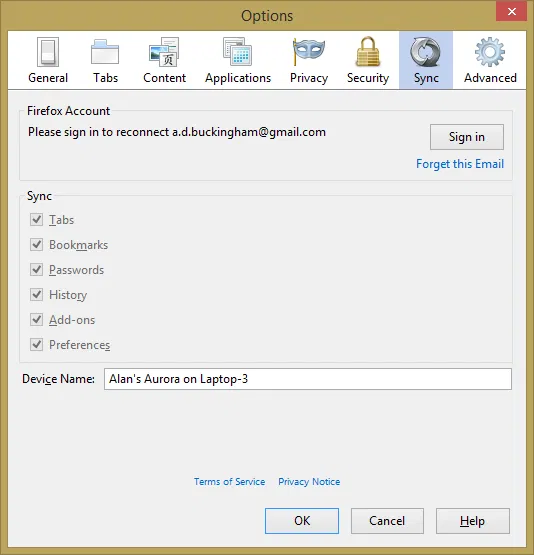
With that out of the way, you can choose what you wish to sync. Options include tabs, bookmarks, passwords and more. By default, all are checked, but that is easy enough to change if you wish.
Conclusion
As I previously stated, this is not entirely new, but has been greatly improved in the new aurora build of the browser. If you already have a Firefox account for sync, then this won’t affect you, but will make it a bit easier to set up on a new system or alter an existing one. It is simple to set up and use, and I encountered no issues in the process.