It’s common to have several tabs open in a web browser while working; however, there are very few times when you actually require all the opened tabs. What if you could snooze tabs that aren’t important and set them to automatically open at a later time? Yes, you can actually do that, and in this article, we will discuss how to achieve that in Google’s Chrome browser
Tab Snooze is a Chrome extension that lets you put off tabs until later and returns them to your browser automatically at the selected time. It provides desktop notifications to remind you about returning tabs, and also gives you small hints that recommend you snooze tabs that you haven’t used in a while.
Download and Install
The extension is free and can be easily downloaded and installed from the Chrome Web Store. Once done successfully, you’ll see the following confirmation message,
followed by a brief tour of its features. You’ll also be required to sign up for the service by providing your name and email address.

How it works
Once you’re done with the installation part, the Tab Snooze icon will appear towards the top right corner of your browser, just next to the settings icon. To snooze a tab, just open that tab and click the Tab Snooze icon:
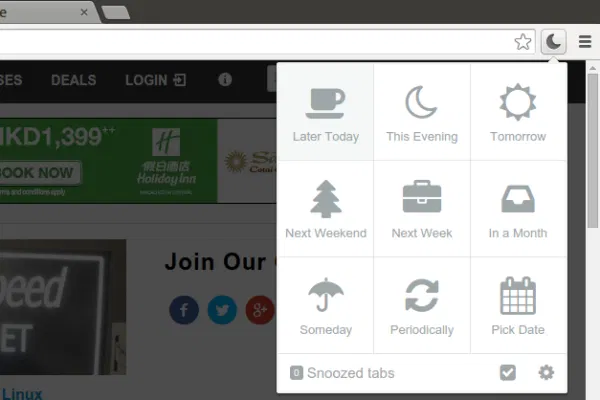
As you can see, this opens a grid of snooze options for you; while some are pretty straightforward, like Tomorrow, Next Week, In a Month, and more, there are some, such as Someday, Later Today, and more, that have some default values that you can set per your preferences. You can do this by clicking the settings icon at the bottom of the snooze options window.
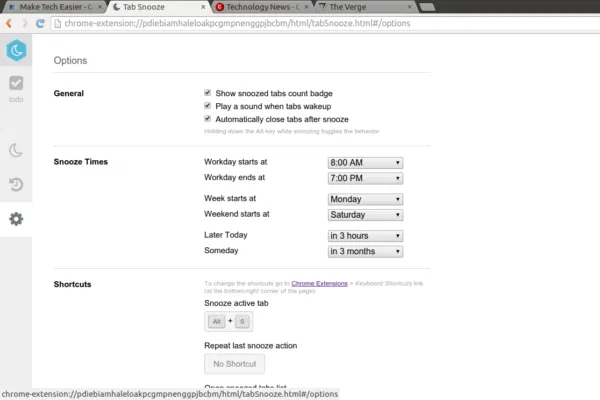
As you can see in the screenshot above, this opens the extension’s Options page where you can tweak information like the start and the end of your workday (so that snoozed Tabs don’t appear on weekends), as well as the definitions of Later Today and Someday.
In addition, there are also some General options – including showing snoozed tabs count badge, playing a sound when tabs wake up, and automatically closing tabs after snooze – that you can enable or disable per your preference.
Finally, the page also displays some keyboard shortcuts that the service recognizes. For example, you can use “Ctrl + S” to snooze an active tab, “Ctrl + Shift + 1” to open a new to-do tab, and more. However, in order to make changes to these shortcuts, you need to go to the Chrome Extensions (by typing chrome://extensions/ in the address bar) -> “Keyboard Shortcuts” link.
Aside from the Options page, there are separate pages (containing snoozed tabs list, snooze history, and more) that can be accessed by clicking their respective icons.

Now, coming back to the task of snoozing the tab we selected earlier, I just clicked the “Later Today” option, and snoozed the tab:
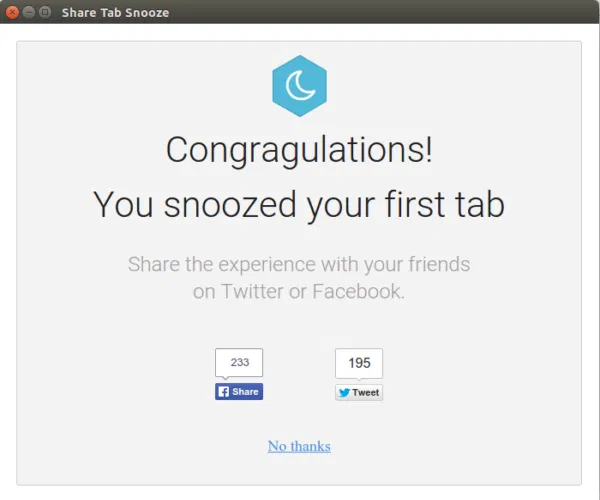
As you can see in the screenshot above, the service displayed a special message since this was my first snooze. You can verify the snooze action by visiting the “Snoozed List” as well as “Snooze History” pages:
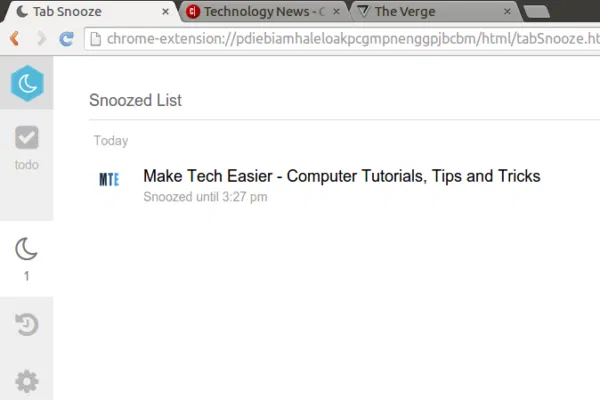
Observe that the tab was snoozed until 3:27pm, and this is what happened when the clock ticked 3:27:
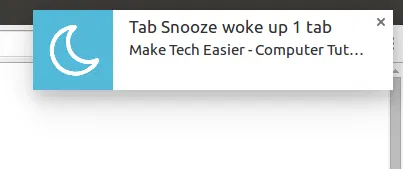
The tab was restored.
Conclusion
Being able to snooze tabs not only helps you manage them effectively but also comes in really handy if you use your browser tabs like a to-do list. Have you ever used Tab Snooze or any other similar service? How was your experience? Share your thoughts in the comments below.