The History tool in Google Chrome helps us track our browsing history, but the process is sometimes a tedious one. It’s not easy scanning through long lists of websites with little information about each of them. Thankfully, a Chrome extension called Better History provides a more structured way of searching and viewing recently visited sites.

This tool allows you to assign tags to websites within your browser’s history, giving you a more organized and comprehensive History page.

Upon installing the extension from the Chrome Webstore, you will notice a clock icon on the top-right corner of the browser. Clicking on this will open the “Better History” drop down menu. This menu is used to either tag the current page, access the History page, or see a list of all your tags.

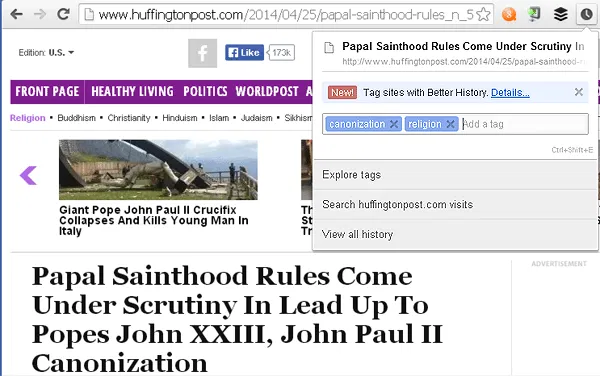
The drop down interface from the icon is ideal if you want to tag websites as you are viewing them. In the example below, I created two tags for an article I was viewing. Note that you can add more than one tag for a page by hitting the Enter button after each one.
better-history-current-page-tag

However, if you want to tag the sites you’ve visited in the past (which you no longer have on screen), select “View all history” from the drop down menu instead. You can also type “chrome://history/” on the address bar. Both methods will open a new tab showing the full Better History page.
better-history-drag-tags

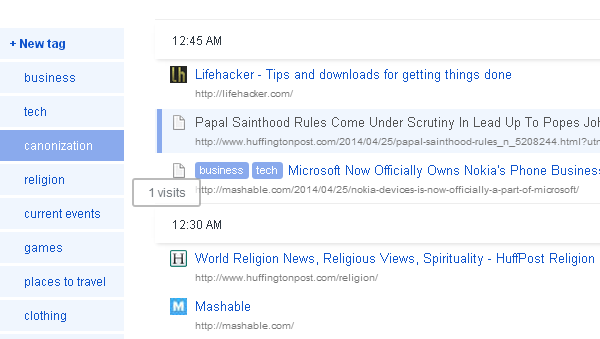
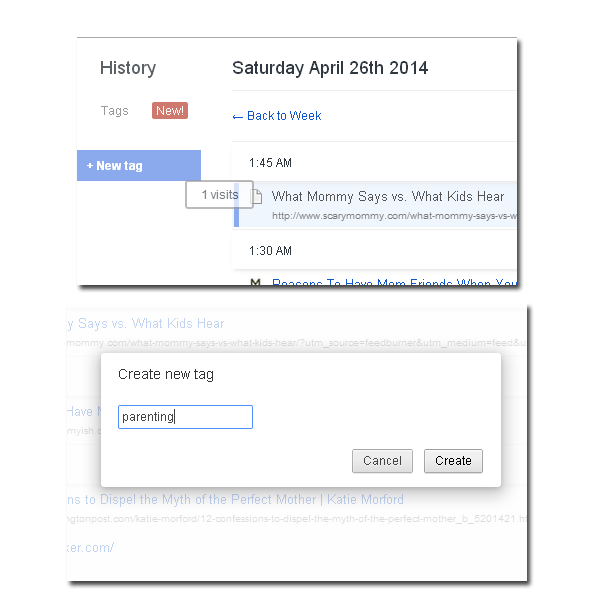
Here you can organize websites that are already in the History log by dragging them onto tags that are listed on the left pane. If you are making a new tag, drag the link into “New tag”. Type in the name of the new tag in the pop up window and click “Create.”
better-history-create-new-tag

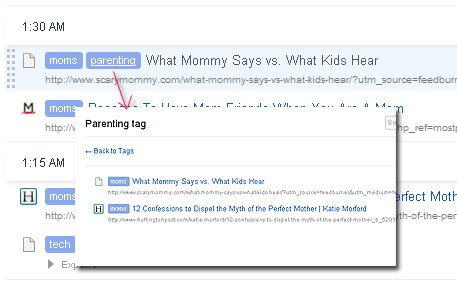
When you want to filter websites by tag, simply click on the tag within the website link. A new tab should open showing you all links visited with said tag. In the example below, I filtered sites with the tag “parenting.”
better-history-filter-tags

To see all tags, click on the clock icon again and select “Explore tags.” A new tab will show you a list of all tags (some are default, and some will be what you have added). Click on a tag to view the links to websites under that tag.

On the upper right-hand side of the window, there’s a button to delete that specific tag. This action cannot be undone, so be careful when deleting tags.

There’s also a paid option to sync tags with other devices which also use Google Chrome. The added feature is available for a one-time fee of $8. The service will let you sync unlimited tags and websites using your Google account and lets you save your history in the cloud.

For anyone who has ever experienced challenges when using the default History tool in Chrome, Better History is indeed a better way of dealing with previously visited websites. Whether you want to tag websites as you are viewing them, or go back and organize websites you’ve visited earlier, this extension lets you do so with ease.

How to Easily Enable Real-time Collaboration on Your Site

If you are a webmaster, you might be thinking of how you can make your website more interactive, or even allowing your visitors to collaborate with one another. TogetherJS allows you to easily add a real-time collaboration feature to your site with minimal technical/coding skill.

Forget Everything Else: Exclude Browsing History When Searching via Chrome’s Omnibox

Don’t want your browsing history, previously typed URLs or bookmarks displayed when searching from Chrome’s Omnibox? Use this quick trick to exclude them.

How to Fix Foreign Characters Not Showing Up issue In WordPress

If you enter foreign character in WordPress, but only see question marks (???) showing up, here is the fix for this issue without losing any data.

Don’t Like Gmail’s New Always Display External Images Feature? Here’s How to Disable It

By default, Google has decided to make it so that Gmail will always display external images in your email. If you don’t like this, here’s how to disable it.

6 Alternative Uses of WordPress, Other Than Blogging

You can be sure of one thing, Wordpress: it’s not just for blogs anymore. Here are 6 alternative uses of Wordpress that aren’t blogging.

3 Reasons Why Encryption Is Not as Safe as You May Believe

What if I tell you that your encrypted data may already be cracked by the hackers? Here are some examples why encryption is not as safe as you may believe.

How to Enable Private Tabs in Firefox

Private browsing in Firefox requires you to open a new window. The Private Tab addon allows you to open private tabs in Firefox instead of a separate window, making it easier for you to keep track of multiple sites at a time.

What’s New in WordPress 4.0 – Features Round Up

WordPress released the beta version of WordPress 4.0 that includes some new and improved features to improve back-end user experience. Let’s check out what’s new in this WordPress 4.0 Beta 1 Release.

How to Run Android Apps in the Google Chrome Browser

Have you ever used an Android app and find that it could be useful for your desktop as well? Here’s how you can run Android apps in Chrome browser.

Todoist Review: Get Organized and Boost Your Productivity

Want to get organized and boost your productivity in the new year? Todoist can help and now is your chance to win a one-year premium subscription.

Easily Make Old Extensions Work with Current Version of Firefox

Sometimes, you are not able to install old extensions as they are not compatible with your current version of Firefox. Here is how you can force compatibility and make them run.

How to Close and Snooze Tabs in Chrome to Reduce the Clutter

It’s common to have multiple tabs open in a web browser. Here is how you can close and snooze tabs in Chrome to free up space in your web browser.