Instapaper and Pocket (formerly known as Read It Later) are two of the greatest services that offer users the ability to save something for reading at a later time. If you are in hurry and want to save, say an article, to be read later, just drop its link to any of these sites and they will save it for you. If you are transitioning from Instapaper to Pocket, you may like to move all of your links from the former over to the latter one. The procedure to do so is extremely easy and shouldn’t take more than a few minutes.

Things To Keep In Mind

Instapaper only allows 2,000 articles to be exported. Therefore, only the most recent 2,000 articles will be available to you at Pocket.

If you have tagged any articles as favorites in Instapaper, they won’t have the same tag over at Pocket. Instead, they will be shown as normal articles. This is due to Instapaper not providing the tag info in their exported HTML file.

Exporting the Articles

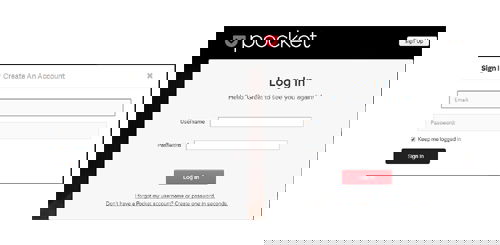
The first thing you should do is to log-in on both of these websites as it will save you from being distracted while importing the articles. Head over to the Instapaper and Pocket websites and get yourself logged-in.
instapaper-pocket-login

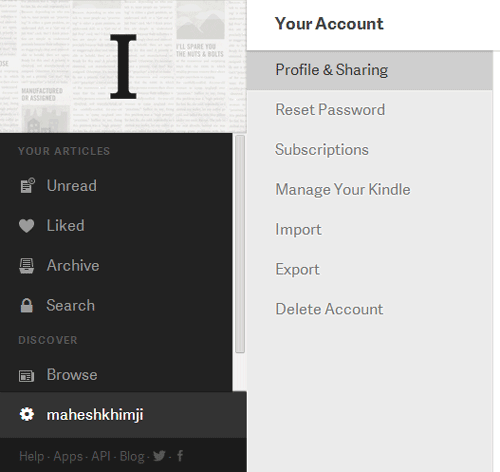
Go to the Instapaper site and click on your Username. It is located in the bottom-left corner on your screen.
instapaper-pocket-username

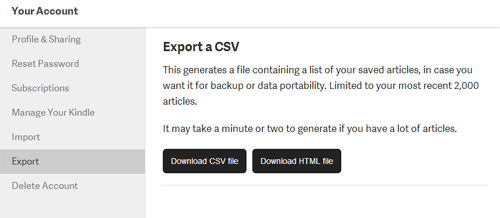
You should now be on your “Account Settings” page. Click on the “Export” tab to export your articles. On the next screen, click the “Download HTML file” button and it will generate an HTML file containing your most recent 2000 articles.
instapaper-pocket-export

Save the HTML file on your PC, preferably on your Desktop so you can find it easily while importing to the Pocket.

Importing Articles into Pocket

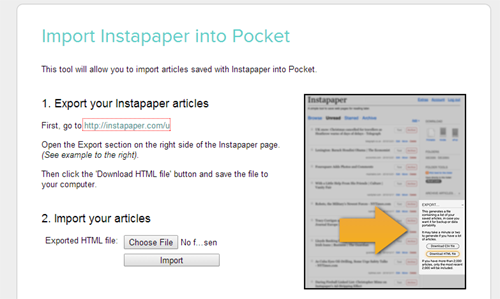
Pocket has a dedicated page for importing Instapaper articles. So, just head over to the Import Page where it will let you upload the file you exported from Instapaper.

Click on “Choose File” button on that page and navigate to the directory on your PC where you have saved the HTML file and choose it to be uploaded.
instapaper-pocket-import

Once you have chosen the HTML file, click on “Import” button given beneath and it will start the procedure to import your articles.

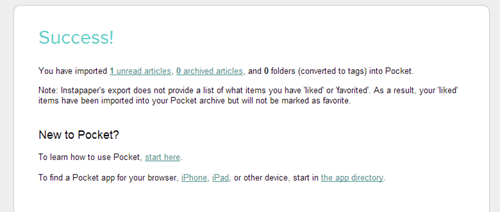
As soon as it has completed the process, it will take you to the success page where it will show the details of your import. It has information like how many articles are imported, etc.
instapaper-pocket-success

Your transition from Instapaper to Pocket is now complete and you should find all of your articles appearing in the Pocket website as well as its iPad and Android apps.

Conclusion

Often times, users find it difficult to move from one service over to another similar service as there are obstacles likes not having the same format of files and so on. But with the companies like Pocket understanding users’ pain, they have developed an entire section helping users solve their transition issues and making the move a breeze.

How To Save Highlighted Text in Firefox Into a File

Researching on the Internet can sometimes be cumbersome. The Save Text To File extension for Firefox allows you to save highlighted text in any web page into a .txt file, then save it in any location on your hard drive.

Track Time and Goals Using Progress Bar Timer [Google Chrome]

Tracking your time and task can be a difficult job. While some may have no trouble keeping track of time in their heads, others may benefit from a more visual means of measuring progress. Progress Bar Timer is a Google Chrome extension that turns deadlines and quotas into convenient progress bars to help track time and goals.

Play Music In Google Drive with DriveTunes [Chrome]

it’s not possible to play music in Google Drive, but installing a Chrome extension allows users to play music straight from the Google Drive directory,

Edit Google Drive Videos Inside Chrome With WeVideo

What if you left your laptop at home and there is an urgent need to edit a video that you saved in Google Drive? Thankfully you can make use of WeVideo to edit the video directly in Google Drive.

Get the Black Google Menu Bar Back with this Chrome Extension

Don’t like the new Google App Launcher? Want to get the old black Google menu bar back at the top of Google websites? Here’s how to do that in Chrome.

6 Alternative Uses of WordPress, Other Than Blogging

You can be sure of one thing, Wordpress: it’s not just for blogs anymore. Here are 6 alternative uses of Wordpress that aren’t blogging.

Reader vs iReader: The Battle of the Readability Extensions

Reader and iReader for Firefox are two great extensions to implement a “Reader mode” in Firefox, but which is better? Let’s find out.

How Visa May Be Making Online Payments Safer

Instead of giving your credit card, Visa came out with a token concept to enhance web security. Is it useful? Let’s check it out.

5 Cool IFTTT Recipes to Automate Your Social Life

IFTTT has a bunch of other cool and super useful social media recipes. Check out these 5 cool IFTTT recipes to automate your social life.

4 Must-Have Chrome Extensions for YouTube Enthusiasts

If you are a Youtube enthusiasts, as well as a Chrome user, here are some of the best Chrome extensions for YouTube to improve your video watching experience.

4 Big Questions About Elon Musk’s Satellite Internet Plan Answered

A network in space to provide internet access throughout the world sounds good, but is it feasible? Here are the answers to some of the major questions asked.

8 Common Browser Error Messages That You Should Know

While surfing the web, you probably have come across error codes like 404, 502, etc. Here are some of the most common browser errors that you should know.