To surf the web privately, browsers offer a mode where it doesn’t save visited websites in its history. This allows a user to keep confidential information hidden from others who might also use the same computer, or any other scenarios where security is important.

In Google Chrome, the secure browsing feature is known as Incognito mode. In Firefox, you can open a Private Window.

However, private browsing on separate windows is less than ideal for switching from one site to another. To resolve this issue, there is an add-on for Firefox called Private Tab that allows you to open private tabs in Firefox instead of a separate window, making it easier for you to keep track of multiple sites at a time.

After installing the free add-on, you will have several options to open a new private tab.

First, you can click “File -> New Private Tab” on the browser menu, or you can use the keyboard shortcut “Ctrl + Alt + P”.
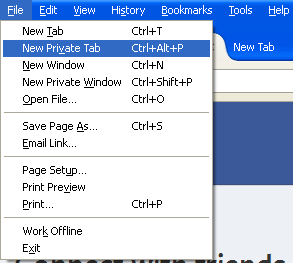
private-tab_menu

Second, you can right click on an already open tab and select “Private tab” to switch it into private mode. The keyboard shortcut for this is “Ctrl + Alt + T.” The tab should refresh with the privacy enabled. 
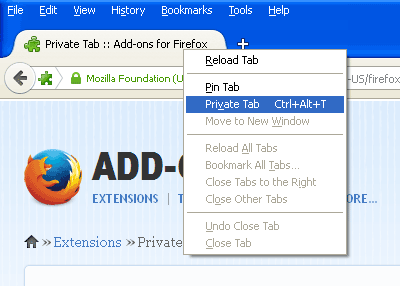
private-tab_context-menu

Third, you can open links by right-clicking on them and selecting “Open Link in New Private Tab.” This applies to any link from a web page or email message.
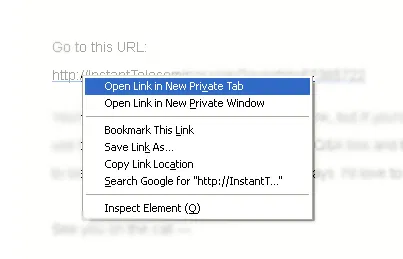
private-tab_link

If you don’t want to use keyboard shortcuts or context menus, you can add a shortcut for the toolbar (located to the upper right corner of the browser). Simply go to “View -> Toolbars -> Customize” on the main menu.
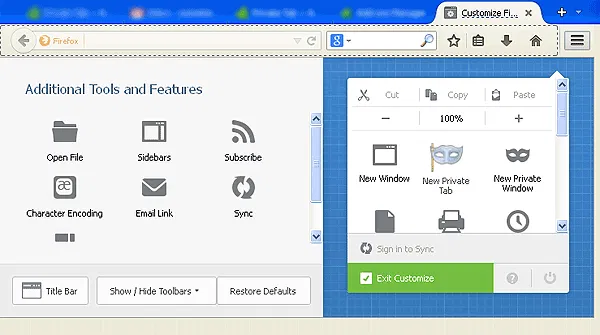
private-tab_toolbar

Locate the icon for Private Tab on the left pane and drag it to the right where you want it to appear on the toolbar. In the example below, I dragged the icon and placed it to the right of “New Private Window”.

When you’ve employed the steps above, you only need to click on the Firefox toolbar icon (top-right corner) and click on the icon for New Private Tab.

Private tabs will be marked by a dotted line below the tab name, as well as a purple mask icon located on the top right edge of the browser.

private-tab_icon

While opening secure sessions in tabs instead of windows may be convenient for multitasking, the simple task of repeatedly clicking “Open in New Private Tab” or using the keyboard shortcut every time replaces the old inconvenience with a new one.

Unfortunately, there is no option to open all tabs in private mode by default.

To check if your browsing sessions were truly secure using Private Tab, you can go to History on the main menu and check that none of the sites you visited using Private Tabs are on the list.

Privacy and security are two of the most important features one would like to have in a browser. Private Tab ensures that and more, providing you with flexibility in navigation as well. Despite the extra steps you have to take to use the feature, it’s a practice worth doing when confidentiality is at stake.

Best Plugins to Automatically Watermark Images In WordPress

One of the way to protect your images online is to add watermark to your images. Here are some of the best plugins that you can use in WordPress to automatically add watermarks to the images you uploaded.

Setup Your Own Self-Hosted Survey Application and Create Unlimited Survey Forms

While there are tons of tools and services that you use to create survey forms and conduct surveys, If you wish to have full control over your data, LimeSurvey is a good survey application that you can install on your own server and host your own surveys.

4 Reasons Why A Third Party DNS Server Is Better Than What Your ISP Gives You

You’ve probably heard of alternate DNS servers and how they could probably help you in some way or another. You may also wonder why you need to switch over. I’m going to give you some reasons why you probably should be using third party DNS server. You will end up wondering why you haven’t done it yet.

Speed Dial with Full Online Sync For Firefox

Even being a veteran browser, Firefox has not been able to implement the Speed Dial function well. That’s where FVD Speed Dial comes into play. This fully functional Firefox addon fundamentally changes the Speed Dial feature to what it should have been all along.

4 Things You Should Know About Digital Cryptocurrencies (Bitcoin, Litecoin, PPCoin, Etc.)

The Internet has entered a new era in which people can start trading in currencies that are not run by governments, called cryptocurrencies. If you have heard all the hype and wanted to get involved, it’s best that you find out more before investing in digital cryptocurrencies.

Big List of Tools and Services to Help You Read Everything Faster

With the overwhelming information in the Internet, it has become necessary for us to read faster. Here are some tools to improve your reading speed.

Force Google Chrome to Remember Username and Password for Particular Websites

Have you encountered websites where Google Chrome refuses to remember the login username and password? This extension can fix it.

How Visa May Be Making Online Payments Safer

Instead of giving your credit card, Visa came out with a token concept to enhance web security. Is it useful? Let’s check it out.

Why YouTube Added Support for 60 Frames Per Second

YouTube has added for videos to stream at 60 frames per second as opposed to its usual 30. Is this something we should be excited about?

4 Must-Have Chrome Extensions for YouTube Enthusiasts

If you are a Youtube enthusiasts, as well as a Chrome user, here are some of the best Chrome extensions for YouTube to improve your video watching experience.

How to Copy Links as Plain Text in Firefox

Do you just want to copy the text of a link, and not the link? Link Stun can disable links in highlighted text so you can copy them as plain text.

Test Your Website in Various Mobile Devices Without Physically Owning the Devices

Google Chrome comes with a nifty tool that allows you to test how your website render in various mobile device. Here is how you can use the device mode in Chrome.