Google has recently introduced the new tabbed inbox in Gmail. This new interface will auto-sort your emails into various tabs and help you to be more productive. Unlike many features that are activated by default, the tabbed inbox interface is not visible until you activate it manually. This article will show you how you can activate and configure the tabbed inbox in Gmail.

The tabbed inbox is not implemented by default. To activate it, you have to click the “Settings” (the wheel cog icon) and select “Configure Inbox” from the drop down.
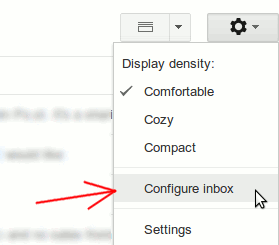
Gmail Settings Configure Inbox

A popup window will show up. Other than the Primary tab that is checked, you can choose to enable Social, Promotions, Updates and Forums tab. As you hover above each section, it will show a snippet of the existing emails that will in fall in the respective section. For example, when I hover my mouse over the Social section, it show up all my Twitter and Facebook notification emails.
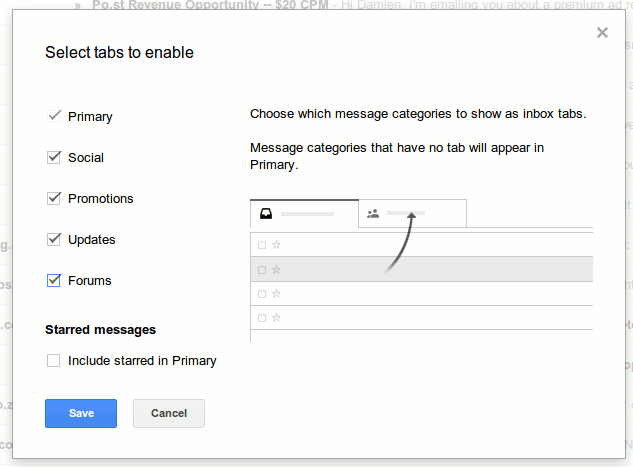
Select tabs to activate tabbed inbox in Gmail

After you have clicked “Save”. It will bring you back to the inbox. You should now see the new tabbed interface in action. If you have plenty of unread emails, you should also see the unread count dropped drastically (only the important unread email are used for the Unread count).

gmail-tabbed-inbox-interface

Configuring the tabbed inbox

To configure which emails go to which tabs, you have to go to “Settings -> Filters”. Create a new filter.

Fill in the input field that you want to filter and click “create filter with this search”.

Lastly, under the “Categorize as” section, select the tabs where the emails that match this filter will go to.
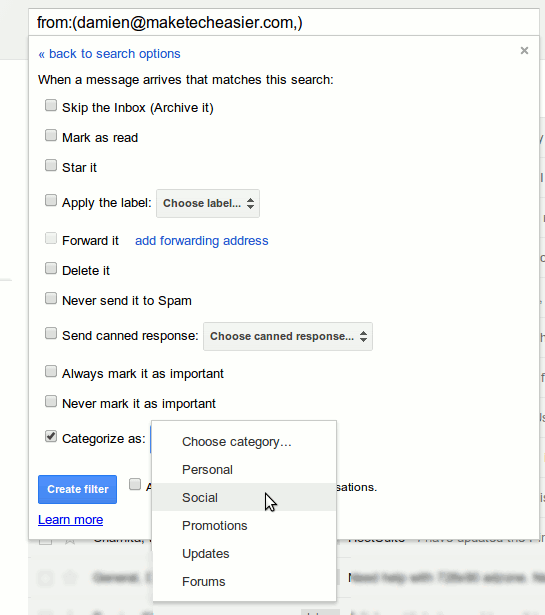
gmail-filter-category

Restore to the classic interface

If you have tried the tabbed inbox interface and didn’t like it, you can get it to return to the classic interface by unchecking all the boxes.

However, if you are previously using the “Multiple Inboxes” feature to show multiple inboxes, you will find that it no longer work. To restore the multiple inboxes:

1. Go to “Settings -> Inbox”.

2. In the “Inbox Type” dropdown box, you should see the option “Default” selected by default. Click the drop down and change to “Priority Inbox”
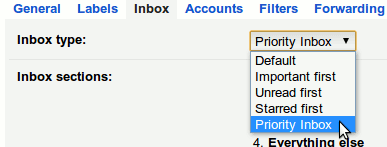
gmail-settings-select-priority-inbox

3. Now, you can create up to 4 multiple inboxes. You can click on the Option link to configure the emails that show up in each inbox.
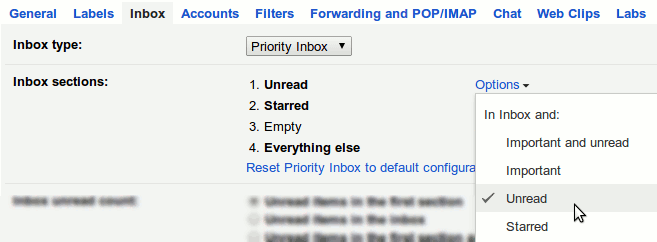
gmail-settings-multiple-inboxes

Conclusion

Personally, I have tried the tabbed inbox and I don’t really like it. I prefer to see all my emails in one whole list so I won’t miss out important emails. In addition, the inability to control which email go into which tab and create your own tabs make it a less useful feature than it seems. What about you? Do you love the new tabbed inbox interface in Gmail?

Converting Files In Google Drive With DriveConverter

If you’re looking for a built-in tool to convert files in Google Drive, then try DriveConverter, a web app and Chrome extension specially built for Google Drive. It offers more flexible conversion features for documents, images and music files.

Play Music In Google Drive with DriveTunes [Chrome]

it’s not possible to play music in Google Drive, but installing a Chrome extension allows users to play music straight from the Google Drive directory,

Add Events to Google Calendar From Anywhere in the Web

One of the biggest complaints about Google Calendar is that you can’t add events to Google Calendar without visiting the site. With Spot – Calendar’s Best Friend, you will be able to add events to Google Calendar, whenever you come across one anywhere in the Web.

Need a QR Code? Quickly Generate a QR Code With This URL

Need a QR code? Here is one quick way to generate a QR code with a URL.

9 Ways to Make Better Use of Gmail Filters

Gmail filters is a good way for you to organize your inbox without you doing the manual work. Here are a few ways that you can make good use of Gmail fliters.

Skrill, a Trustworthy PayPal Alternative

Paypal may be the biggest online payment platform, it is definitely not the best. Skrill is a good Paypal alternative that is available in 200 countries.

Is the Era of Privacy Over?

The governments have been using various measures to get hold of our information. So, have we left the era of privacy behind us?

7 YouTube Channels Where You Can Find Computer Help

If you find video content more gripping, there is a gamut of YouTube channels that are waiting to help you solve your technology woes. Here are 7 of them.

Organize Firefox Bookmarks with ViewMarks

ViewMarks puts a creative twist on your Firefox bookmarks using a file manager paradigm. It lets you manage your bookmarks like they’re files and folders.

How to Save Links Into a Google Spreadsheet in Chrome

When you need to do research that’s heavy on citations, you can use Citable to quickly save websites’ link and notes to a Google Spreadsheet document.

Enable HTML5 Playback in Google Play Music

The default settings of Google Play Music in a web browser make uses of Adobe Flash. Alternatively, you can switch it over to run on HTML5. Here’s how you can enable HTML5 playback in Google Play Music.

4 Must-Have Chrome Extensions for YouTube Enthusiasts

If you are a Youtube enthusiasts, as well as a Chrome user, here are some of the best Chrome extensions for YouTube to improve your video watching experience.