The database is the most important component in the whole WordPress CMS. Being a database-driven CMS, everything that you do on your WP site is read from and written to the database. This means that the moment your database, or any table in the database, is corrupted (in laymen terms, it means your data is not retrievable or writeable), your website will malfunction. In the worst scenario, your website may not even be accessible and you won’t be able to login to the dashboard as well.
If you have a corrupted database issue, here are the ways to fix it.
Also read: How to Set Up WordPress Using Docker in Ubuntu
Using WP_ALLOW_REPAIR
For those who are using WordPress version 2.9 and above (if you are not, I urge you to upgrade it to the latest version now), WordPress comes with a database repair feature that allows you to repair the corrupted database without little technical knowledge.
1. Connect via FTP to your website and download the wp-config.php file. It is residing at the root folder of the WordPress installation.
2. Open the wp-config.php file with a text-editor and insert this line:
WP_ALLOW_REPAIRto the end of the file, just before the if ( !defined('ABSPATH') ) line.
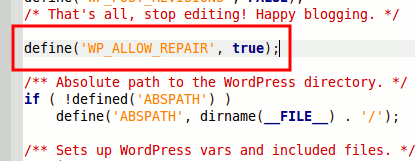
3. Don’t edit or change any other stuff in the wp-config.php file, unless you know what you are doing. Save the changes and upload this file back to your server. Make sure you overwrite the existing copy in the server.
4. In your browser, go to the URL http://yoursite.com/wp-admin/maint/repair.php. Don’t forget to replace “yoursite.com” with your own website’s URL. This is what you will see.
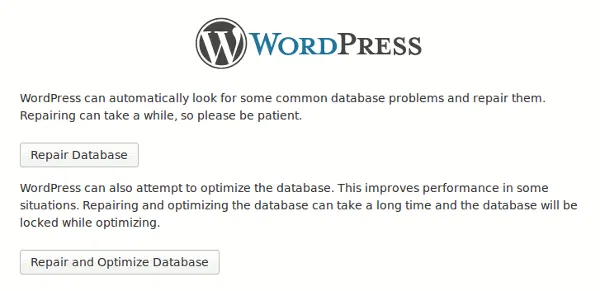
You can click either the “Repair Database” button or the “Repair and Optimize Database” button. Both will repair your database. My preference would be the “Repair and Optimize Database” option since it optimizes your database as well.
5. You should now see a bunch of code. Scroll down to the end of the page and you should see “Repairs complete. Please remove the following line from wp-config.php to prevent this page from being used by unauthorized users.” That’s it. Your database is now repaired.

Reload your website to see if it is working and if you are able to login.
6. Lastly, remove the “WP_ALLOW_REPAIR” line from your “wp-config.php” file and re-upload it to your server.
Also read: How to Get a Free SSL Certificate for Your WordPress Website
What if the above method doesn’t work
If the above method doesn’t work, you can try the phpMyAdmin approach.
1. Login to your web host cPanel and open the phpMyAdmin module.
2. On the left sidebar, click to select your WordPress database. (If there are multiple databases in your phpMyAdmin and you are not sure which one belongs to your WordPress site, check your wp-config.php file for the database name).
3. If you have a good idea which table is corrupted, select that particular table by placing a check beside it. If not, simply select all the tables in the list. At the end of the table, there is a dropdown bar. Click and select “Repair table”.
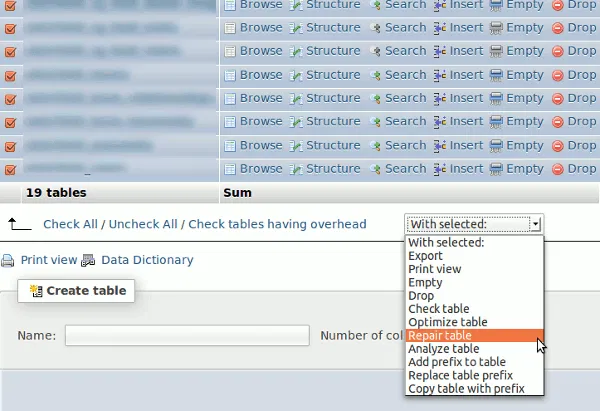
phpMyAdmin will then proceed to repair your table(s). Once done, go back to your website and see if everything is working fine.
Last approach
If all else fails, I hope that you did backup your website regularly. This is where your backup database comes in useful.
Image credit: WordPress by BigStockPhoto