Bookmarks play a small but important role in making it easier for us to quickly access frequently visited websites. However, it’s a challenge to manage, especially if you have different browsers installed. If you work with both Firefox and Chrome, an extension/add-on called EverSync does a superb job of syncing bookmarks between the two browsers.

First, you’ll need to install EverSync for Firefox and Chrome.

Once installed, you’ll need to register for an EverSync account. You can do this by clicking on either of the EverSync buttons found along the top menu bars of the browser.

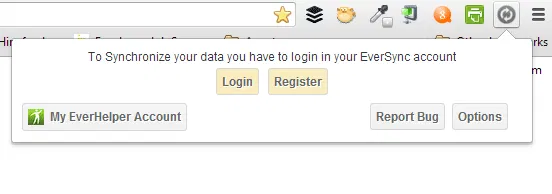
In Chrome, the button drops down and provides you with a Login or Register button.
eversync-chrome-register

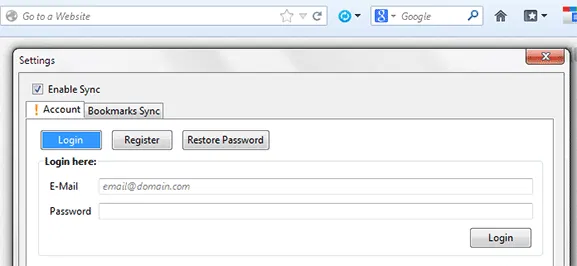
In Firefox, click on Sync Bookmarks and a dialog box opens with a Login and Register buttons.
eversync-firefox-register

You only need to register using one browser, and you don’t have to do it for both. Registration requires only your email address and a password. Registration allows EverSync to store your data in their servers, so your bookmarks are stored in the cloud and safely backed up.

Syncing Bookmarks in Firefox

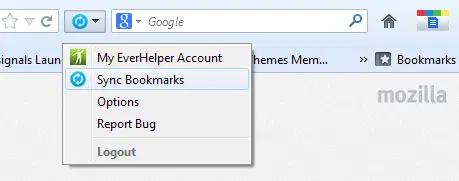
In your Firefox browser, click on the Sync icon again. In the drop down, click on Sync Bookmarks.
eversync-firefox-icon

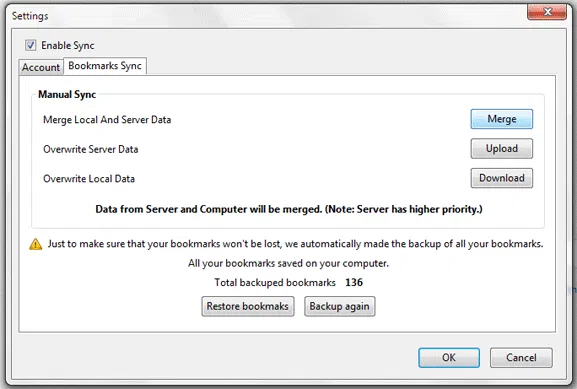
A dialog box will open. There are three ways you can do to start syncing bookmarks: Merge, Upload and Download. If this is the first time you’re going to use EverSync, then merging server and computer data is the best option.
eversync-firefox-settings

This setting is chosen just once, and will become the default action the next time you sync bookmarks. If you want to change the sync method, you can always go back to this page and change it accordingly.

Syncing Bookmarks in Chrome

Chrome has its own bookmark syncing feature, and this has to be disabled for EverSync to work. To do this, go to “Settings -> Advanced Sync Settings”. Change the drop down from “Sync Everything” to “Choose what to sync”. Uncheck Bookmarks from the list below. Click OK.
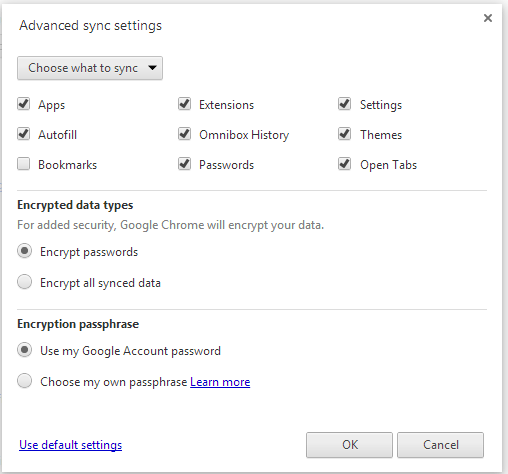
eversync-chrome-settings

You are now ready to enable EverSync. Click on the Sync icon and click Start Synchronization.
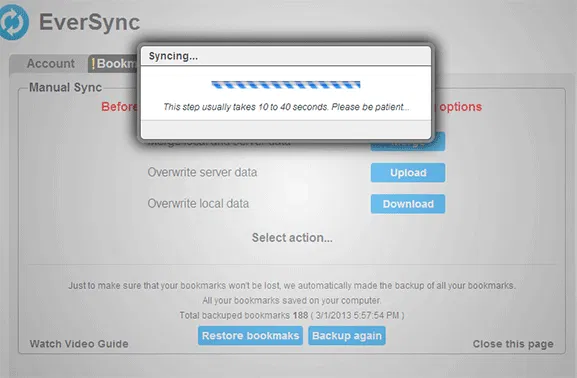
eversync-chrome-syncing

A similar menu should open and prompt you to select from Merge, Upload or Download. To make syncing between Chrome and Firefox work without losing data, be sure to always choose Merge.

As a precaution, EverSync automatically backs up your bookmarks and saves it in its server even if you haven’t done so. The number of bookmarks saved is indicated on the bottom of the sync settings dialog box. If, at any time, your bookmarks disappear, go to this page and click Restore bookmarks.
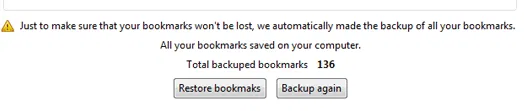
eversync-back-up

Remember that uploading and downloading options will overwrite what you’ve already saved in the server. If you upload your current bookmarks, it will erase all previous ones you’ve synced and retain only the ones you have at the time of upload. The same goes with downloading.

Once you have sync settings set up in both browsers, you should be able to see your bookmarks in either browser. When you add a new bookmark in Chrome, it should automatically appear in Firefox too. If not, you may need to refresh the bookmark page, or click on the EverSync icon.

Converting Files In Google Drive With DriveConverter

If you’re looking for a built-in tool to convert files in Google Drive, then try DriveConverter, a web app and Chrome extension specially built for Google Drive. It offers more flexible conversion features for documents, images and music files.

The Complete Guide to Avoid Scams on Craigslist

Craigslist is a popular place for people to buy and sell stuff. It is also a good hangout for fraudster to scam the user. This guide will teach you how to avoid scams on Craigslist.

How Is Simple Different From Traditional Banking?

Simple is an online service that seeks to change the way people manage their money, but just how is it different from traditional banking?

How to Configure The Tabbed Inbox In Gmail

Google has recently introduced the new tabbed inbox in Gmail which will auto-sort your emails into various tabs and help you to be more productive. This new tabbed inbox interface is not activated by default. This article will show you how you can activate and configure the tabbed inbox in Gmail.

How to Quickly Close Multiple Tabs in Browser

There are times when you opened too many tabs in your browser and it is causing the whole system to slow down. A quick and easy way to fix this is to close as many unused tabs as possible to minimize the memory usage. However, it can be a chores if you have tons of opened tabs. Luckily, most browsers come with a way for you to quickly close multiple tabs with a single click.

8 Things You Should Do When Seeking Technical Support

Getting technical support is supposed to be easy, but sometimes we just make it more complicated. Here are things you should do to avoid getting stuck in support limbo.

How to Fix Chrome’s Extension Security Problems

Some of the extensions in Chrome store are using hidden adware to make money off of you. Here are some fixes for you to tackle the extension security problems.

How to Copy Multiple Texts in Firefox

For those who like copying text from multiple web pages, Text MultiCopy for Firefox allows you to copy multiple texts and paste them all at the same time.

End-To-End Encryption (And Principle) Explained

You probably have heard the term “end-to-end” plenty of times, but what is it really about? Read on to find out more.

Organize Firefox Bookmarks with ViewMarks

ViewMarks puts a creative twist on your Firefox bookmarks using a file manager paradigm. It lets you manage your bookmarks like they’re files and folders.

5 of the Best Gmail Plugins You Should Start Using Right Away

Email plugins are useful to help you get your tasks done on time. Here are some Gmail plugins to help you improve your productivity.

How to Return a WordPress Multisite Setup to a Single Site Setup

It is easy to create WordPress multisite, but not the reverse. Here is how to return a child site of a multisite setup to a WordPress single site.