We have shown you various ways to set up two-factor authentication in WordPress. You can either use Google Authenticator or Duo Two Factor Authentication. If those are not good enough for you, you might want to try out Rublon – a plugin that implements two-factor authentication in WordPress, without you having to do the additional authentication step.

How Rublon works is by restricting your login to your personal computer, particularly your browser. After you have added your PC to the list of “Trusted Devices,” you will only be able to log in to your WordPress Dashboard from your PC. Login from other PCs or remote location will not be validated, even with the correct username and password.

Installation of Rublon

There are two parts to setting up Rublon for your WordPress site.

First part: Setting up Rublon on your mobile phone

The first part requires you to install its app on your mobile phone. It is available for Android, iOS, Windows Phone and Blackberry.

Once installed on your mobile device, you have to setup an account (just your email address will do) with Rublon. This allows you to manage your list of Trusted Devices remotely.
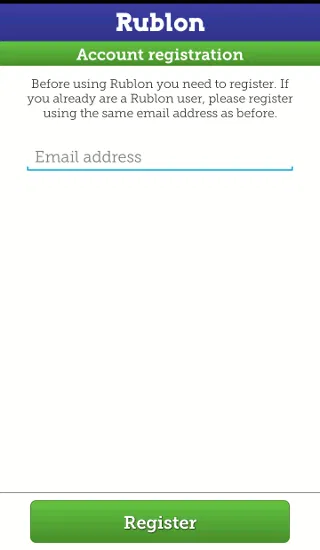
rublon-mobile-app-authentication

After you have entered your email address, it will bring you to the QR scanner for you to scan the QR code. That’s all for now.

Second part: Setting up Rublon on your WordPress site

For the second part, you need to install the Rublon plugin on your WordPress site.

Next, proceed to the Rublon Settings page, and you can see a “Protect Your Account” image.
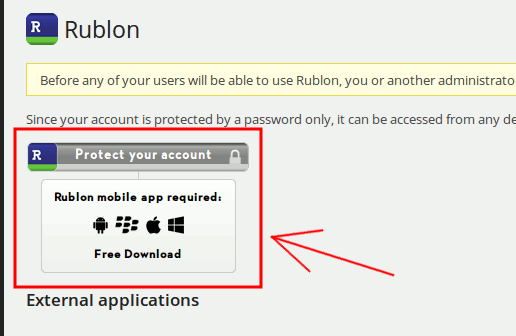
rublon-protect-your-account

Click on it. It will bring you to the Rublon site with a QR code.
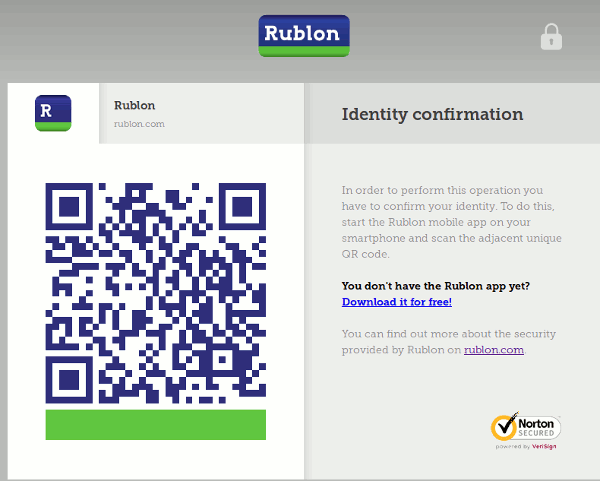
rublon-qr-code

Now, use the Rublon app on your mobile phone to scan the QR code. This will add your current computer and browser to the “Trusted Devices” list.

That’s it. All login attempts from computers not in the Trusted Devices list will not be successful, even if the username and password is correct.

One thing to note is that for a site with multiple users, all of them have to authenticate with Rublon for this to work on their account.

Managing your trusted devices

To manage your list of trusted devices, you just have to open the Rublon mobile app and tap on the “Trusted Devices” button. It will then show you a list of the devices added to your account. From here, you can remove the entry that is no longer in use. For example, if you have added a computer from the Internet cafe while you were travelling, you can remove it from the list after you are done with your work.
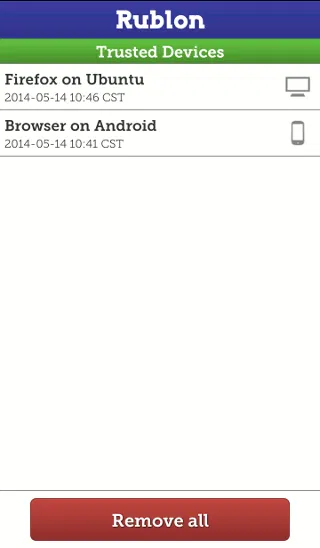
rublon-mobile-app-trusted-device

One caveat to the Rublon app is that it is browser dependent. This means that if you authenticate it with Firefox on your machine, you won’t be able to access it with Chrome on your machine unless you add it to the trusted device list. For those who have several browsers in your machine, this is going to be a hassle.

Do you think this is a useful app that can help you improve your site’s security? Let us know in the comments.

Turn Multi-Page Articles Into a Continuously Scrolling Single Page

Have you ever clicked on an article that was broken up into numerous pages? Those multi-page articles can be really annoying and time-consuming. If you’re tired of clicking “next” over and over again, here’s how to turn those multi-page articles into a single page.

Setup Your Own Self-Hosted Survey Application and Create Unlimited Survey Forms

While there are tons of tools and services that you use to create survey forms and conduct surveys, If you wish to have full control over your data, LimeSurvey is a good survey application that you can install on your own server and host your own surveys.

Speed Dial with Full Online Sync For Firefox

Even being a veteran browser, Firefox has not been able to implement the Speed Dial function well. That’s where FVD Speed Dial comes into play. This fully functional Firefox addon fundamentally changes the Speed Dial feature to what it should have been all along.

3 Ways to Allow Guest Users on Google Chrome

If you’re using Chrome and don’t feel like letting people poking into your privacy, here are some ways to set up guest users account in Google Chrome.

Forget Everything Else: Exclude Browsing History When Searching via Chrome’s Omnibox

Don’t want your browsing history, previously typed URLs or bookmarks displayed when searching from Chrome’s Omnibox? Use this quick trick to exclude them.

Using the Google Drive Form Feature as an Organizational Tool

Google Drive has a hidden function with Forms, and while it creates great surveys and quizzes, it can also be used as a useful organizational tool.

Stop Gmail from Showing You Targeted Ads

Google has been scanning your emails so as to serve you targeted ads. Here is how you can opt out of the system and stop Gmail from showing you targeted ads.

Force Google Chrome to Remember Username and Password for Particular Websites

Have you encountered websites where Google Chrome refuses to remember the login username and password? This extension can fix it.

Organize Firefox Bookmarks with ViewMarks

ViewMarks puts a creative twist on your Firefox bookmarks using a file manager paradigm. It lets you manage your bookmarks like they’re files and folders.

A Beginner’s Guide to Not Being Compromised on the Internet

You may understand what social engineering is, but are not sure how to properly defence against it. Here are a couple of advices for you.

A New Exploit Is in Your Browser Right Now – How to Protect Yourself

Google has just discovered a POODLE exploit that can affect millions of browsers worldwide at this moment. Let’s see how you can protect yourself from POODLE exploit.

Just How Secure Is Your Bank Account?

You probably have an online banking account. What if someone decided to hack into your account and steal from it? How secure do you think your bank account is?