Cloning and migrating a WordPress website is never an easy task. Even though you can use all the help provided by the WordPress community, the manual operation is always a daunting task, especially if you are a beginner. Even a small unintentional mistake can cause some serious issues like missing posts or media, corrupted permalinks, extended period of downtimes, etc. In the worst case scenario, it may completely ruin your WordPress installation. To save all the hassle, here is a single plugin that can easily clone and migrate WordPress sites without messing with a whole lot of complicated settings.
Note: Before you do anything with your WordPress installation, make sure that you have a good recent backup. This can be used to restore your site if anything happens. Moreover, I also assume that you know how to create a new database in your web server.
Clone and Migrate WordPress Sites
1. To easily clone and migrate WordPress sites, we are going to use a free WordPress plugin called Duplicator. You can download it from the official WordPress repository and install it like any other WordPress plugin.
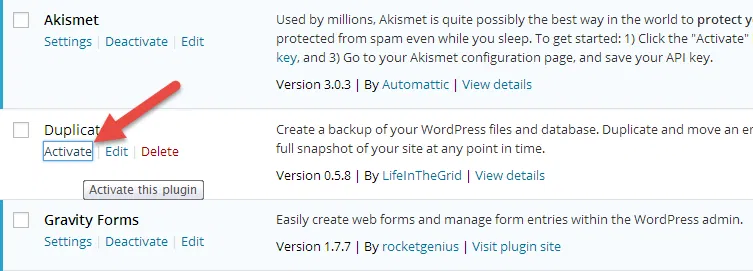
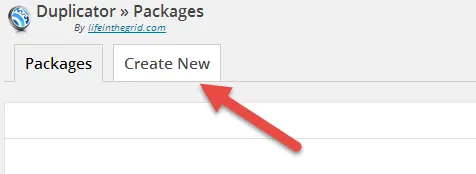
2. After activating, navigate to the Duplicator page using the link on the side menu. By default, Duplicator lists all the available packages. Simply click on the “Create New” button to start creating a new package.
3. Here in this window, Duplicator runs a quick scan on your server to see if your server meets all the requirements and displays a “Pass” or “Fail” status. Enter the name of the package and any notes as required and click on the “Next” button. While creating the package, you can further customize the package by editing the “Advanced” settings under Archive and Installer tabs.
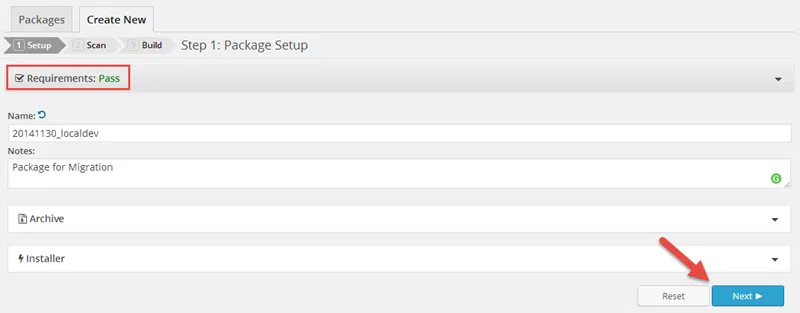 advanced
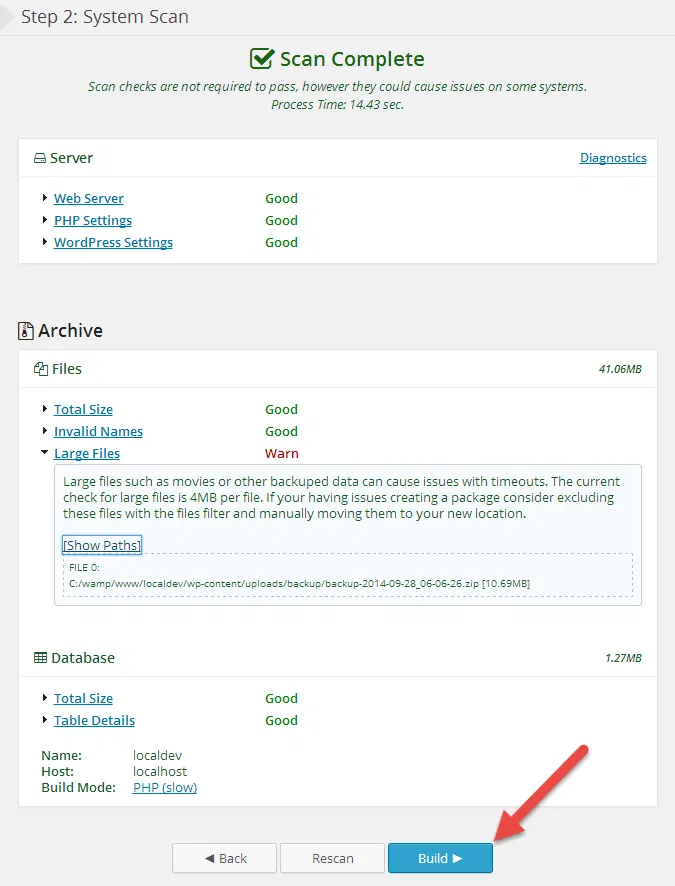
4. Now in this window, click on the “Build” button to start creating the package. If you receive any warning messages in this window, do solve them before creating the package as they may sometimes cause problems with package creation.
5. Once the creation of the package is completed, download the Installer (installer.php) and Archive files by clicking on the “Installer” and “Archive” buttons.
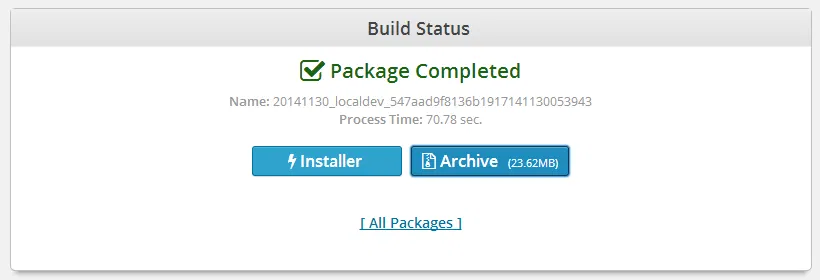
6. Now to migrate the site, open up FileZilla or other equivalent FTP software and log in to your new web server. Once you are in, upload both the “installer.php” file and the “archive” file into the root directory of your website.
7. Now to visit the installer page, enter the following URL while replacing “yourdomain.com” with your actual domain.
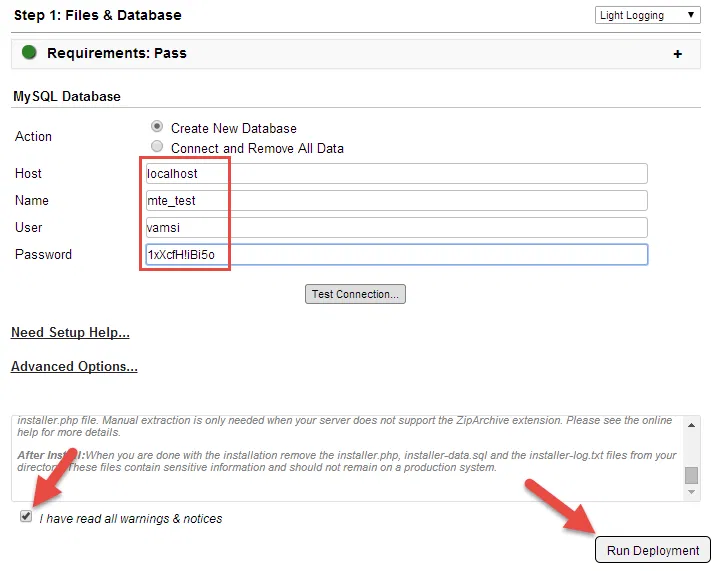
http://yourdomain.com/installer.php8. The above action will bring up the Duplicator installer page. Enter the database details and click on the “Test connection” button to verify the entered details. If everything is fine, go through all the warnings mentioned by the Duplicator plugin, select the check box “I have read all warnings and notices” and click on the “Run deployment” button.
Note: Before entering the database details, make sure that you have already created a new database using the same exact details for the migration purpose.
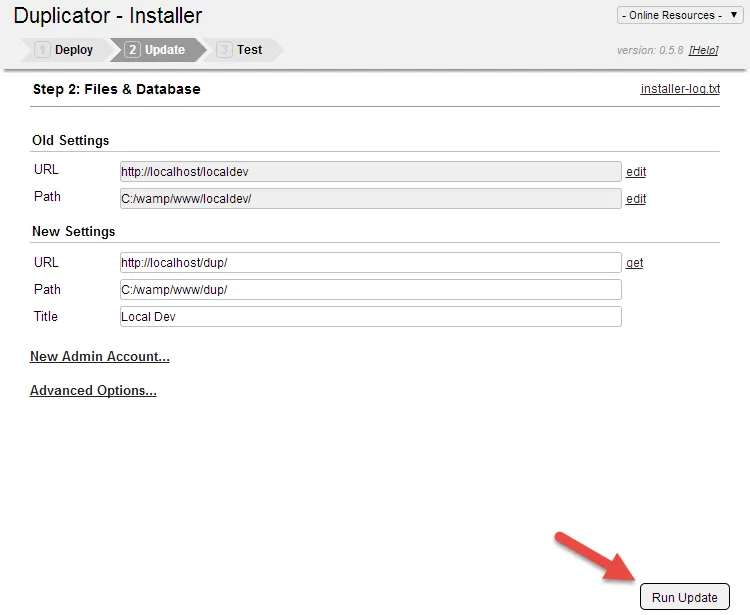
9. Here in the files and database window, Duplicator will pre-populate all the settings for you. Just check them and click on the “Run update” button to finish the migrating process.
10. Once the migration is finished, Duplicator will display some important final steps. At this point I recommend you test your site using the “Test Site” link and to update the permalinks from the settings menu of your WordPress site.
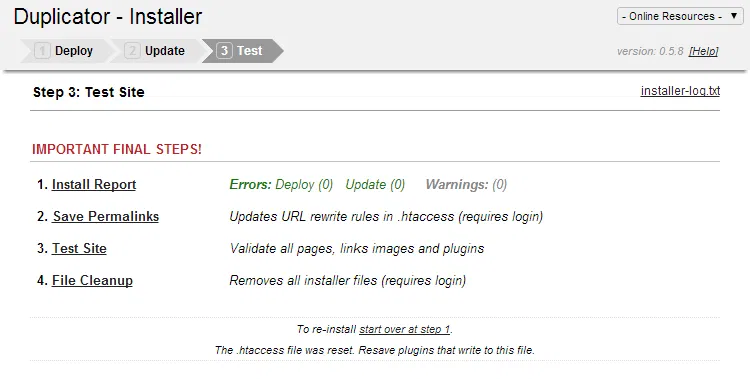
11. Once you have confirmed that everything is fine, click on the “File Cleanup” link to remove all the Duplicator installer files. This ensures that no third party can access the installer files to mess with your WordPress site.
That’s all there is to do, and it is that easy to clone and migrate a WordPress website using Duplicator.
Hopefully that helps, and do comment below if you face any problems while using Duplicator for cloning and migration purposes.