For the most part, Firefox doesn’t change massively between iterations. The old versions feel similar, if not totally identical to the newer versions, and many people grow accustomed to what has been familiar for so long.

With the release of Firefox 34, the search box on the right was changed. We previously explained how to massively upgrade Firefox’s searching capability, so for some it may be a desirable change.

It is entirely possible that the new search system is compatible with the tweaks we presented, but there is no guarantee. Thus compatibility may be restricted, and the older search UI may need to be restored.

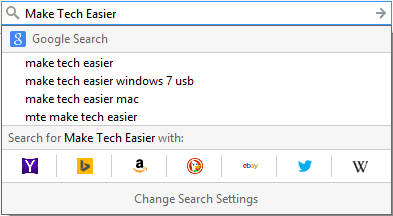
The newer search bar contains a number of search engines as standard and assumes that you’ll use it quite differently.

Rather than using predicted results, it allows you to type a full term and then choose the engine you’d like to search with. The results are then opened in a new tab.

By default the new search experience looks like this:
FS-New-Bar

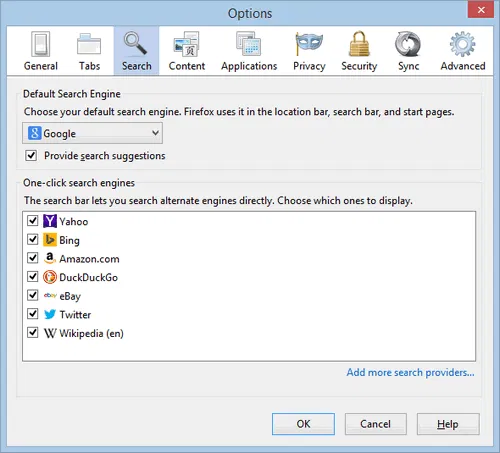
Clicking the “Change Search Settings” option at the bottom of the drop-down will open another window, which also differs from the old UI.
FS-New-Window

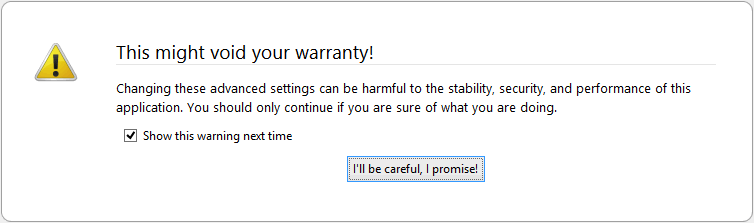
Open a new tab in Firefox, and type about:config into the address bar. You will receive a warning, but since we’re not doing anything too risky, it poses no risk to the browser’s performance.
FS-About-Config

Along the top of the page is a search box which can be used to filter through the many, many options available. Type “oneoffbuttons” and it will show only one entry: browser.search.showOneOffButtons.

FS-OneOff-Button

If you’re using the new search UI, then it will be set to “True.” Double click it, and it will change to “False.” The line of text will be bold when you have changed from the default setting, making it easy to spot.

Close Firefox fully; download windows and extensions are still considered part of the overall process, so must also be closed.

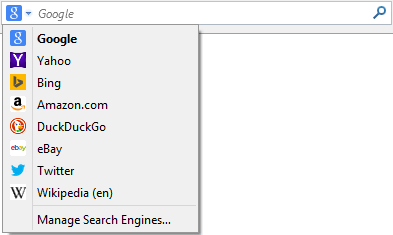
Open the browser and check the search bar; it should now have the familiar old layout.
FS-Old-Bar

Even the older search settings, identified with the “Manage Search Engines” button, are restored through this simple configuration tweak.
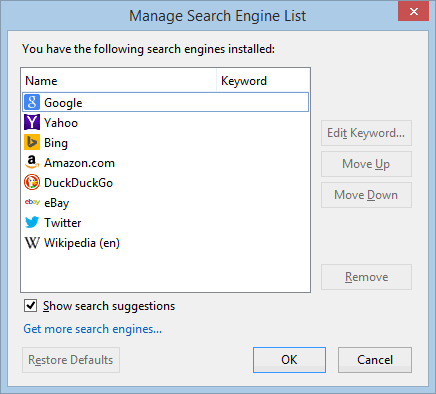
FS-Old-Window

While we’re not entirely sure why Mozilla chose to keep a toggle for the older search UI, we’re glad that it is the case. Not everyone will mind the change, and not everyone will want to go back, but it is pleasant to have made it so simple for all parties.

Which search UI do you prefer? Let us know in the comments below.

How To Open Multiple Links in Chrome

You might come across a webpage with several links that you want to check them out. If you’re looking for a fast, efficient way to open links in the fastest way possible, then LinkClump might just help you with that.

Track Time and Goals Using Progress Bar Timer [Google Chrome]

Tracking your time and task can be a difficult job. While some may have no trouble keeping track of time in their heads, others may benefit from a more visual means of measuring progress. Progress Bar Timer is a Google Chrome extension that turns deadlines and quotas into convenient progress bars to help track time and goals.

Get the Black Google Menu Bar Back with this Chrome Extension

Don’t like the new Google App Launcher? Want to get the old black Google menu bar back at the top of Google websites? Here’s how to do that in Chrome.

Identify the Fonts on Any Web Page [Chrome]

WhatFont is a Chrome extension that will identify the fonts used on any web page, just by hovering your mouse over them. No more web font guessing!

Still Need a 2014 Calendar? Make One Using Pically

Are you still looking for the perfect 2014 calendar. Pically is a free program that you can grab and use to create beautiful calendars using your own photos.

How Does ICANN’s Relationship with the US Affect You?

You’ve probably heard on the news something about ICANN and its “cozy relationship with the United States.” So how does that affect both you and me?

Big List of Tools and Services to Help You Read Everything Faster

With the overwhelming information in the Internet, it has become necessary for us to read faster. Here are some tools to improve your reading speed.

Reader vs iReader: The Battle of the Readability Extensions

Reader and iReader for Firefox are two great extensions to implement a “Reader mode” in Firefox, but which is better? Let’s find out.

How to Transfer the Contents of User Profiles in Firefox

If you are trying out a new Firefox-based browser, you can transfer the content of your old user profiles so all your items are intact. Here’s how to do it.

How Facebook Scammers Use Disasters to Make Money from You

Facebook scammers love to turn the misfortune of others into an opportunity to make a quick buck. Here are some of the techniques they use.

How to Enable Timed Website Blocking In Firefox

There are many distractions in the Web. PomodoroFox for Firefox lets you blocks unproductive websites that you specify and be more productive.

How to Close and Snooze Tabs in Chrome to Reduce the Clutter

It’s common to have multiple tabs open in a web browser. Here is how you can close and snooze tabs in Chrome to free up space in your web browser.