When Firefox introduced the Speed Dial feature, users thought they’d finally be able to control the new tab page the way they wanted. However, Firefox’s idea of a functional Speed Dial is very different to what users need. It only shows the history of your recently accessed pages and doesn’t even allow you to specify what you want. That’s where FVD Speed Dial comes into play. This fully functional Firefox addon fundamentally changes the Speed Dial feature to what it should have been all along.
Get Started with FVD Speed Dial
You can download FVD Speed Dial from Mozilla’s web site.
FVD Speed Dial follows the normal add-on installation process like other Firefox add-ons. You’ll need to restart your browser before using it.
Setting Up FVD Speed Dial
FVD Speed Dial comes with a lot of settings for you to customize the add-on.
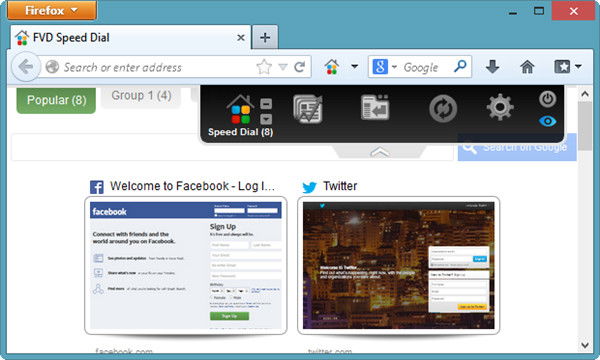
This is what sets FVD Speed Dial above every other Firefox Speed Dial add-on out there.
Click on the “Gear Icon” in the Speed Dial page to get started.
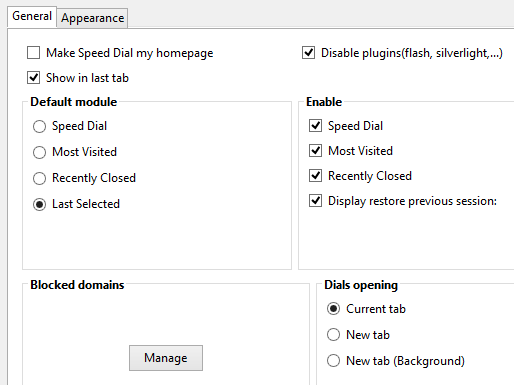
Global Options lets you deal with General and Appearance related settings.
From here, you can enable the various features of FVD Speed Dial, along with choosing the default mode the new tab page opens to.
The Appearance settings give you the power to change the way the Speed Dial layout looks and feels.
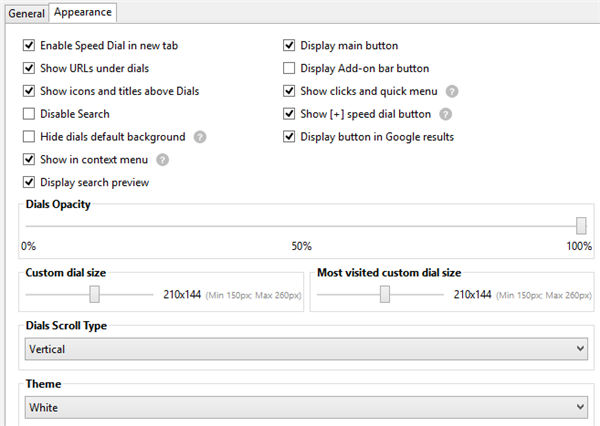
You can change the sizing of dials, so that your most used dials are larger than the rest of the dials for easy access.
You’re also able to change the way dials scroll, as well as the overall theme between light and dark in the Speed Dial.
The Speed Dial settings let you enable popular groups and create dial groups.
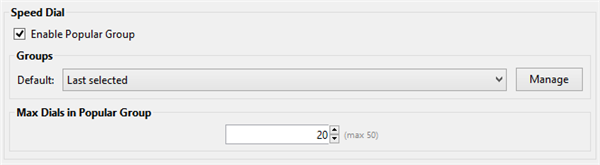
Click “Manage” to create your own dials and organize them.
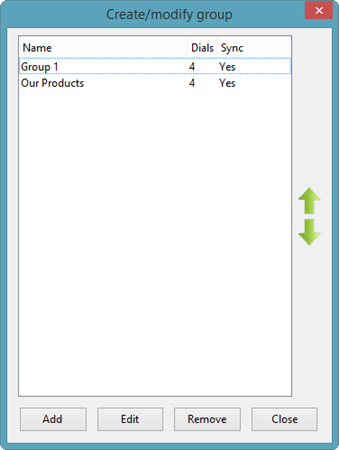
This lets you create your own groups for your Speed Dial that give you quick access to the sites and services you want.
Most Visited settings change the amount of sites shown in the Speed Dial, how they’re ordered and what time period they’re calculated from.
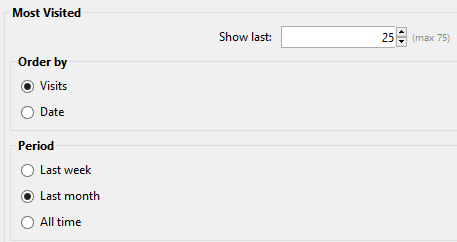
Recently Closed settings allow you to change how many tabs are shown at a time.

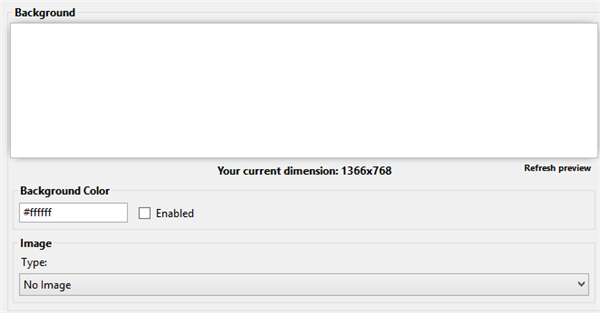
Background lets you choose a background color or image to use on the Speed Dial.
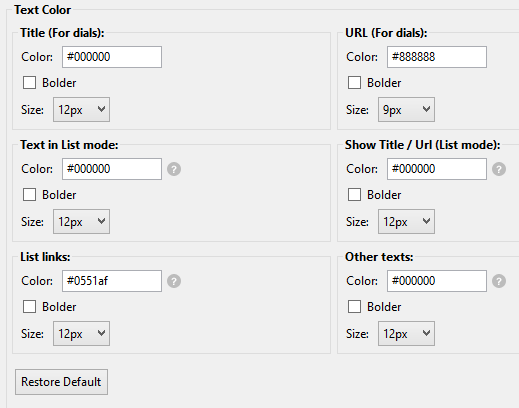
Text Color lets you further customize the color scheme of the Speed Dial by giving you options for every type of text it uses.
Syncing FVD Speed Dial
One of the best features included in FVD Speed Dial is EverSync integration. This lets you sync your dials so that you can access them in any Firefox browser, no matter the computer you use.
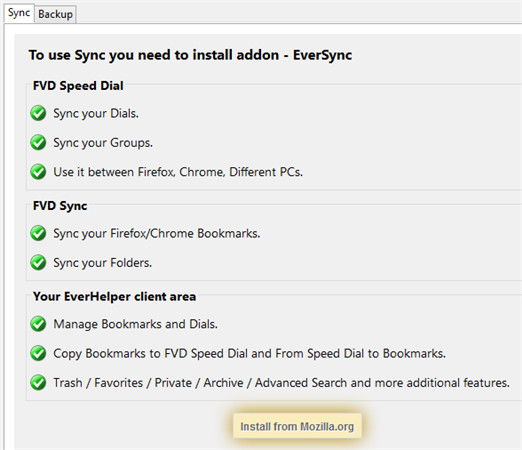
You’ll need to install the EverSync add-on into Firefox either from its settings page or this link.
EverSync needs you to restart Firefox to use it. It also syncs more than just your Speed Dial; it syncs you bookmarks and other Firefox data if set up properly.
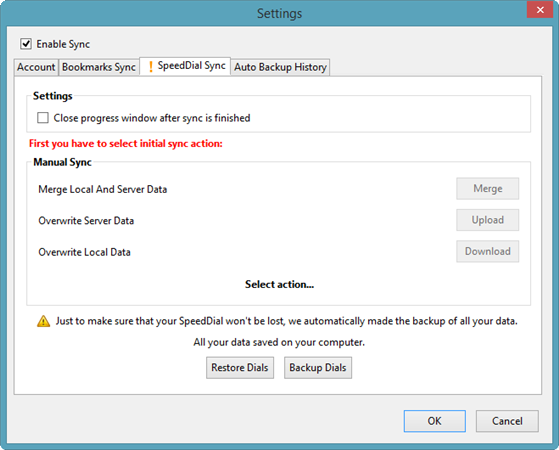
You don’t have to sign up for EverSync to let it store your Speed Dials and other data from Firefox. Signing up for an account just gives you some security, so it’s up to you. Otherwise, you can just use EverSync to backup and restore your Speed Dials bookmarks and more. The process is the same for each type of backup and restore.
Click the “Speed Dial” tab and click “Backup Dials.”
Clicking “Restore Dials” will let you choose a backup to restore in Firefox.
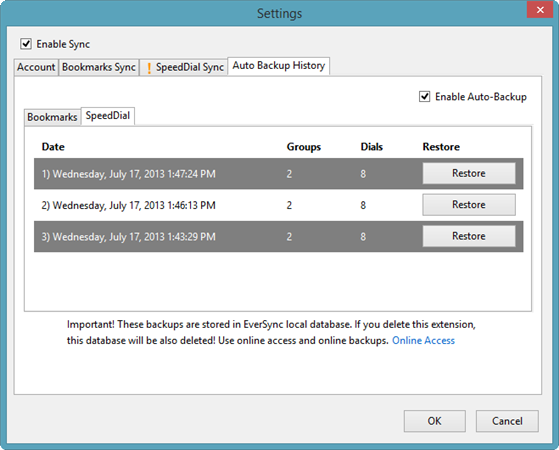
You can select the backup want to restore and it’ll be auto-downloaded and loaded into your Speed Dial tab.
Clicking “Enable Auto-Backup” will let EverSync auto-backup your Speed Dial regularly so you don’t have to manually do it when you make changes.
Part of the Sync settings include the ability to import and export the entirety of your Speed Dial settings.
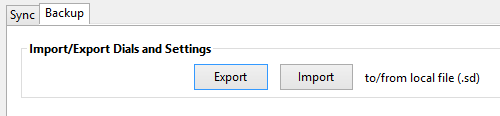
This, in conjunction with the EverSync backup, gives you a full backup of FVD Speed Dial’s settings.
Securing FVD Speed Dial
FVD Speed Dials’ settings also let you use a passcode to secure your dials. If you share a browser or PC with others, enabling this feature can help protect your Firefox Speed Dials.
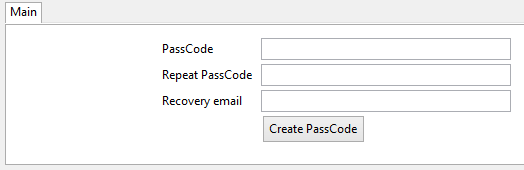
All you need to do is create a passcode, enter a recovery e-mail and click “Create PassCode.”
Whenever you access the Speed Dial, you’ll need to enter your passcode before gaining access to everything it has to offer in Firefox.
Conclusion
After going through the settings for FVD Speed Dial, you gain access to a fully functional Speed Dial that should have been designed for Firefox users from the get go. Speed Dial sync, backup and more can be yours in Firefox with FVD Speed Dial.