We bloggers are pretty enthusiastic and would love to publish as many articles as possible and as soon as possible. There comes the problem: at one time or other we could have accidentally pressed the “Publish” button and caused the article to go live even before it is completed.
If you have pressed the Publish button accidentally, it may scare you because the article or the post is not yet completed or you haven’t proofread it yet or the article is to be scheduled on a future date, etc. Moreover, by the time you realize and unpublish the article, the post may have already appeared on social media, or it may be sent to your email subscribers, or in the worst case scenario your readers may comment or send emails asking you what it is that you have written.
No matter what the reason for the accidental publication, it is really not a good experience for your users and your site. That said, you may also lose some points in SEO perspective. A good way to overcome this is to add a confirmation message before publishing a post or article in WordPress.
To add a custom message before publishing a post in WordPress, you can follow any one of the two methods shown below, e.g. using a free WordPress plugin (easy way) or by manually adding a piece of code (smart way).
By Using a Free WordPress Plugin
The first method is probably the simplest way if you don’t want to mess with the code. To add a custom confirmation message before publishing a post, all you have to do is download and install a free plugin called Confirm Publishing Actions. You can either install it by uploading it to your “wp-content/plugins” folder or by using the built-in WordPress plugin installer.
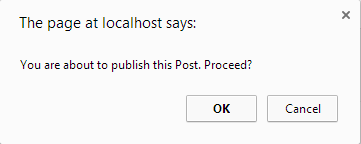
Once installed, this plugin will alert you whenever you try to publish, update and delete a post in your WordPress site. This plugin doesn’t have any settings to configure, so you don’t have worry about any additional settings.
Add a Code Snippet
In case you don’t want to add another plugin, you can simply copy and paste the following code snippet into your theme’s “functions.php” file.
function add_publish_confirmation(){
    $confirmation_message = "Are you sure you want to publish this post?";

    echo '<script type="text/javascript">';
    echo '<!-- var publish = document.getElementById("publish");';
    echo 'if (publish !== null){';
    echo 'publish.onclick = function(){ return confirm("'.$confirmation_message.'"); };';
    echo '}';
    echo '// --></script>';
}
add_action('admin_footer', 'add_publish_confirmation');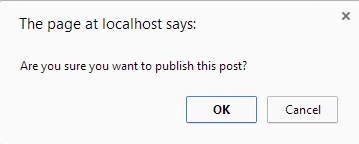
If you want to change the custom message, just edit line two of the code. Once you are done adding the code snippet, just save the file. From now on whenever you try to publish or update a post, a confirmation message will appear to make sure that you are publishing that specific post because you wanted to.
As this code is not theme specific, you can even add it to your site-specific plugin so that you won’t have to clutter your functions.php file.
That’s all there is to do, and it is that easy to add a confirmation message before publishing a post. Do comment below if you face any problems while adding this code.