There are tons of tools and services that you use to create survey forms and conduct surveys. Google Forms is probably the easiest that you can use for free. LimeSurvey is an open source application that you can install in your own web server and setup your own survey application. With LimeSurvey, you can create unlimited survey forms and conduct as many surveys as you want without any restriction.
The good thing about LimeSurvey is that you have full control over your surveys and data. There is no need to rely on third party services to run your surveys and host your data. Best of all, it is free.
Installation
1. Download LimeSurvey from its website. Extract the compressed file.
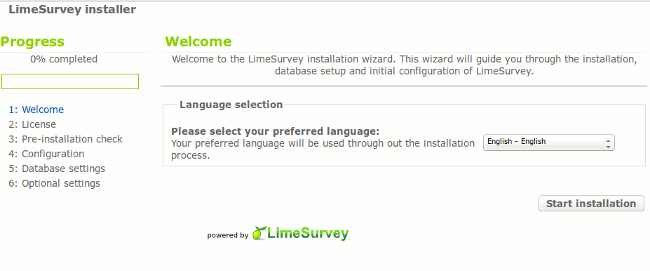
2. Upload the LimeSurvey folder to your web server. Open a browser and navigate to the URL: http://your-site-url.com/limesurvey or whatever filepath you have uploaded to. You should see the installation screen. Select your preferred language and click “Start Installation”.
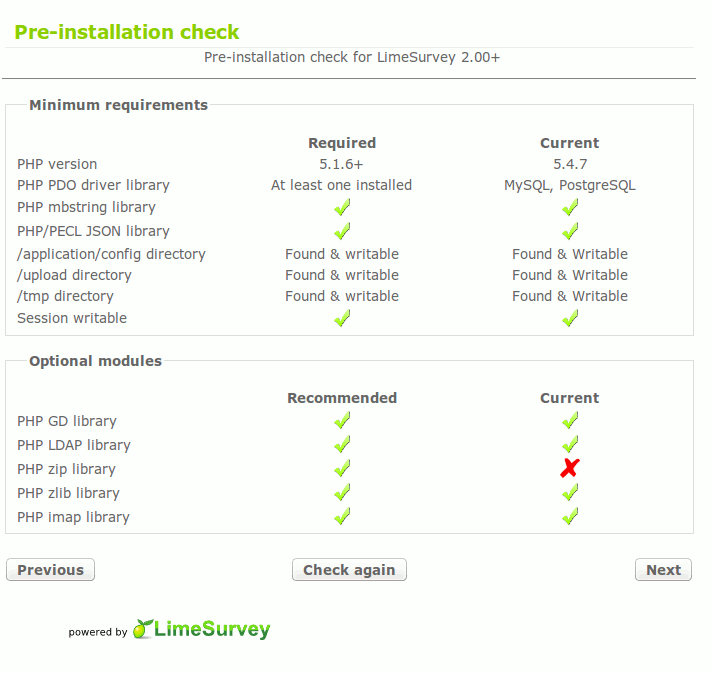
3. The installer will do a system check to see if your server meets the minimum requirement. If everything is fine, click “Next”.
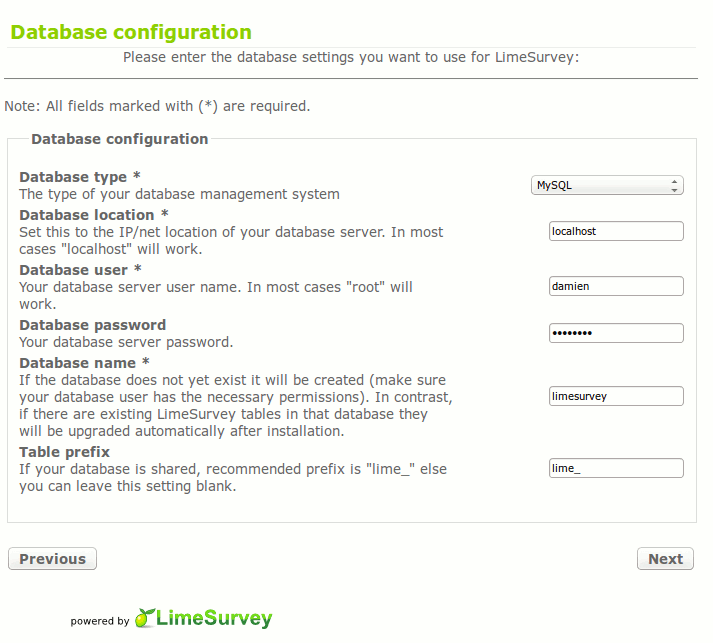
4. Add the database detail. If you are not sure about this, contact your system adminstrator.
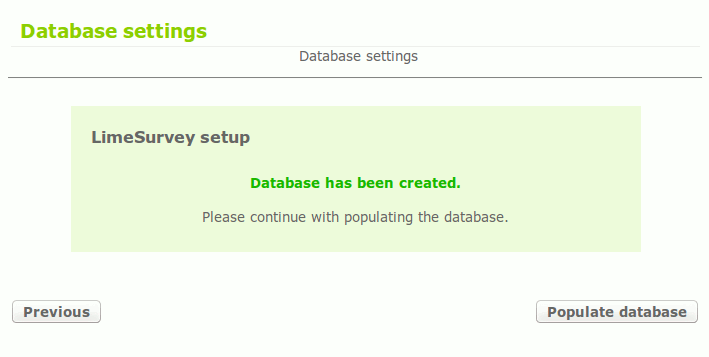
5. Click the “Populate Database” button. This will setup LimeSurvey.
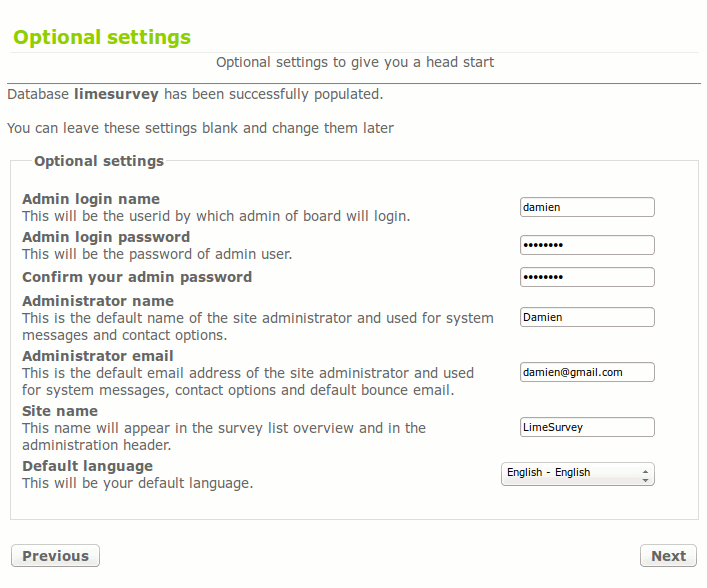
6. The next step is to setup your adminstrator account. You can change the username, password, administrator name, email and site name.
That’s it for the installation.
Usage
Once you have installed LimeSurvey, the next thing to do is to login to the central panel and create your first survey.
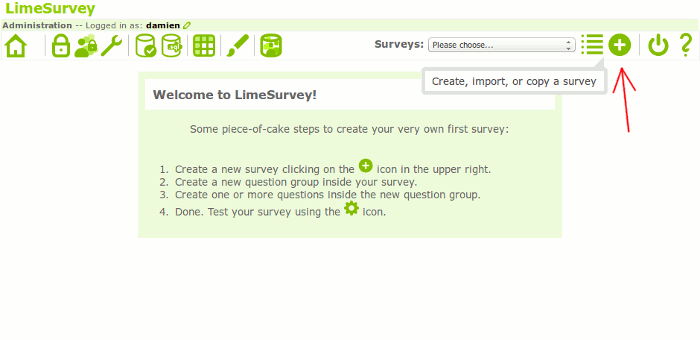
1. At the central panel, click the “+” button to create your survey.
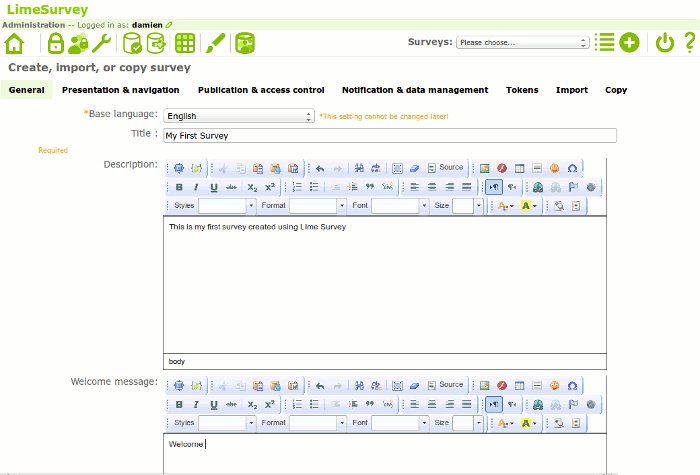
2. The first thing to do is to setup the information of the survey. This includes the name of the survey, description, Welcome message etc. Once you are done with the General info, click “Save”. You can return to edit the rest of the admin stuff after you have setup the survey questions.
3. Next, click the lower “+” button to add a new question group. Once that is completed, click the next lower “+” button to add question to this group.
You can then follow the same procedure to add more questions to the group, or create new question groups. Once you are done adding all the question groups(and questions), you can click the “Play” button to activate the survey.
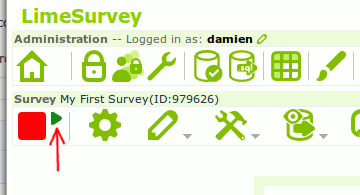
You can now view the survey URL where you can email to your client/friend to get them to participate in the survey.
Alternatively, you can return to further edit the survey before you make it live. There are tons of settings that you can configure, so do play with it for a while and explore the possibilities.
Features of LimeSurvey
There are plenty of features in LimeSurvey that you can make use of.
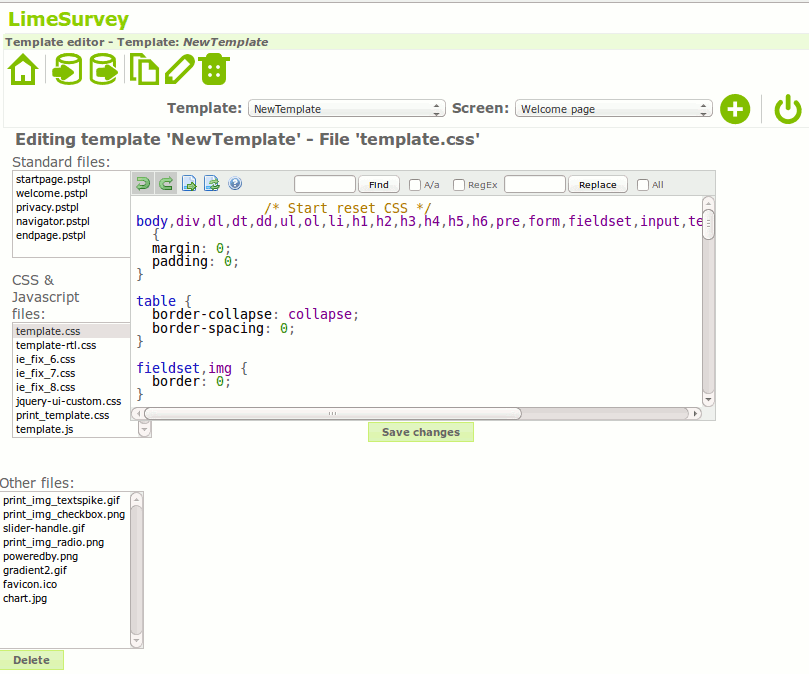
1. Editing existing template or create your own
LimeSurvey comes with a set of template that you can use. If none of the template in the list catches your attention, you can also create your own. This will require you to have some knowledge of HTML and CSS coding.
2. Add token to survey
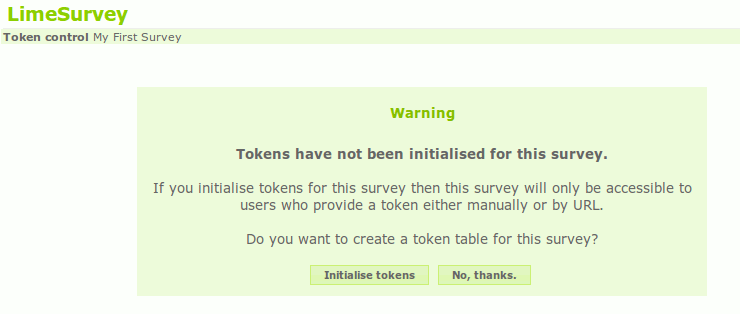
You can set a token for each survey so that only invited participants can take part in the survey. To create a token, simply click the “Token Management” button in the survey form.
3. Import/Export
There are ready made questions that you can import into the survey. If you have your questions on a csv file, you can import it in as well. You can also export your survey and data to text, CSV, PDF, SPSS, R, queXML and MS Excel format.
4. Cookie or session based surveys
This allows the user to return to complete the survey at a later date.
For more features, check out the LimeSurvey features list.
Conclusion
Compared to commerical survey applications that come with beautiful interface and drag-and-drop way of creating surveys, LimeSurvey is rather unpolished in its user interface. There is a initial learning curve that you need to overcome, but once you have successfully created your first survey form, you will be able to do with ease for all future forms. The real benefit of LimeSurvey lies in the fact is it heavily supported and developed by the community and that you can have full control of your surveys and data. Not to mention that you can also create unlimited survey forms for free.
For those who need to conduct surveys regularly and wish to have full control over your data, this survey application is a good tool for you.
LimeSurvey
Image credit: Customer Service Survey by BigStockPhoto