Chrome was the first browser to bring the Omnibar to the world, and even now there has been no better alternative posed. Yet for all the power of Google’s search, it could be said that Chrome’s Omnibar is somewhat limited. In this guide, we’ll show you how to supercharge Firefox’s search facilities, outstripping even Chrome in this field.
This tip relies on the “Properties” window in the Bookmarks sidebar, and specifically, the Keyword field. At first it appears the field has no purpose whatsoever – and you’d be absolutely right. With some alteration to the URL being bookmarked, it becomes powerful. However, there are a number of search engines inside Firefox already that are also worth adding, such as YouTube.
Creating your own search shortcuts
1. Open either the bookmark sidebar by pressing “Ctrl + B” or the bookmark window by pressing “Ctrl + Shift + B.” In either, right click and choose to create a new bookmark. This will bring up the bookmark window, which includes keywords, comments, and other features which are not always clear.
2. Enter a URL or copy and paste one into the address field. You will find that, when browsing a website, not all of the address changes. For example, on Wikipedia the “wikipedia.org/wiki/” section remains the same. Therefore, remove the text that changes and replace it with “%s“.
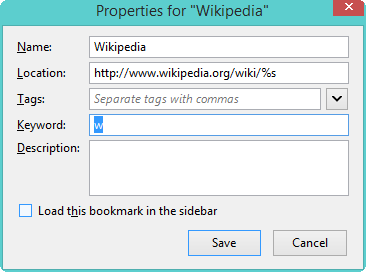
3. Assign a keyword or letter to this. Letters are faster, but words work just as well.
4. Go to the address bar and enter your keyword and something that would normally work on the website. If it is properly configured, it should take you directly to the content.
5. Repeat the same steps for your favorite websites. This will allow you to search the sites faster.
Creating shortcuts for search engines
Instead of adding website URLs, you can do the same for search engines.
1. Go to Firefox’s Addons website and add your favorite search engines to Firefox.
6. Click “Manage Search Engines” in the search box and begin to enter keywords for all the search engines in the list (or remove those you will not use). Make sure to avoid using the same keyword twice. Now in the awesome bar (aka as the URL bar), simply enter the keyword followed by the terms you want to search. Press Enter, and it will bring you to the search results.
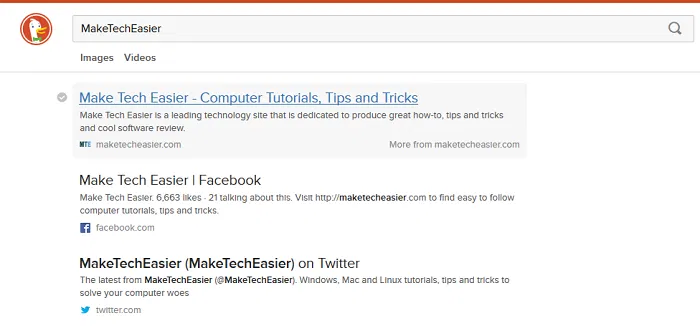
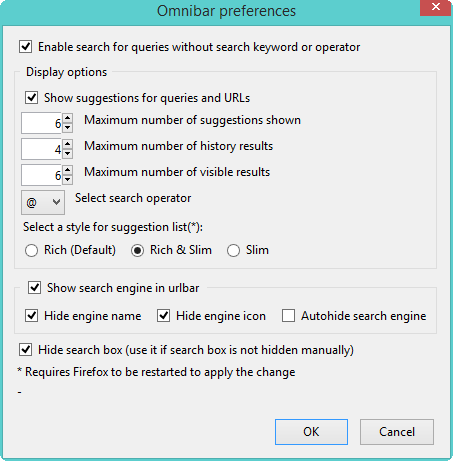
Optional: Download and install the Omnibar extension to make things look more like they would in Chrome. This may not make searching faster, but it means that these searches all take place in a single box. Otherwise, you’d have to search using the address bar for bookmarks and the search bar for the existing engines. Omnibar can also be configured to hide the search engine icons, giving a more minimalist appearance.
How It Works
The “%s” entry is viewed as replaceable text by Firefox; entering a keyword in your URL bar is cutting the rest of the URL down to this point. Placing a word in after this means Firefox will enter this word as part of the address. Thus, it’s worth taking a few moments to ensure search queries will work properly; it can be easy to make a mistake but also to fix it. Often, it can come down to an errant space or similar.
You can have more than one shortcut per website. Here are some examples to make good use of it:
- http://www.reddit.com/r/%s – This URL makes it a snap to go from one subreddit to another. To make it even faster, try using “r” as the keyword.
- http://www.reddit.com/u/%s – This URL makes it possible to view user pages on Reddit extremely quickly, and will not conflict with the URL above.
- http://www.instagram.com/%s – Entering your keyword and then a username will bring you to an Instagram profile, making it a cinch to check out all your friends’ new pictures.
- http://www.wikipedia/org/wiki/%s – Quick access to any article on the world’s largest encyclopaedia. Again, for a site you’re as likely to use as Wikipedia, it may be worthwhile.
Mozilla may have called their address bar the “Awesome Bar,” but with a collection of curated search shortcuts, it becomes more than worthy of that name. A collection of curated, useful searches can totally transform how you interact with Firefox by allowing you to do a great deal more in less time. When you have your workflow set up just how you like it, you’ll never want to use anything else..