Microsoft’s email service was been founded back in 1996, branded as Hotmail. It was one of the world’s first email services and over the years has seen its name changed quite a bit. Now, with Outlook.com, it seems that Microsoft has hit the jackpot with an email service that manages to compete with other email giants such as Gmail.
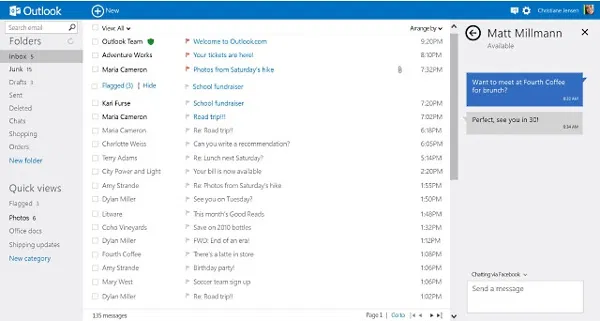
After its launch, Outlook.com was actually missing some of the most important features that its competitors had, such as IMAP access, but slowly they are being implemented, bringing Outlook.com one step further at a time. One of those gaps was the impossibility of importing email from other services through IMAP. Recently this functionality has been made available by Microsoft but has probably been unnoticed by most people, so let’s learn how to do this.
What is IMAP, anyway?
Internet Messaged Access Protocol (IMAP) is a protocol to access email messages stored on a server. This protocol is usually related to email clients, such as Microsoft Outlook or Thunderbird, and acts by downloading the messages to the local computer where that email client is installed. However, and unlike Post Office Protocol (POP3), which is the alternate protocol for downloading messages, IMAP sync your emails with the original server, therefore making them available from anywhere.

Popular email services like Gmail and now, Outlook.com, implemented IMAP to their services not only to allow users to access their accounts via an email client, but also to make sure that users can receive email from other services in their inboxes. For a more detailed explanation about IMAP and POP3, please refer to this article.
Using IMAP to import email from other services
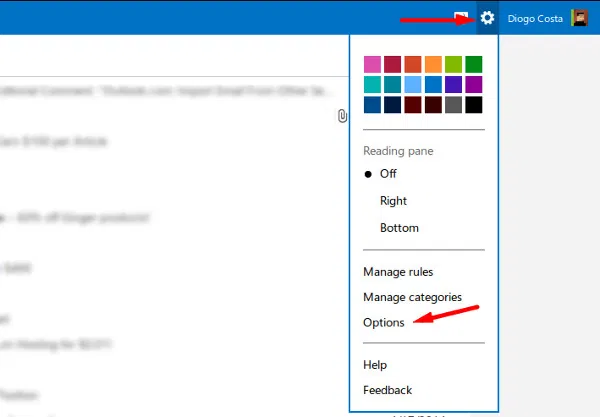
In order to import email messages from other services into Outlook.com, you need to first click the gear icon in the top-right corner. A menu will pop up, and you need to choose the “Options” item:
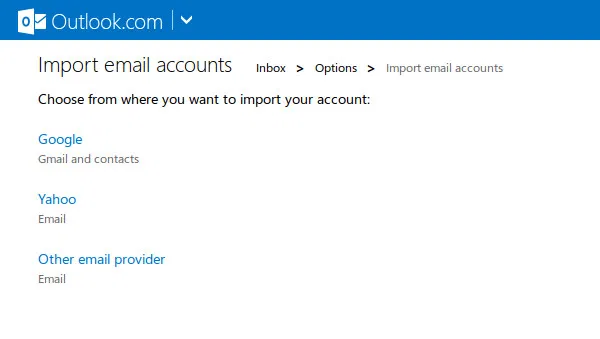
Then, in the Options menu, under the first submenu labeled “Managing your account,” you should see the item “Import email accounts.” Click it, as this is where the IMAP import will be set up.
After setting up the import, you will start to receive the emails from your other account in your Outlook.com account. For example, if you import something from Gmail, your starred messages will appear on Outlook.com as flagged, and your labels will appear as folders. This is rather interesting, as it saves you some time organizing your inbox.
When the import is finished, be sure to check the other several ways to organize your messages inside Outlook.com, like Categories or Filters, which will (hopefully) keep your inbox clean and uncluttered. If, at some point, you wish to revert this connection between services, just follow the same steps and choose “Remove connection completely”.
The addition of this new feature brings Outlook.com a step forward in terms of making it modern, and slowly Microsoft’s new email service is becoming a more solid and powerful alternative to Google’s Gmail which is, undoubtedly, the leader in the email business.