One of the biggest complaints from Google Calendar users is that they can’t add events to Google Calendar without visiting the calendar site. If you come across an event on a website, you will have to login to your Google Calendar page to be able to add the event. With Spot – Calendar’s Best Friend, you can add events this way through Chrome. Spot is easy to use and does more than just add events from a web site.
How to Add Events to Google Calendar From Anywhere in the Web
1. Head over to the Chrome Web Store and install the Spot – Calendar’s Best Friend extension.
2. A new web page will open up asking you to connect Google Calendar to the new extension. Click “Connect your Google Calendar” to do so.

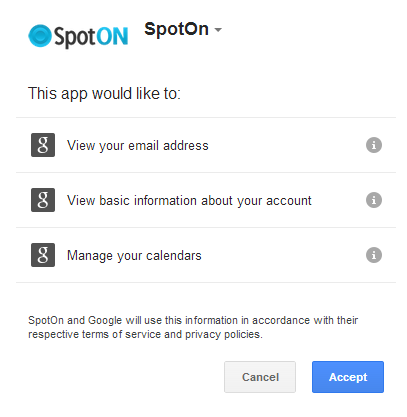
3. You’ll need to click “Accept” to give Calendar’s Best Friend access to your Calendar.
4. You’ll see an icon appear in the right-hand toolbar. You’ll use this to interact with Spot. Right-click it and click “Manage.”
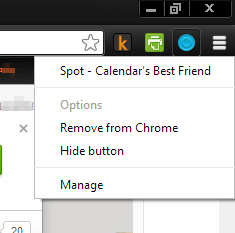
5. You can enable, disable or uninstall Spot at any time from here.

6. Left-click on the toolbar icon for Calendar’s Best Friend.
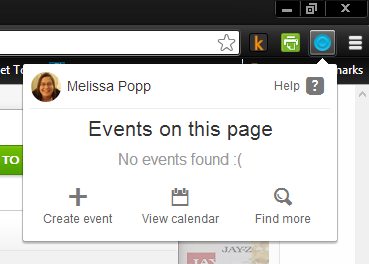
You can get help with the extension at any time by clicking “Help.”
7. Click on “View Calendar” to open your Google Calendar in the Spot interface.
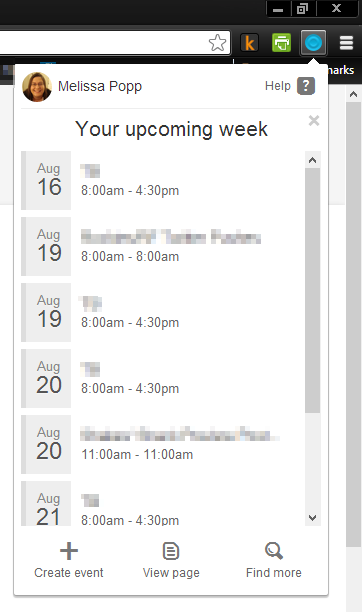
From here, you’re able to see upcoming events, create new ones, and view Calendar and even search for specific appointments.
8. By clicking “Create event,” you can add a new entry to your Google Calendar through the extension.
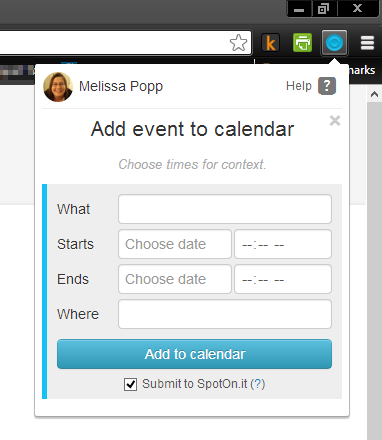
Simply fill in the what, when it starts, when it ends and where it is then click “Add to calendar.”
If you keep the “Submit to SpotOn.it” checked, this will post your event to the Web and it will be publicly accessible by others. We recommend unchecking this before adding any event through Spot.
When you visit a web site that has dates, times and events on it, you’ll see the icon in the right-hand light up. This means the extension has found events you can add to your Google Calendar.
9. Click on the Spot icon.
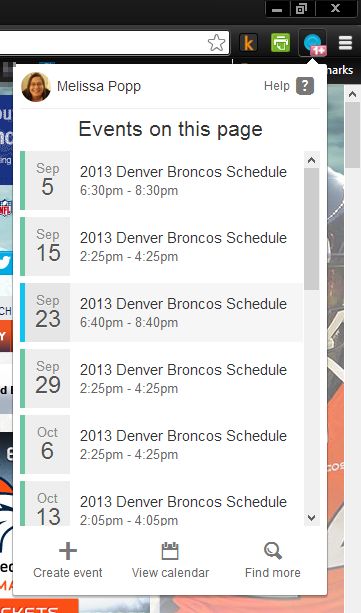
The drop-down menu will populate with all the events the extension captures from the web page. The only downfall so far of this extension is that it doesn’t seem to correlate the data on the page to how it would fill into what Google Calendar needs to create an entry. In this case, we’re looking at the Denver Broncos football schedule, and while the dates and start times are right for kick off, it doesn’t show who they’re playing.
10. Click on any of the events on a web page. This’ll open the create event screen filled in with details from the event as it appears on the page.
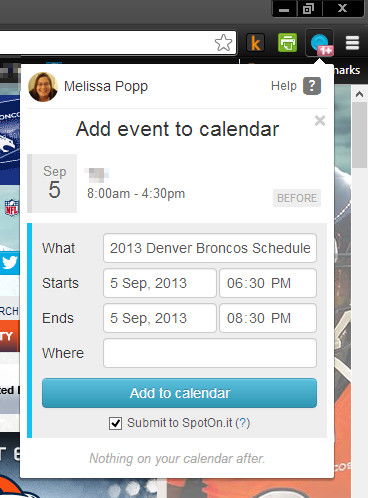
This is where you see how the data from the page fills out entries in Google Calendar as we discussed above. We’ll need to tweak some of these details so we have a complete calendar entry.
11. When you’re finished editing the details, click “Add to calendar.”
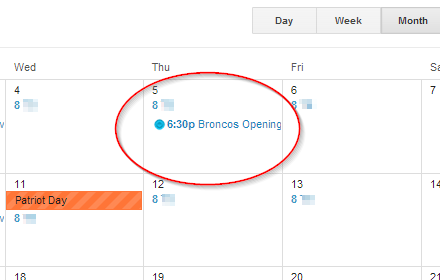
12. Click on “See it there now” after adding the event to see what it looks like on Google Calendar.
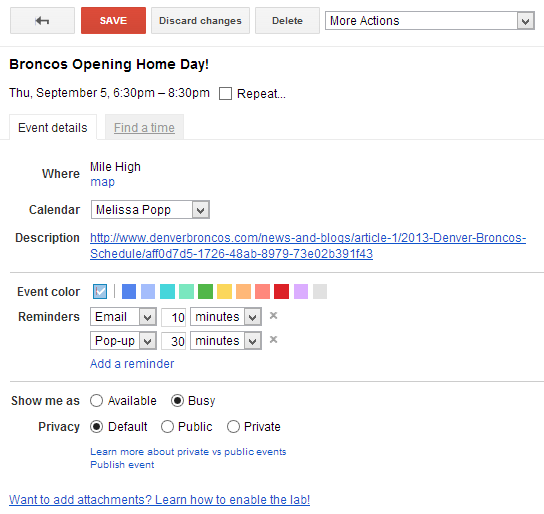
From here, you can edit the entry further if necessary and now it’ll appear on Google Calendar for you to refer to as you go about your day.
Conclusion
If you’re looking for a way to quickly add events to Google Calendar from anywhere in the Web (and you are using Chrome), Spot – Calendar’s Best Friend is the one for you. Not only can you add events from a web site, but you can also create your own events and check your calendar right from Chrome without heading over to Google Calendar.