The cloud has gotten massive since it first started becoming a phenomenon. In particular, cloud storage seems to be the most interesting (and fastest-growing) service for both the consumer and business markets. As each year passes, bandwidth just keeps getting cheaper. This makes cloud-based storage space more accessible, in some cases, than buying a new hard drive for some people. For those of us who still work heavily with personal computers, though, the external hard drive will always be an option. This leads us to one question: Which one is better?
Assessing Cloud Storage
Cloud storage is getting cheaper as each year passes. The monthly fee you pay guarantees you a certain amount of space for your files, which will be stowed away safely in a data center far from your home. There are many advantages to this, of course:
- You don’t have to invest a lot in the short term. Instead of shelling out $300 on a good high-storage hard disk drive (HDD) or a more expensive, but faster, solid-state drive (SSD), you can pay as little as $15 a month per terabyte of space online.
- If something terrible happens to your house, your data is still going to be out there. This is especially advantageous if the files you’re saving are important for doing business.
- You can access your files anywhere by logging in securely to an account without any hassle. Yes, you can do this with physical storage by setting up an FTP server, but it just isn’t going to be as secure as, say, Google Drive.
- High-quality storage services will store redundant backups of your backups! If something happens to their drive, your data is still safe.
These are all wonderful advantages, but there are lots of caveats involved with cloud storage:
- In the long term, your investment could surpass the price of a hard drive. Let’s say you pay $15 a month for 1 TB of online storage space. In roughly two years, you will have paid enough to buy yourself a high-end 1 TB hard drive.
- The data you store is subject to the conditions of an agreement. Some of these agreements can allow the provider to look into your files or turn them over to someone else upon request.
- You renounce to the absolute control of your data (that is, unless you use third-party encryption before you store it).
- Uploading and downloading files from your storage provider depend on the connection speed of both you and your provider. The transfer speed, in many cases, is inferior to that of a physical drive.
Assessing Physical Storage
So, you’ve seen everything there is to see about cloud storage. I didn’t talk about reliability because, in this day and age, we can at least expect most storage providers to be considerably stable. But there are still reasons you might want to stick to storing all your most important files in a physical drive:
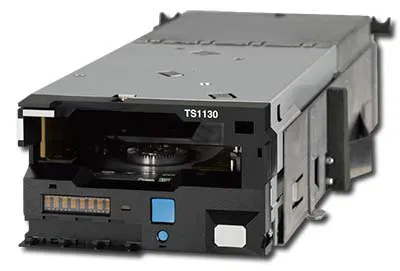
- Hard drives are getting cheaper. Even in countries that impose several frivolous taxes on electronics (like mine), a decent multi-terabyte hard drive will cost you no more than a few hundred US dollars. Tape storage is even cheaper, allowing you to purchase a 1.6 TB tape for prices as low as $40 (although the drives that read them are quite expensive, clocking in at over $1000).
- There’s nothing to sign and no account to log in to (unless you are hosting an FTP server for the drive). Just pop the files in and that’s it!
- All of your files are at your fingertips. This means that you can manipulate the data directly in any way you wish.
- Transfer speeds are as fast as your drive allows.
- Take a physical copy of all your data anywhere you want!
As it is with every other facet of life, storing data physically can have disadvantages that the cloud doesn’t:
- The accessibility of your data is hampered by the fact that it has to be physically accessed. If you want to host your files for others to download, you need to set up an FTP server, which can be clunky. Any way you look at it, sharing your files through a physical drive isn’t as user-friendly as it is on the cloud.
- In case of a catastrophe that affects your computer, your drive may also be affected. There’s no way out of that!
- If you back up your data on one drive, and that drive doesn’t want to work anymore after your main system crashes, you’re out of luck (although this is fairly rare, unless we’re talking about a fire or other such disaster).
Conclusion: Why Not Use Both?
The conflict between physical and cloud storage will likely never end. There are always going to be reasons why one is better than the other, which always seems to depend on the situation. In general, these are the guidelines you should follow:
Use cloud storage when:
- Storing very important files you can’t do without, but don’t contain any information that could compromise you or your reputation;
- Storing files you need to access quickly on many different devices, such as family photos; and
- Editing collaboratively across multiple points of access, like you would on Google Docs.
Use physical storage when:
- Storing files that could compromise you in any way;
- Backing up an entire system; and
- Storing files permanently without fear of losing them because of a lost fee payment.
Following this formula, you’ll find that both types of storage may overlap more often than not when you’re deciding where to store something. Now, it’s time for you to make an informed decision.
Are you storing your files on the cloud, or dropping them in a physical drive? Tell us what motivated you to make this decision in a comment below!