In this digital age, almost everything is being converted into paperless transactions. Travel documents, bank statements, and even bills can now be sent out in digital form, mostly through e-mail. Signing documents is no exception, and there are a number of handy web and mobile apps that allow a user to simply digitize their signatures and attach them to the document.
HelloSign is one good example. It allows you to sign a document sent to your Gmail address and sign it from there, without the need to install any additional software. It doesn’t even lead you to another website, or app. It’s integrated with Gmail, and it works seamlessly within the Gmail interface.
Dropbox Sign for Gmail is a Chrome extension that you can download from the Web Store. After installation, you will notice another option besides an attachment that says “Sign”, in addition to the standard ones which are “View” and “Download”.
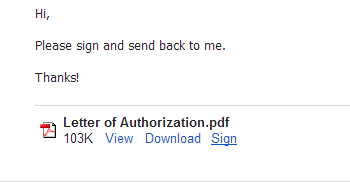
HelloSign can open most document files, including PDF, MS Word and MS Excel.
To sign an attached document, simply click on the “Sign” button. This should bring up the HelloSign pop-up window and it should take a few seconds to open and load the document.
Once the document loads, you are then given the HelloSign interface, with four buttons on top. These buttons indicate what information you want to add to the document. In addition to signature or initials, you can also add a check box, the date signed and a text box.
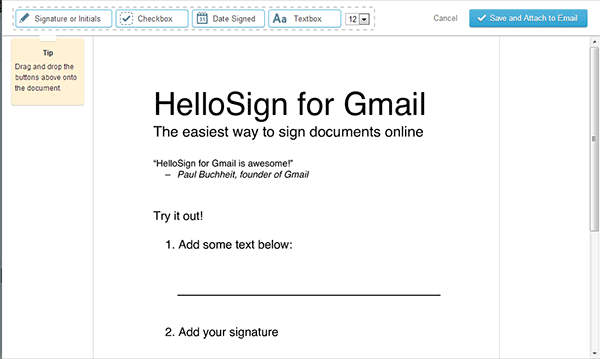
Drag the Signature or initials box to where you want to insert your signature on the document. This will bring up another window where you can choose how to add your signature.
If this is your first time using the app, then the best choice would be “Draw it in”, where you can use your mouse to draw your signature.
If you wish to use your initials, then you can choose “Type in signature” instead.
If you have an image file of your signature, or have taken it with your smartphone, then there are additional options available for these instances. Simply choose “Add image file” or “Smartphone” from the menu panel.
In the screenshot below, I chose to draw my signature using the mouse.
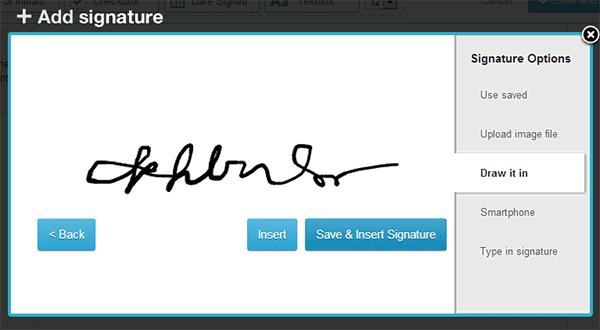
When you’re done, you can either choose “Insert” or “Save & Insert Signature”. I found that the second option is very convenient if you want to use the same signature in all future documents, to save time.
The signature should now appear on the specified area in the document, and you can drag the box to reposition or, drag the bottom right corner to resize it.
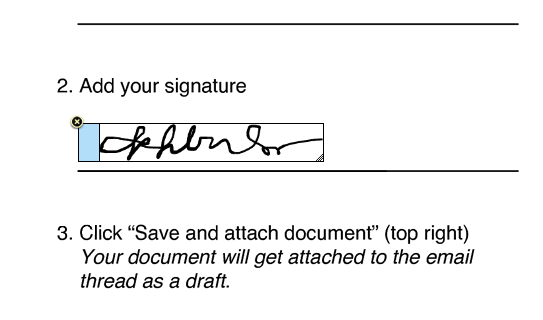
You can now click on “Save and Attach to Email” found in the top right corner, and the document should now be ready to be sent back along with your reply.
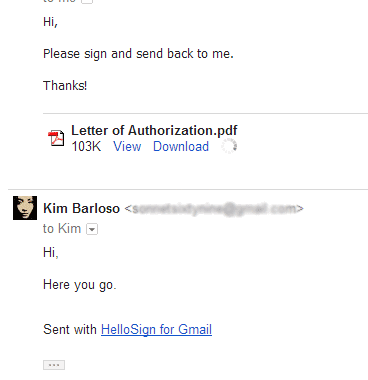
HelloSign for Gmail is an ingenious tool for signing documents right out of the Gmail interface. It’s brilliant for people who don’t have access to a printer but need to sign a document right away. With this tool, a user saves time, energy and resources when signing and sending important documents that are also very urgent.