WordPress multisite is a powerful feature which lets a user create multiple sites with a single WordPress installation. We have previously covered how you can upgrade your WordPress to a multisite network, but the reverse – moving a child site off the network onto its own WordPress install – is not an easy task. In this quick guide, let us see how you can return a WordPress multisite setup to a single site setup using proper tools.
Note:
1. Make sure you have a good backup of your WordPress multisite in case anything happens.
2. If you have many child sites in your multisite setup, you will have to do the following steps for each and every one of the child sites.
1. Export Site Content from Multisite
The first step in moving a WordPress multisite setup to a single site setup is to export all the content from the child site. To do that, navigate to “Tools” and then to “Export.” Here select the radio button “All content” and click on the “Download Export File” button.
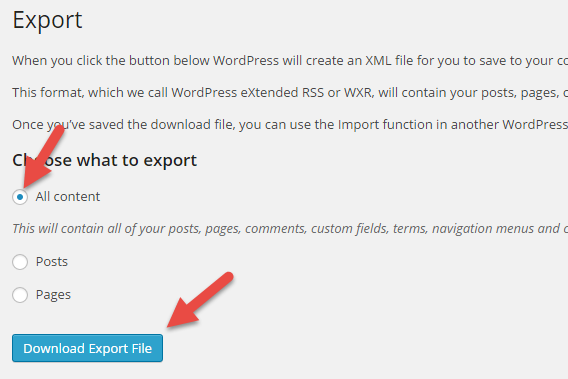
As soon as you click the download button, WordPress will automatically create an XML file containing all the content and will be downloaded into your downloads folder.
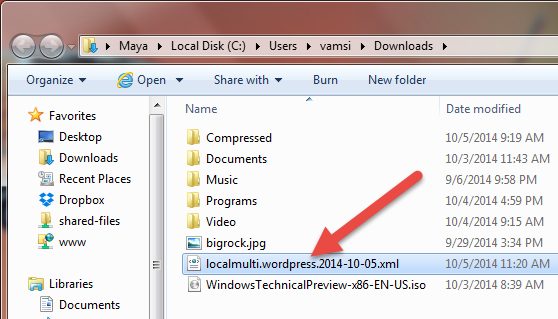
Once you have the XML file, continue with the next steps.
2. Create New WordPress Installation
Since we are moving the child site, go ahead and install WordPress for that domain separately so that we can import all the exported content into that new installation. You can always use scripts like Fantastico or Softaculous in your cPanel to easily install WordPress.
3. Import Content to New Site
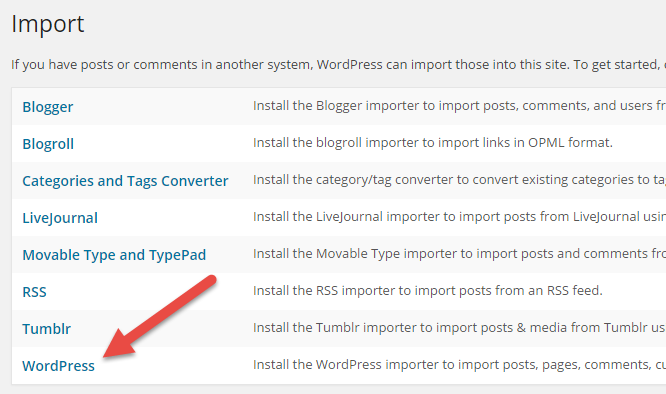
After successfully installing the WordPress for your site, we need to import the downloaded XML file using the WordPress Importer plugin. To do that, navigate to “Tools” and then to “Import” and click on the “WordPress” link.
Here in this screen, click on the “Install Now” button appearing at the bottom right corner. This action will download and install the official WordPress Importer plugin.
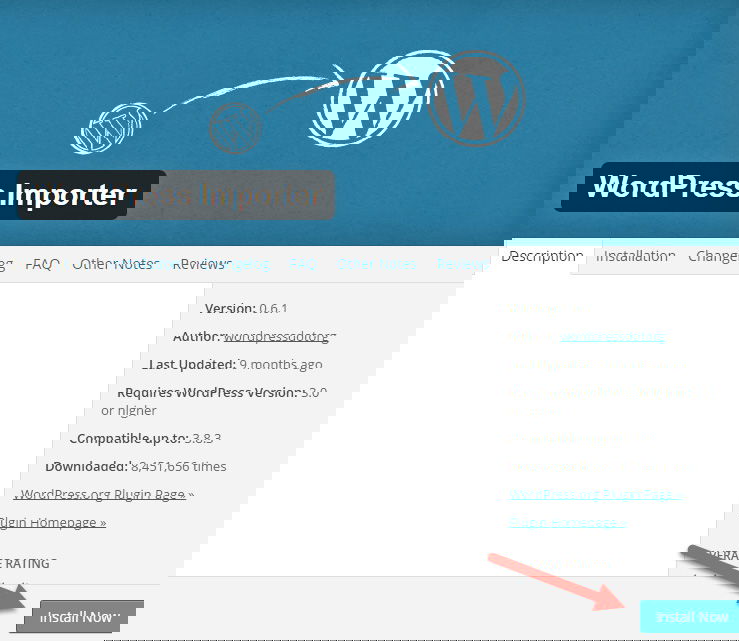
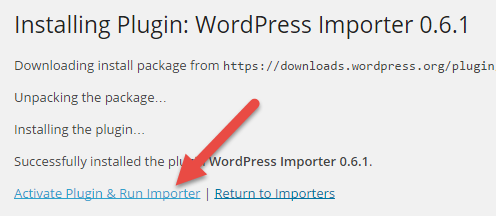
Once installed, click on the “Activate Plugin & Run Importer” link to proceed with the import process.
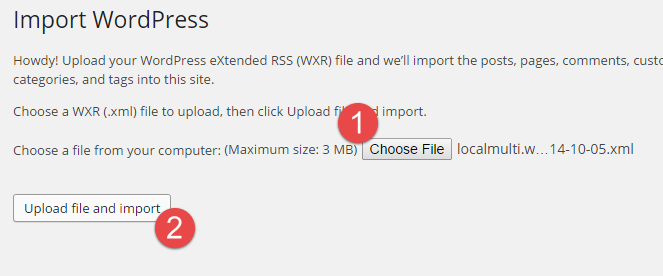
Click the “Choose file” button, select the XML file you want to upload and click the “Upload file and import” button.
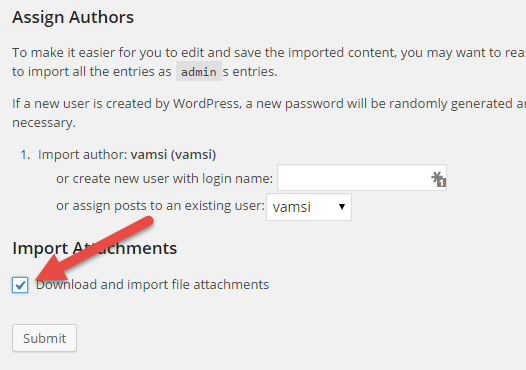
Now, you can either import the users in your child site, assign all the posts to an already existing user in the new installation or create a new user. Just choose the option best suited for you, select the check box “Download and import file attachment” and click on the “Submit” button.
With this action, WordPress will import all the posts, comments, pages and images into your new site. It may take some time depending on how big your site is and how many images you have. Just sit back and wait until the import is complete.
In case of failed attachment imports
If WordPress failed to import all the attachments (images), you can use the Import External Images plugin to import all the images in batches. After installing the plugin, open the plugin settings page (Media -> Import Images). Click on the “Import Images Now” button to start importing images.
Note: As per the plugin, it will only process 50 posts in one go. So if you have more than 50 posts, just repeat the process until you import all the images.
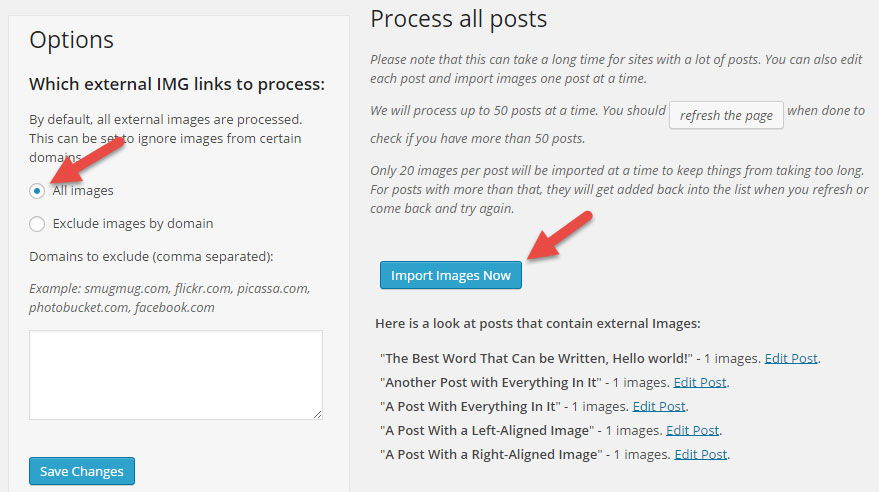
One you click on the button, the plugin will download the image attachments. Once the process is completed, you will see a confirmation message like the one below.
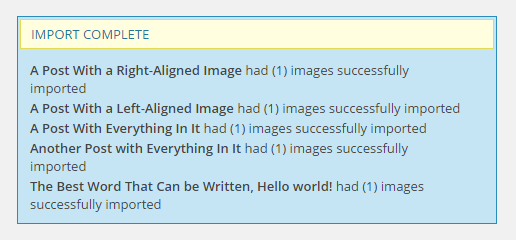
That’s all there is to do, and you have successfully moved your site from multisite install to single site install.
Managing your domain name
If you are moving from a sub-domain/folder installation to a main domain, here is one additional step that you need to do:
- All the image links and internal URLs in your database are pointed to the old URL, so you will need to change the URL structure to point to the new domain. The best tool for this is the Search and Replace for WordPress Databases script.
For all information, you can check out the Moving WordPress guide.
Hopefully that helps, and do comment below if you face any problems while moving your site from multisite to single site.