Having too many tabs open in ones web browser is a problem that many internet users face on a daily basis. What’s even worse is that having all those tabs open can also slow down your browser tremendously. For this reason it’s a better idea to keep only a few tabs open at a time and save the rest for later.

So what do you do if want to save those tabs for later?

Well, there are plenty of Chrome extensions available to help you better manage your tabs, but this quick trick from OMG! Chrome! doesn’t require an extension at all. Here’s how you can quickly save and restore groups of tabs in Chrome without installing an extension.

Saving Groups of Tabs

1. Add a new bookmarks folder to your bookmarks bar by right clicking on it and selecting “Add Folder…” If you prefer, you can add a new folder in the bookmarks menu instead; it’s simply a matter of preference.

2. Name the folder anything you’d like, such as “Saved Tabs” or “Bookmarked Tabs.”

3. The next time you’re ready to save all your open tabs for later, right-click on any tab in your browser and select “Bookmark All Tabs…”
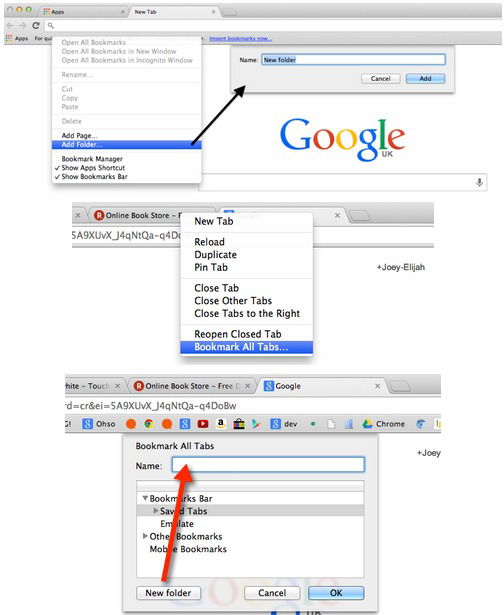
Create a new bookmarks folder and right-click any tab to bookmark them all to save for later.

4. Choose the folder you created above as the location, and add a descriptive name to your tab group; this will create a new folder within your “Saved Tabs” folder.

5. Click OK and your tabs will be saved for later use.

Restoring Groups of Tabs

To restore your tabs, simply right-click on the group (folder) that you want to restore and click on “Open All Bookmarks.” Now, all of those pages will be opened as new tabs in your browser.

One of the great things about this trick is that if you’re using and extension like Xmarks or Chrome’s own bookmark sync feature, you’ll be able to restore these tabs on any computer.

Image Credit: T a k

How to Add Links to Your WordPress Widget Titles

Do you use numerous widgets on your WordPress blog? Have you ever wished that you could add WordPress Widget Titles? If so, you’re in luck thanks to a WordPress plugin called Widget Title Links.

You Will Surely Have A Corrupted WordPress Database Issue. Here Is How You Fix it

WordPress, like any other database driven application, is very prone to having the corrupted database issue. This article shows you how to recover from the issue and get your site back up working again.

Show Notification Counts on Pinned Tabs in Chrome

Do you use pinned tabs in Chrome as a way to keep up with your email and/or social networking sites – like Facebook, Twitter, and LinkedIn? Wouldn’t it be great if you could display notification counts for messages and unread items on your pinned tabs? Here’s how you can do so.

Add Events to Google Calendar From Anywhere in the Web

One of the biggest complaints about Google Calendar is that you can’t add events to Google Calendar without visiting the site. With Spot – Calendar’s Best Friend, you will be able to add events to Google Calendar, whenever you come across one anywhere in the Web.

Don’t Want to Pay for Feedly? Feedspot Has You Covered

Feedly is now the go-to service for reading RSS feed. However if you are not willing to place for the premium service, Feedspot can be an alternative.

Secure Your Yahoo Account With Second Sign-in and App Password

Yahoo has added a feature called Second Sign-in that allows you to secure Yahoo account with two factor authentication. Here’s how you can enable it.

Pushbullet: Push Links and Files From Chrome or Firefox to Your Android Device

Sending content from desktop to Android is not as easy as it seems. An extension called Pushbullet for Google Chrome and Firefox makes this task easier.

Rid Your Site of Any Profanity Content with WebPurify

To get rid of profanity and offensive content on your site, you can either moderate every single post manually, or automate it with an external tool. WebPurity is one useful tool built for this purpose.

What to Do When You’ve Been Hacked

As of late, many people have been hacked and are the victims of password leaks and Trojan horse infections. The following are some tips if it happens to you

How to Enable Private Tabs in Firefox

Private browsing in Firefox requires you to open a new window. The Private Tab addon allows you to open private tabs in Firefox instead of a separate window, making it easier for you to keep track of multiple sites at a time.

Looking For a Secure Chat App? Try BitTorrent’s New P2P Messenger Bleep

Looking for an app to chat securely and privately with your friends? Try BitTorrent new P2P messenger Bleep that offers end-to-end encryption.

How to Manage Saved Passwords in Various Web Browsers

Most modern browsers come with a password manager for us to save our passwords. This article will take you through the steps to manage your saved passwords in various browsers.