It is difficult to be too safe online, and numerous services such as Facebook and Twitter have added extra security options to help protect their users. The primary means of protecting any online account is through the use of a password, but this can easily be learned by other people and used to gain access to your accounts.
A large number of sites have enabled two-factor authentication. This means that in addition to your password, you also need to enter a special code that is send out to your mobile phone. This helps to increase security because it means that simply knowing your password is not enough – so it matter less if someone else learns it.
Yahoo has taken a slightly different approach to the idea with a feature called Second Sign-in. You’re probably aware that Facebook maintains a list of devices (computer, phones, tablets, etc) that you have used to access your account. Should a login attempt be detected from an unknown device, you will be asked to verify it.
Yahoo’s Second Sign-In feature works like a combination of these two methods, and it will alert you if someone tries to access your account without authorization. You will need to have your mobile available in order to get set up, and you should then pay a visit to the Yahoo website, sign into your account and then head to “Account Settings”.
Once you are signed in, look to the “Sign-In and Security” section and click the “Set up your second sign-in verification” link.
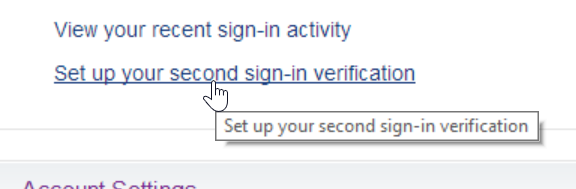
Click “Get Started” and then ensure that you current mobile number is associated with your account. If you have changed numbers or there is no mobile number in your profile, you can follow the on-screen instructions to add one.
If you are adding a new phone or not, a security SMS will be sent out that contains a code you need to enter to complete the process.
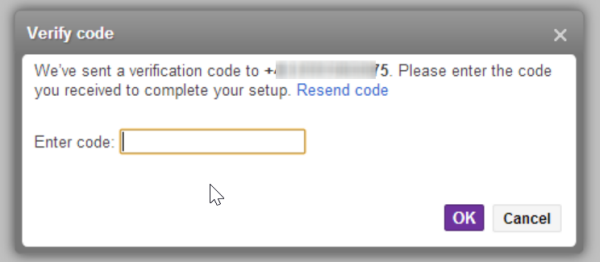
From this point onwards, whenever Yahoo detects a login attempt from an unrecognized device or location, a verification code will be sent out to your mobile. Access will be blocked to your account until this code is entered at the website, thereby blocking the attempts of anyone else to access your data.
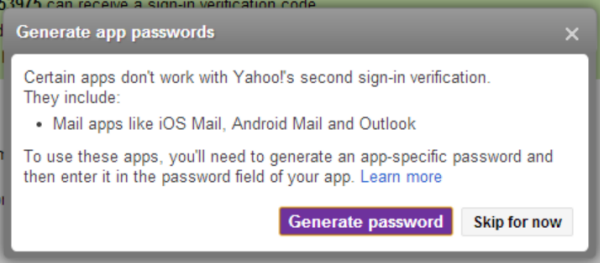
But Yahoo’s security options do not end there. Second Sign-In is not compatible with all apps – and it is likely that you have a number of desktop and mobile apps associated with your account. To get around this problem, you can also use App Passwords and you will be prompted to set this up after Second Sign-In. Start by clicking the “Generate password” button.
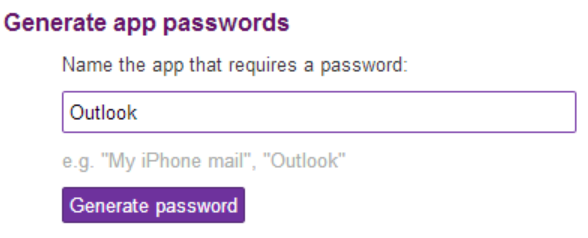
When prompted, type the name of an app that you need to generate a password for and click the “Generate Password” button.
The password that is displayed to you will need to be entered into the app – such as Yahoo’s mobile app on your phone – in order to verify that it is you trying to access your account rather than someone else.
Apps can be added at any time – you many encounter others that are incompatible with Second Sign-In – by clicking “Manage your app passwords” link in your Yahoo account settings.

From here it is also possible to remove an app from your account. This is useful if you either stop using an app, or you lose your phone that has an app that makes use of App Passwords.
That’s it! Your Yahoo account is now more secure.