Google Drive offers a lot of features for users, but some of the basics have always been missing, such as password protection. If you utilize spreadsheets for any sort of important data in Drive, password protecting them can help improve the overall security of your information. We will show you how to password protect a spreadsheet in Google Drive.
Making a new copy of a scripted spreadsheet
The first step is to make a copy of the scripted spreadsheet. This has the original script created by Skipser that you can use to create a “web app” for your Google Drive.
This is hosted on my personal Google Drive, so I can vouch for its safety. Click “Yes, make a copy” to copy it to your Drive account. You do have to be logged in to your Google account for this to work.
Creating your own “web app” to run spreadsheet script
Initially you need to ensure you can run the scripts within the protected spreadsheet in your Google Drive account.
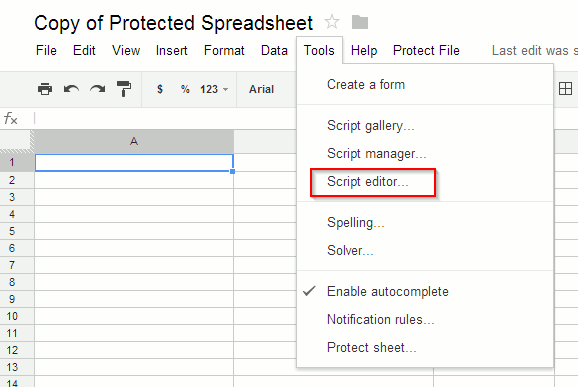
1. Click on “Tools,” then click “Script editor….”
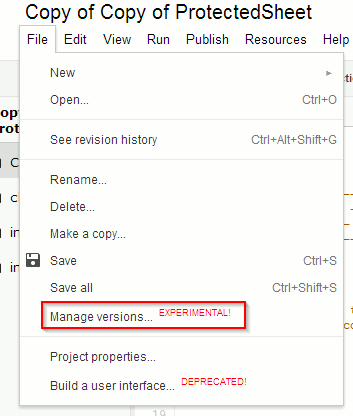
2. Click “File,” then “Manage versions….”
3. Click “Save New Version.”
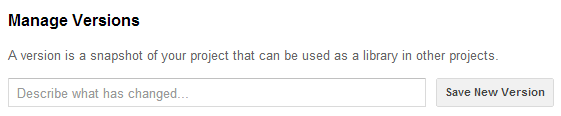
There is no need to describe anything at this point. A new “version” will be updated for your spreadsheet, click “OK” to head back to the Script Editor.
4. Click “Publish,” then “Deploy as web app….”
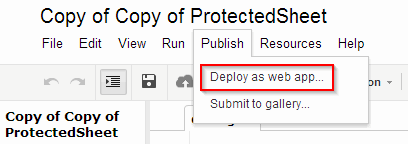
Again, there’s no need to change any settings. This simply allows the script that lets you password protect a spreadsheet to run within the confines of your Google Drive account. Click “Deploy.”
5. Click “OK” to confirm the creation of the web app script.
Anytime you want to create password protected spreadsheet, you will need to copy the above link, and rename the spreadsheet. Because you created the web app script, your Google Drive will automatically add it to your newly protected spreadsheet.
Encrypting and decrypting your spreadsheet
When you go back to your spreadsheet, you’ll see a new menu option: Protect File. This is what you created when you deployed the web app script.
1. Input any data you want to protect in rows three and down. Any data in rows one and two will interfere with the web app script you created.
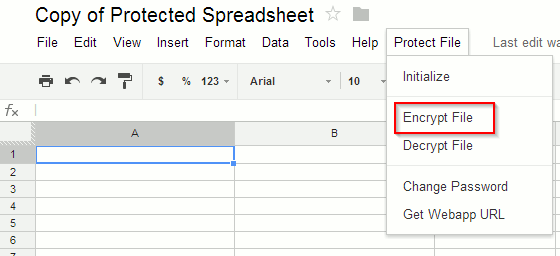
2. Click “Protect File,” then “Encrypt File.”
The first time you run the script in Drive, you’ll be warned about the potential hazard of running such scripts.
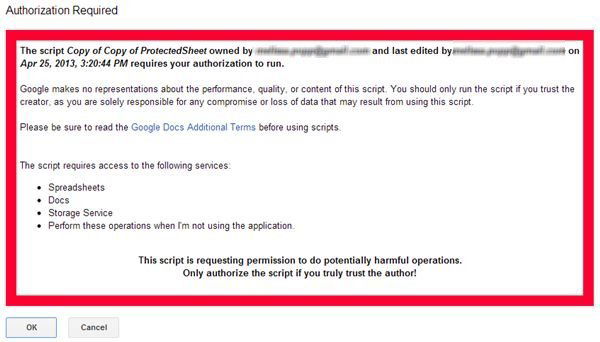
This occurs any time you use a script for the first time in Drive, and you must click “OK” to continue to use it.
3. Now, create a password for your spreadsheet.
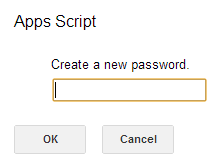
This can be anything you want, but I advise against using your Google account password for security reasons. Click “OK” once you have entered the password.
You will see the data within your spreadsheet begin to change as it encrypts itself. This is a very basic encryption, so keep that in mind when you decide what information you want to store this way on Google Drive.
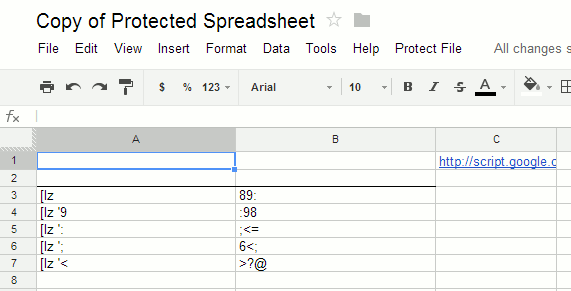
4. When you need to decrypt your information, click “Protect File” once more, then click “Decrypt File.”
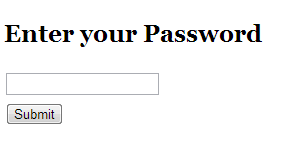
You will be prompted to enter the password. Enter the password and click “Submit.” This is the only area of using this method you may have some issues with. If you receive an error, simply go back and hit “Submit” again to decrypt the data.
If you head back to “Protect File,” you can change the password for your spreadsheet at any time. Keep in mind that if you change the password for the spreadsheet, you will not be able to change the content of it without copying a new spreadsheet and starting the process again.
You can also get a webapp URL so that you can access the document directly from the Protect File menu.
You can then enter the password and click “decrypt.”
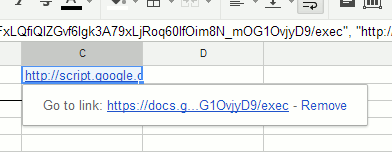
If at any time the Protect File menu disappears, simply click the “Script Link” in the spreadsheet to get it back.
Conclusion
This seems like an awful lot of work to password protect a spreadsheet in Google Drive, yet until Google introduces a more permanent solution, this workaround is your best bet. If you know of a different solution, let us know below in the comments area.
Image credit: Master lock with root password