Getting things done faster in your browser is always something you can do with helpful add-ons and extensions.

It’s always good to have a set routine as soon as you open your browser, which helps you focus on tasks that matter.

In this case, we discuss a way to open multiple links to websites simultaneously in Firefox by using an add-on called Multiopen.

This is somewhat similar to a Chrome extension called LinkClump.

This Firefox add-on, however, is so much more simpler and straightforward with its function and features.

There really is only one specific purpose for Multiopen, and that is to specify any number of URLs to open at the same time when clicking on the Multiopen icon.

First, you would need to install the free add-on and restart Firefox.

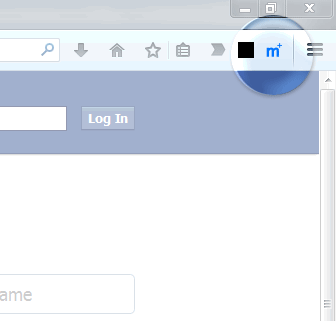
When you restart, the Multiopen icon (blue letter M) is found on the top right corner of the browser window.
multiopen_icon

If it’s not configured yet, you would need to right-click on it to open the Options page.

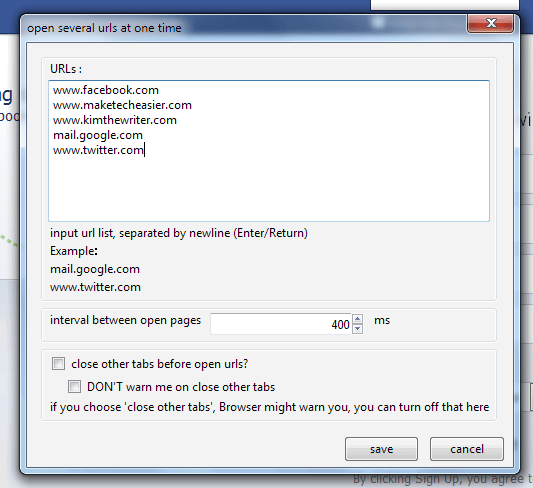
Here, you can add the list of URLs you want to open. Add one URL per line, and hit Enter after typing each one.
multiopen_options

There appears to be no limit as to how many URLs you can add, but adding too many may cause performance issues with Firefox, so try to keep it to a maximum of seven URLs.

Note that they will open in the same browser window, but in different tabs. If you don’t want too many tabs open at the same time, it’s a good idea to choose only a handful of URLs.

You can also configure the time interval between opening links in milliseconds. If you set it to 0, then all links will open at the exact same time.

There’s also an option to close existing tabs first before opening links using the add-on. Check the box next to “close other tabs before open urls?” to enable this option.

Additionally, you can disable a warning about closing existing tabs before opening multiple URLs. To do this, check the box next to “DON’T warn me on close other tabs”.

When you’re done with the settings, click Save.

To open your set of URLs, left-click on the Multiopen icon.

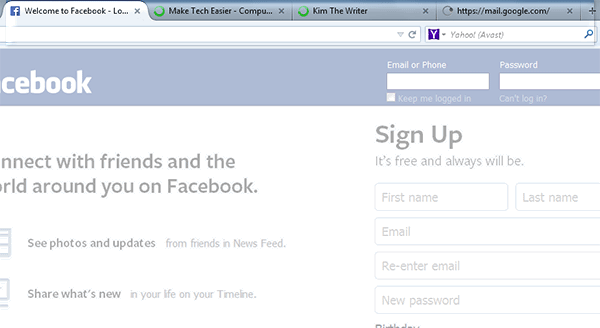
You should see a set of tabs loading as configured earlier in the Options page. The URLs load in the order that they were added to the list, from left to right.

In the example below, I have four URLs opening with an interval of 4000 ms.
multiopen_tabs

While Multiopen is very useful in opening multiple links, it only allows for one set of links, and there is no option to add a separate set.

Also, there is no option to close all tabs that were opened using Multiopen, so you would have to manually close each tab in case you don’t need some of them.

If this doesn’t concern you and you like the simplicity of this add-on’s features, then it’s still an excellent way to save time when using your Firefox browser.

How to Sync Bookmarks Between Firefox and Chrome

If you work with both Firefox and Chrome, and need your bookmarks to be available on both of them, here is how you can sync bookmarks between Firefox and Chrome.

How to Password Protect a Spreadsheet in Google Drive

Google Drive offers a lot of features for users, but some of the basics have always been missing, such as password protection. Here is how you can password protect a spreadsheet in Google Drive.

Can Tor Really Protect Your Online Privacy From The NSA (And Other Government Organizations)?

When the news that the NSA are keeping records of your phone calls and web data transfers broke out, people start to worry if they are really safe online and some of them switched to Tor to protect their privacy online. The question is, is Tor really safe? Does it really protect you from the NSA’s clutches?

Internet Speeds Inconsistent With Your Plan? Read This!

Have you ever wondered why your Internet speed is always not as fast as your service provider said it would be? It never hurts to examine the most common causes of slower-than-advertised Internet speeds and determine whether one of these is happening to you so that you can determine how to remedy the situation.

15 Clocks For Telling Time Within Google Chrome

Your computer came with a clock that is functional enough, but there are so many more ways you could have your computer tell you the time. The Chrome Web Store is filled with various clock apps and extensions. Here are 15 options that might just add an extra bit of excitement to how you check what time it is.

7 YouTube Channels Where You Can Find Computer Help

If you find video content more gripping, there is a gamut of YouTube channels that are waiting to help you solve your technology woes. Here are 7 of them.

Pushbullet: Push Links and Files From Chrome or Firefox to Your Android Device

Sending content from desktop to Android is not as easy as it seems. An extension called Pushbullet for Google Chrome and Firefox makes this task easier.

End-To-End Encryption (And Principle) Explained

You probably have heard the term “end-to-end” plenty of times, but what is it really about? Read on to find out more.

Why You Should Use DuckDuckGo

Good Google alternatives are really hard to find. One that respects your privacy as a user is DuckDuckGo. Here is why you should use Duckduckgo.

How to Restore the Old Search UI to Firefox

Firefox 34 changed the look of the search box. For those who are not used to the new look, here’s how you can restore the old search UI in Firefox.

Easily Make Old Extensions Work with Current Version of Firefox

Sometimes, you are not able to install old extensions as they are not compatible with your current version of Firefox. Here is how you can force compatibility and make them run.

How to Close and Snooze Tabs in Chrome to Reduce the Clutter

It’s common to have multiple tabs open in a web browser. Here is how you can close and snooze tabs in Chrome to free up space in your web browser.