Most people who do research online rely on their browser’s search function to scan and find data in the quickest way possible. Searching for specific keywords might seem simple enough, but the standard Find function can sometimes fall short on functionality.

If you perform a lot of text searches on webpages, a Chrome extension called Quick Find allows you to do this and more with flexible search features.

A port of a Firefox feature, Quick Find helps you find a specified keyword on a web page and brings it on a separate pop-up window. You then have the added option to toggle search results in three different modes: Match Case, Links Only and Highlight All.

The extension uses keyboard shortcuts to work. There won’t be any icons visible on the browser.

On a web page you want to search, press the forward slash (/) or “Ctrl + Shift + F” to bring up the Quick Find menu. Type the word you want to search. This should return the results on the box, as well as highlight the ones on the web page.

quickfind_links

From here, you can toggle the search results by either clicking the buttons or using keyboard shortcuts:

  • Alt + A – Highlight all
  • Alt + C – Match case
  • Alt + L – Links only

Pressing Enter or Return on a highlighted text within the Quick Find box will open the link.

To close the window, press Esc.

Although Quick Find works on almost any web page, there are some limitations. For instance, the extension does not work on existing tabs. You would need to refresh the tab or open another one for Quick Find to work.

The extension does not work on iframes, script or code tag.

Note that this extension uses anonymous page view tracking for the developer to gather data and make improvements. To opt out, go to “Settings -> Extensions -> Quick Find” in Options and check the box next to “Opt out of sending anonymous analytical tracking.”

There are many uses for Quick Find, mostly towards research work, but they could also be for narrowing down a long list of resources.

In the examples below, the extension helps scan information and return only ones that I needed (poets and English physicists).
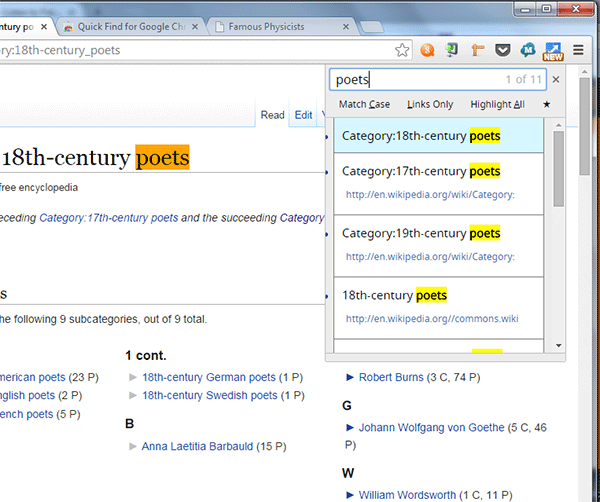
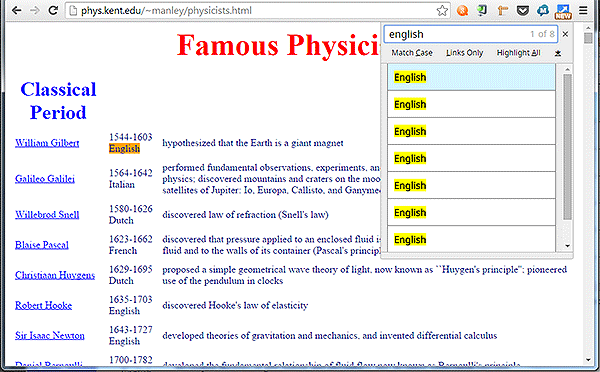
quickfind_wikipedia

quickfind_list

The Match Case mode is also a vital feature as it gives a more focused search.

There is a possibility that the keyboard shortcuts can clash with other extensions, so hopefully there will be an option to change the default shortcuts.

For now, the extension works as advertised, albeit with a few limitations. A dedicated icon for the extension might be a welcome sight for those who prefer to use the mouse instead of the keyboard when accessing apps within the browser.

Searching through tons of information on the Web can be tiresome, but Quick Find will help you do the work in half the time with just a few keystrokes. The keyboard shortcuts make it faster to start the search, filter and browse through the results. As far as its core function goes, this extension does a better job of searching through text and links within a webpage.

How to Reduce PNG Image File Size Online

PNG is a great format for preserving image quality, but it is usually larger in file size compared to other image format. If you are looking for a simple and effective way to reduce PNG image file size without installing additional apps on your PC, here is how you can do it online.

Converting Files In Google Drive With DriveConverter

If you’re looking for a built-in tool to convert files in Google Drive, then try DriveConverter, a web app and Chrome extension specially built for Google Drive. It offers more flexible conversion features for documents, images and music files.

The Complete Guide to Avoid Scams on Craigslist

Craigslist is a popular place for people to buy and sell stuff. It is also a good hangout for fraudster to scam the user. This guide will teach you how to avoid scams on Craigslist.

What Is “UTM_Source” And Should You Be Worried?

You may have seen URLs with a long string attached to the end of the link that looks something like this: “utm_source=facebook&utm_medium=fanpage&utm_campaign=new+article&wa_ibsrc=fanpage.” Should you be worried about the implications of this? We’ll have a look at what UTM is and answer any question you might have on this subject.

How to Copy All Links on a Web Page in Firefox

Have you ever wanted to copy all links on a web page while browsing? This Firefox add-on lets you copy all links on a web page in a matter of seconds.

6 Alternative Uses of WordPress, Other Than Blogging

You can be sure of one thing, Wordpress: it’s not just for blogs anymore. Here are 6 alternative uses of Wordpress that aren’t blogging.

How to Opt Out of Facebook Browser History Ads on iOS, Android and the Web

Facebook is selling your search history to help advertisers better target you with specific products. If you are worried about your privacy, here’s how to opt out.

Get Facebook Chat Heads in Google Chrome

Facebook chat heads is only available for Facebook Messenger app, but now you can use it in Google Chrome with the faces.im extension.

How to Add Notes to Specific URLs in Chrome

Bookmark a URL doesn’t allow you to add your own notes about that site. If you want to add notes and save webpages at the same time, AnnoPad is a great solution.

Restore Firefox’s Older “Strata” Theme with Greater Efficiency Than Before

For those who dislike the new Firefox “Australis” theme, you can install the “Classic Theme Restorer” addon to restore the popular Strata theme. Here is how it works.

How to Open Multiple Links in Firefox

If you always have a set of URLs that you want to load whenever you run the browser, Multiopen for Firefox allows you to open multiple links quickly and easily.

How Anonymous Are You on the Internet, Really?

If you really want to be anonymous on the web, here are a few things you got to know and also learn a couple of tenets.