Google Drive is great for working on and sharing documents on the go and continues to be one of the most useful cloud applications for people who work with spreadsheets, images and even music files. Although Google Drive has a built-in file converter, it only supports a limited number of files. If you’re looking for a built-in tool to convert files in Google Drive, then try DriveConverter, a web app and Chrome extension specially built for Google Drive. It offers more flexible conversion features for documents, images and music files.
You will need to install the Chrome extension before opening your Google Drive account. After installation, you’ll notice the DriveConverter logo when you open a new blank tab.
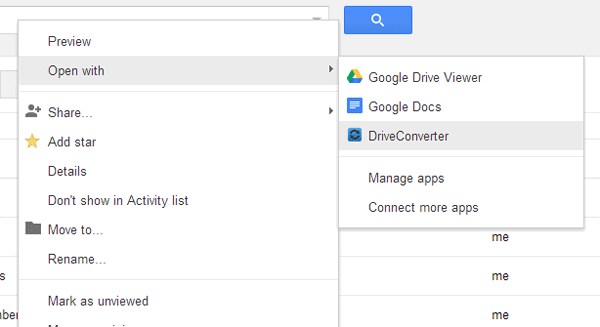
Sign in to your Google Drive account and right-click on the file you wish to convert. Click “Open With” and select “Drive Converter.” This option should be available if the file you’ve selected is supported.
DriveConverter supports the following files:
Documents:
From: docx, doc, txt, rtf
To: pdf, xml, rtf, doc, docx, html, txt
Spreadsheets:
From xlx, xlsx
To: pdf, csv, txt, html, xlsx
Images:
From: png, jpg, gif, bitmap, tiff
To: png, jpg, gif, bitmap, tiff
Audio:
From: mp3, mp4, m4a, flac, wav, ogg
To: mp3, mp4, m4a, flac, wav, ogg
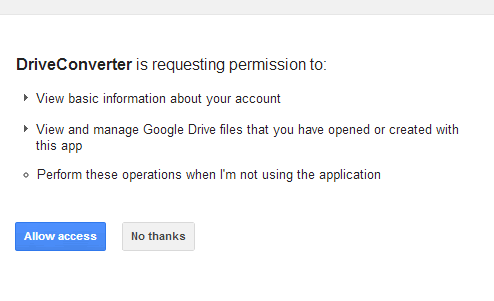
Upon selecting DriveConverter, the Request Permission page from Google should open in a new tab. Click Allow Access.
By default, DriveConverter opens in a new tab, but you can change this by right-clicking on the DriveConverter logo and choosing other options such as “Open as a pinned tab,” “Open as window,” or “Open as fullscreen.”
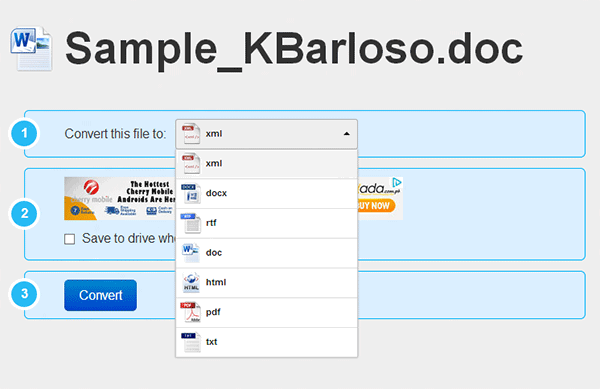
This brings you to the conversion page. The file name will be on the top of the page. A drop-down menu is located below it to choose what file type you want the file converted to. In this example, I am converting a .DOC file into .PDF, so I chose PDF from the list.
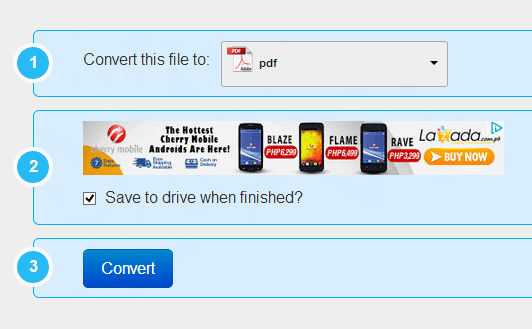
There’s an option to save the converted file in the same location in Google Drive, and you can check this before clicking on the Convert button below.
A progress bar will indicate if the conversion is successful. There will also be an option to download the converted file.

If you upload MS Excel, MS Word or any other files that can be converted to Google Docs, then it is recommended that you turn off automatic conversion during upload.
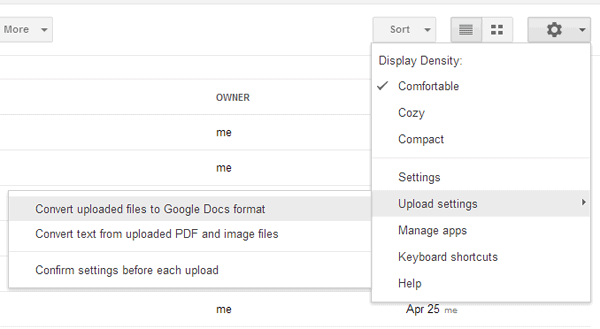
To do this, click on the cog icon in Google Drive (top right corner), mouse over Upload settings and make sure “Convert uploaded files to Google Docs format” is not checked. If it is, then click on it to deselect it.
Since this is a newly released extension, bugs and errors are expected, and the developer encourages feedback in its Chrome Webstore support page. Other upcoming features include support for more file types, as well as a batch conversion feature.
If you’re wary about security when you convert files in Google Drive, DriveConverter only accesses files that you choose to convert, and they are immediately purged from the server after conversion.
DriveConverter is a suitable alternative to third-party software and other web services that need to be accessed outside of Google Drive. With its simple steps and seamless integration with Google Drive, it’s an easier and faster way to convert files in Google Drive. In case you find yourself working away from your main computer, this app is a brilliant solution.