If you are outside of the United States, then it’s no secret that we sometimes feel left out in the cold just because we cannot access US-specific sites like Hulu, Pandora, etc. Other than the inconvenient regional blocking, some countries, companies and organizations are always attempting to restrict, steal and snoop users data without their knowledge. The role of TunnelBear VPN is to encrypt your Internet connection while changing your public IP address to the country of your choice. This enables you to access any site that is off limits due to your geolocation and also secures your Internet connection with tight encryption.
Unlike the other VPN services, TunnelBear took me by surprise with its functionality.
Installation and Usage
TunnelBear comes with three different plans promptly named Little, Gaint and Grisly Bears where the Little Bear comes free of charge with 500MB of free data per month. Download the Windows client from their official website and install it on your computer.
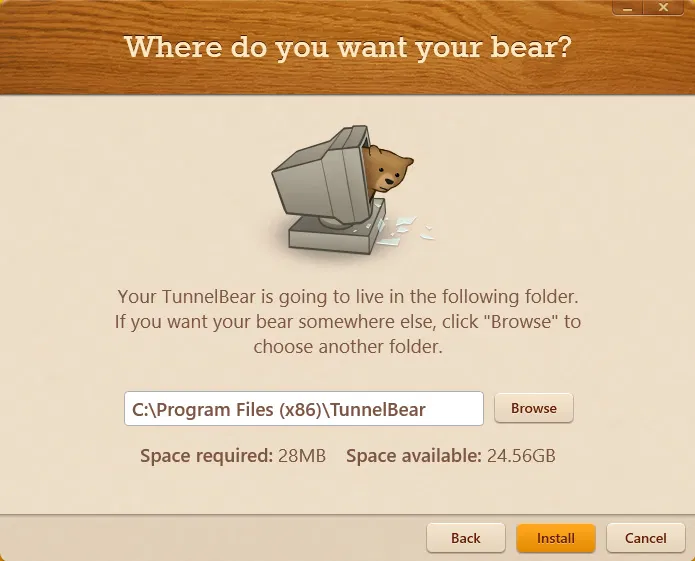
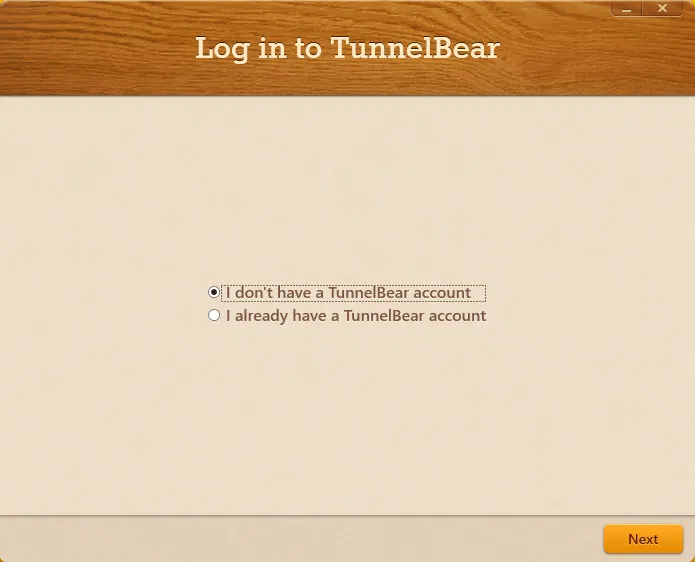
Once you are done with the installation, select the option “I don’t have a TunnelBear account” and click on the “Next” button.
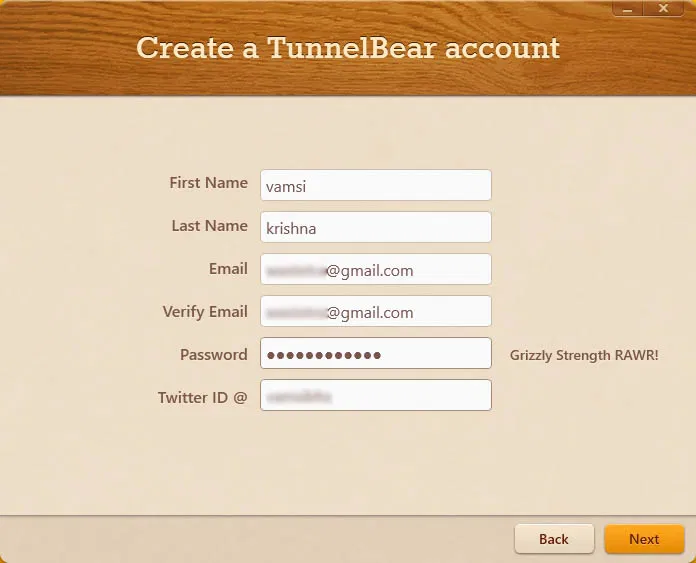
Here in this window, enter the all the details asked for on the form and click on the “Next” button to continue.
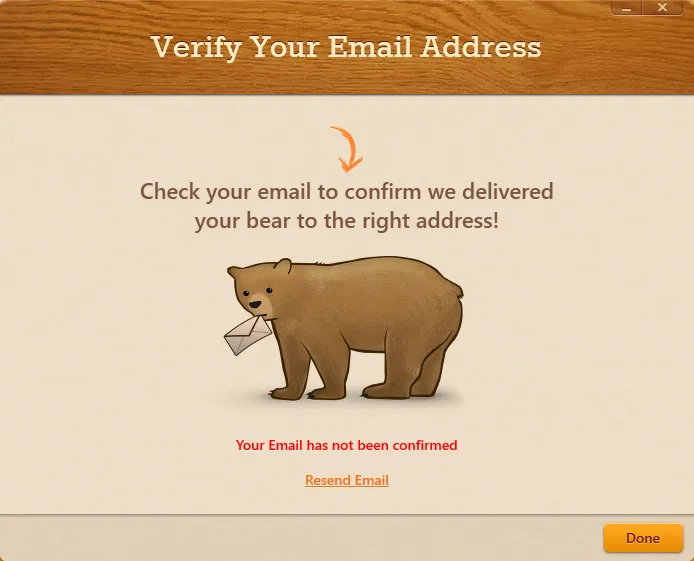
Before you can use TunnelBear VPN, you need to confirm your registered email address. To verify your email address, log in into your email account and click on the link sent by the TunnelBear. Once confirmed, you are good to go. There is no need to restart your computer.
The home screen of TunnelBear is just beautiful and has all the features you will ever need. Depending on the subscription plan, TunnelBear displays the plan name, remaining data and connection status. This is actually a good way to keep track of your data usage.
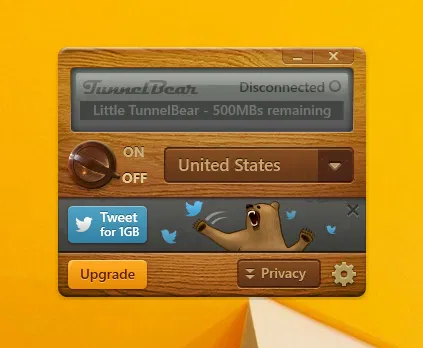
To get started, select the country using the dropdown menu and click on the “On” button to start using TunnelBear. As of now, TunnelBear supports 10+ countries including US, Japan, Switzerland, UK, etc.
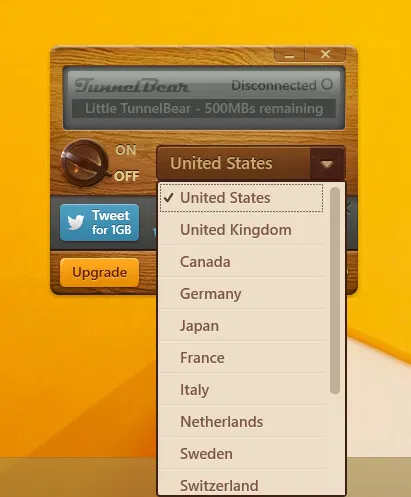
That’s all there is to do. You have successfully configured the TunnelBear VPN service to work as required and your Internet connection is now encrypted and secured.
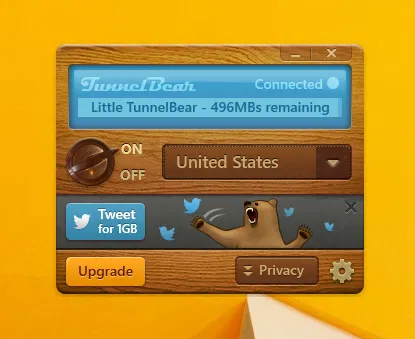
If we are talking about the actual VPN experience, TunnelBear shines. If you have ever used a VPN service, you will know that the US-only streaming service “Hulu” is just smart. Hulu often detects whenever you visit their site using a VPN service and will flat out refuse to stream the content. So to test it out, I just launched Hulu in my browser and there were no problems whatsoever. The thing that surprised me is that TunnelBear can reliably stream the video content without any hiccups.

Of course, whenever you are using a VPN, you are going to lose a percentage of your actual bandwidth. To access the TunnelBear settings, just click on that little gear icon and select the option “Settings.”
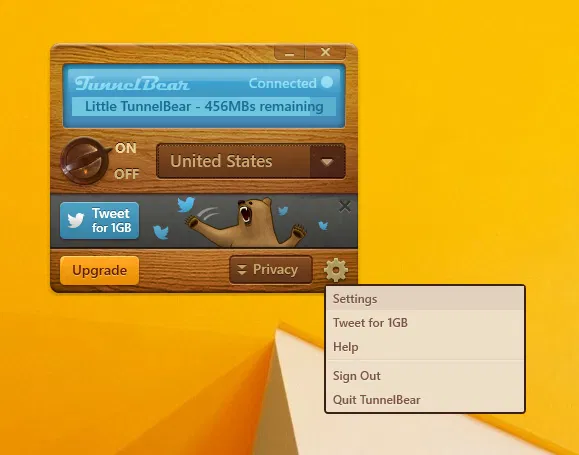
The above action will open the settings panel of TunnelBear. As you can see, there aren’t a ton of options, but the ones that are listed like Vigilant, TCP Override, auto-connect, etc., are really helpful in daily usage.
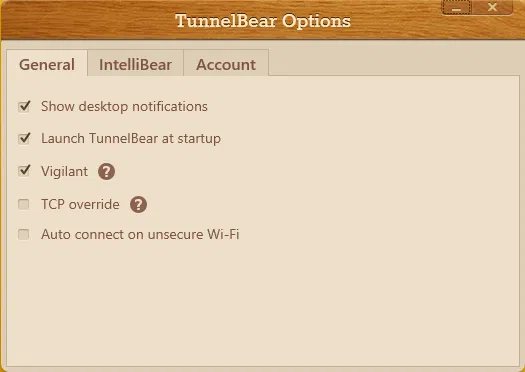
Vigilant: When enabled, it protects your data by blocking the unsecure connections while TunnelBear is connecting or reconnecting. This is particularly helpful whenever you are using Public Wifi where data snooping is really common.
TCP Override: Sometimes ISPs restrict or block traffic over UDP. In those cases, checking the “TCP Override” option will switch all the traffic to regulate the TCP. However, TCP is slower than UDP but gives more reliable connection.
IntelliBear: IntelliBear is a premium feature, and when enabled, you can tunnel specifically listed sites through VPN while browsing the rest with your normal Internet connection. This is very helpful when you have just a handful of sites that need VPN.
Conclusion
TunnelBear excels with its no-nonsense features like Vigilant, IntelliBear, etc., and easy to use user interface. Even though the free version is limited to 500MB per month, you can easily extend the bandwidth by participating in their monthly promo. If needed, you can always subscribe to their premium packages which are priced very competitively. Other than the limitation on the free accounts, there are no major cons and the Bear just works. Do give TunnelBear a try, and you will definitely love the service for its offerings.
TunnelBear VPN