Not long ago Microsoft updated its free office suite, moving away from the Web apps and completely revamping the service, including the name. Now known as Office Online, the company followed this move by making it available for Chrome – both the web browser (Google Chrome) and operating system (ChromeOS).

Sure, you can still visit the OneDrive (formerly SkyDrive), but you can also install apps within the browser and OS. Three of them have been made available – Word, OneNote and PowerPoint. If you’re using a Chromebook you can even pin the apps to the taskbar, where they will line up next to the apps that are pre-installed by Google.

What It Is and How to Use It

In this look, we will be using Word Online, but the other two released will work in a similar fashion. Once installed, head to the apps section within Chrome and click to start it up.
word-online-app-icon

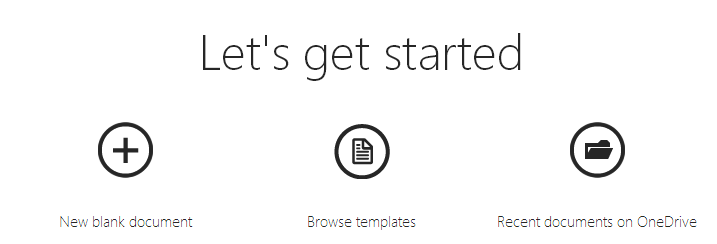
The first thing you will find is a prompt to choose what action you wish to perform – you can open a new blank document, browse through templates or open an existing file. Those files are stored in OneDrive, just as they are in the desktop version of Office. That makes access from another location much easier. Let’s open a new blank document and see what it looks like.
word-online-welcome-screen

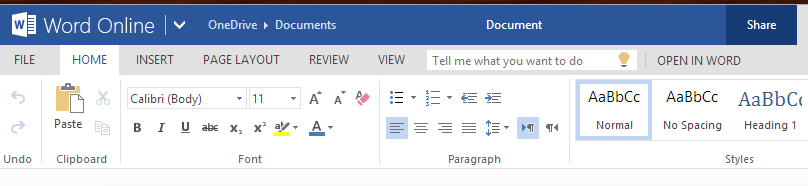
The look will be immediately familiar to you, as the interface is a scaled down version of the desktop Office suite. In other words, you will see the traditional ribbon interface.
word-online-ribbon

All of the most important and most used features and options are here. Even the layout of the ribbon is the same as other versions of the application. You are unlikely to find anything you really need that isn’t included.

You can use the menu across the top to access features from File, Home, Page Layout, Review and View. Clicking each of these will change the ribbon, showing a new subset of items to choose from. Up until now, these were all things you could do with either a Chrome browser or on a Chromebook. But the Google operating system allows for a bit more.

The OS contains a taskbar just as Windows does, and like Microsoft’s platform, applications can be pinned to it, allowing for quicker access, as it avoids having to navigate to the apps page. In Chrome OS, what serves as the taskbar is named the launcher. Head to the apps section and right-click the app you wish to pin. If you are on a touchscreen notebook, then use a two-finger tap. From the menu, choose “Pin to launcher.”

Conclusion

With both PowerPoint and OneNote you will find the same ribbon interface and not a whole lot that is different from their desktop brethren. All are also integrated with OneDrive, while OneNote can still sync across desktop and mobile platforms as well.

All three apps are free, though depending on how much data you plan to store in the cloud, you may need to purchase extra space. The good thing is most Office documents are rather small, so this expense would be unusual.

How to Add Links to Your WordPress Widget Titles

Do you use numerous widgets on your WordPress blog? Have you ever wished that you could add WordPress Widget Titles? If so, you’re in luck thanks to a WordPress plugin called Widget Title Links.

Follow YouTube Channels Easily With YouTube Video Deck

There are approximately two bajillion videos on YouTube and staying up-to-date on a couple of channels could be difficult. YouTube Video Deck makes it easier and faster to follow YouTube channels.

Why You Should Have Local Backups Of Your Cloud Backup

When it comes to cloud storage, one of the things you shouldn’t do is to place all your eggs in one basket. You should also take the precaution to backup the data to somewhere you can physically access. Allow me to explain why.

15 Clocks For Telling Time Within Google Chrome

Your computer came with a clock that is functional enough, but there are so many more ways you could have your computer tell you the time. The Chrome Web Store is filled with various clock apps and extensions. Here are 15 options that might just add an extra bit of excitement to how you check what time it is.

Identity Theft on The Internet: Can You Prevent It?

What if someone else had enough information about you from the web to become you? What can you do to prevent identity theft? We’re here to help you out.

Identify the Fonts on Any Web Page [Chrome]

WhatFont is a Chrome extension that will identify the fonts used on any web page, just by hovering your mouse over them. No more web font guessing!

Add Any Website to the Chrome App Launcher with this Trick [Windows]

If there’s a website that you visit frequently, you can now add it to the Chrome App Launcher for easy access, thanks to this quick trick.

Use Rublon to Add Automatic Two-Factor Authentication to WordPress

Rublon is a plugin that implements two factor authentication in WordPress, without you having to do the additional authentication step. Let see how it works.

Syncthing: An Open Source Alternative for Dropbox and BitTorrent Sync

If you want to keep your files safe while synchronizing them between computers, Syncthing is a good alternative for Dropbox that you can use.

Use History Eraser to Quickly Wipe Your History in Chrome

Are you worrying about your privacy when surfing the web? History Eraser can clean up your Chrome browsing history with a single click. Check it out here.

Force Google Chrome to Remember Username and Password for Particular Websites

Have you encountered websites where Google Chrome refuses to remember the login username and password? This extension can fix it.

MTE Explains: What Is an RFC?

You’ve probably seen the term RFC thrown around in applications that you’ve been using. What is this mysterious RFC that people been talking about? Let’s find out.