One of the challenges of working on the Web are the many distractions it brings. Social media, gaming and email are just a few common things that keep us from getting work done.
To boost productivity, a time management technique called Pomodoro was developed by Francesco Cirillo to break down work into 25-minute intervals, with short breaks in between.
If you want to try the method or are already practicing it, you might want to download an add-on for Firefox called pomodoroFox. Along with letting you set the standard 25-minute timer, it also blocks unproductive websites that you specify.
Upon installing the add-on, you will see a tomato icon on the top-right corner of your browser.

Before enabling the timer, you must first go to the add-on’s Options page to configure which websites it will block.
To do this, go to “Tools -> Add-ons” or hit “Ctrl + Shift + A.”
Click on “Options” for pomodoroFox.
Beside “Duration of activity periods (minutes), you can change the length of time you want to work and block websites. By default, it follows the Pomodoro technique’s standard of 25 minutes.
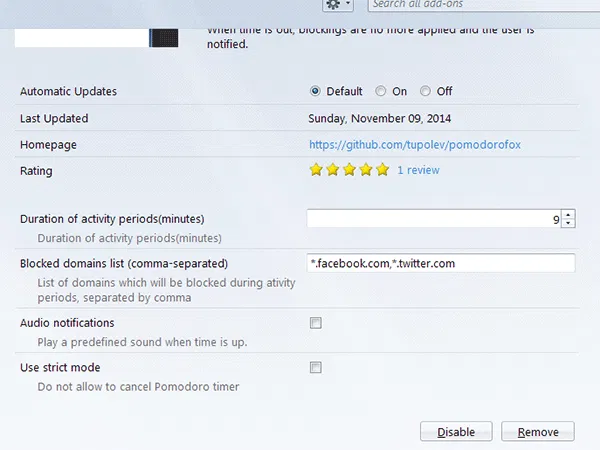
Beside “Blocked domains list,” type the list of domains or URLs you want to block. Follow the format “*.facebook.com” to block all subdomains for that specific site.
If you want a sound played to signify the end of the timer, tick the box next to “Audio notifications.”
You can also set the add-on on Strict mode, which will not allow a user to disable it from the add-on bar. Tick the check box next to “Use Strict mode” to do this.
Once these settings are configured, you can click on the pomodoroFox icon on the add-on bar to start the timer. The icon will turn red, with a number indicating the minutes left on the timer.
Accessing blocked sites while the timer is on brings you to a page telling you that the website is blocked by the add-on.

To stop the timer before the time is up, you can disable it from the add-on bar by clicking on the icon again, provided Strict Mode is not enabled. If Strict Mode is enabled, you would need to go to the Options page again and disable it.
Note that the add-on runs even when you open a new tab or window.
The Pomodoro method is a doable approach for productivity, and it’s not at all that difficult to do. Nevertheless, distractions can still happen within any timeframe, so it’s great to have this add-on installed when practicing the technique.
Other than the fact that it automatically restores blocked sites when the timer is up, the good thing about the add-on is that you can adjust the length of time for the timer to run. In this way, you can either shorten or lengthen it depending on your attention span and how much work you need to get done.
Whether you want to follow the Pomodoro method or simply want to block websites at specified amounts of time, pomodoroFox gets it done.