If you are using Firefox browser on your Android device, you will notice that there is a setting where you can check to “Request Desktop Site”. By default, mobile Firefox comes with a mobile user agent and most websites tend to serve a mobile site upon detecting this user agent, regardless you are using your mobile phone or a 10-inch tablet. When browsing on a tablet, you will have a better experience browsing with the desktop mode than the mobile version of the site. There are two ways that you can get mobile Firefox to run “Desktop mode” by default.

1. Desktop by Default Addon

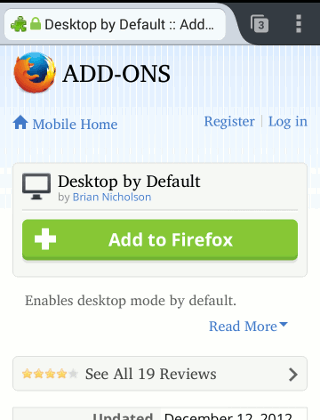
Desktop by Default is a small addon for the mobile Firefox (works only on Android) that checks the “Request Desktop Site” option whenever a new tab is opened. This will ensure that all the websites are rendered in desktop mode.
mobile-firefox-addon-desktop-by-default

2. Manually setting the user agent

If you are not a fan of addon, another way is to set a string to override the user agent of mobile Firefox. One thing to note is that it will render the “Request Desktop Site” option useless.

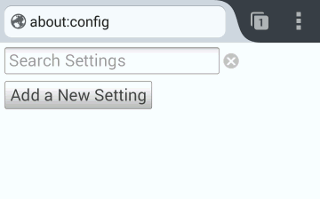
1. Open a new tab in mobile Firefox and type in the address bar “about:config“.
mobile-firefox-about-config

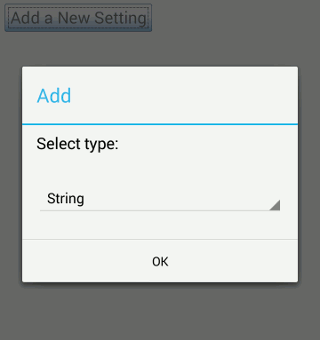
2. Click the “Add a New Setting” link. Select “String” when it shows a popup.
mobile-firefox-new-string

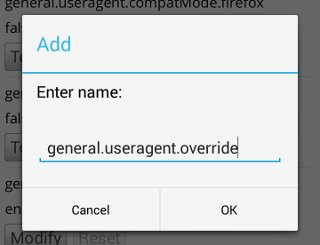
3. Enter the string “general.useragent.override” for the name.
mobile-firefox-user-agent-override

4. Next, go to UserAgentString and search for the desktop user agent that you want to use. In this case, I will use “Mozilla/5.0 (Windows NT 6.1; Win64; x64; rv:25.0) Gecko/20100101 Firefox/25.0“. Enter it as the value for the new “about:config” field created above. Click Ok.
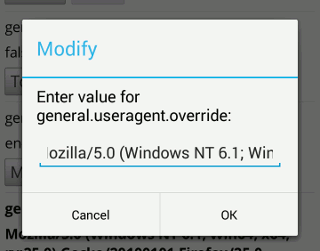
mobile-firefox-set-user-agent-value

That’s it. Restart your Firefox browser and it should render websites in desktop mode now.

How to Add Links to Your WordPress Widget Titles

Do you use numerous widgets on your WordPress blog? Have you ever wished that you could add WordPress Widget Titles? If so, you’re in luck thanks to a WordPress plugin called Widget Title Links.

Analyze Writing Errors with SlickWrite for Firefox and Chrome

Most spelling and grammar checkers in word processors spot obvious writing errors, but not the less obvious ones. Slick Write is a web service that analyzes writing errors as well as performs the usual spelling and grammar check.

How to Share Clipboard Items Between Chrome Browsers

For those of us who use multiple computers for one reason or another, being able to copy from one of them to another is extremely beneficial. Clipboard Sync for Google Chrome provides a good solution for users to copy and paste information between the browser from PC to PC.

Secure Your Yahoo Account With Second Sign-in and App Password

Yahoo has added a feature called Second Sign-in that allows you to secure Yahoo account with two factor authentication. Here’s how you can enable it.

Add Any Website to the Chrome App Launcher with this Trick [Windows]

If there’s a website that you visit frequently, you can now add it to the Chrome App Launcher for easy access, thanks to this quick trick.

4 Great Ways to Take And Edit Screenshots in Google Chrome

Taking screenshots can be time-consuming. Here are 4 screenshots tools for Google Chrome that allow you to snap and annotate screenshots all in the browser.

What Is the OpenSSL Heartbleed Bug and Why Should You Care?

Things just don’t work the way they should in the Internet. Here are some things you should know about the OpenSSL “Heartbleed” bug and how it affects you.

What is Password Hashing (and How Does It Work)?

If there was a breach and your encrypted password was leaked. Is your account at risk? Read on to find out how password hashing work and how it affects you.

How Does Public Key Encryption Work?

One way to encrypt your files is via the public/private key. Let’s take a look at the public key encryption concept to understand how it can protect you.

How to Split Screens in Chrome with the New Tab Resize

Tab Resize is a Chrome extension that allows you to easily split the screen layout to display multiple tabs in one tiled view. Let’s check out how it works.

TunnelBear VPN: A Beautiful Bear That Just Works

Need a VPN service? TunnelBear VPN can encrypt your Internet connection while changing your public IP address to the country of your choice. Read on for the review and giveaway.

How to Convert Images to Text (OCR) With Google Drive

Rather than using an expensive OCR software, you can now use Google Drive to convert image to text. Here’s how you can do so.