The tasks that fill our lives range from utterly mundane to completely invigorating. Yet regardless of whether we are throwing together our sixth paper for that religion studies class or designing a logo for an anxious client, we don’t have infinite time to dedicate to the task. While some may have no trouble keeping track of time in their heads, others may benefit from a more visual means of measuring progress. Progress Bar Timer is a Google Chrome extension that turns deadlines and quotas into convenient progress bars to help track time and goals.
Using Progress Bar Timer
Progress Bar Timer provides three options for tracking time: “Counter” bars, “Clock” bars, and “Timer” bars.
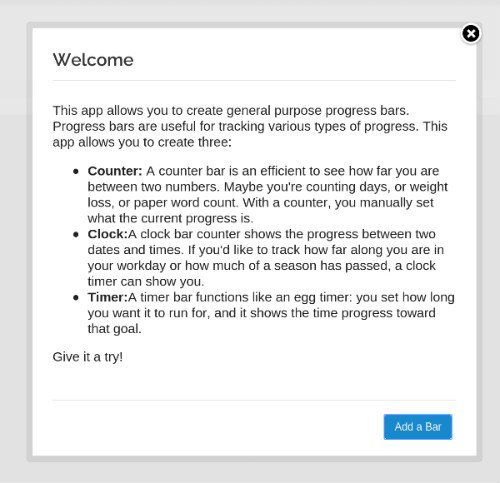
Click on the “Add a Bar” button and a window will appear prompting you to create your first bar. We’ll start with a “Counter.” Lets say I am a delivery man who must deliver five packages every day. Having a handy counter would make it easy to track my day’s progress.
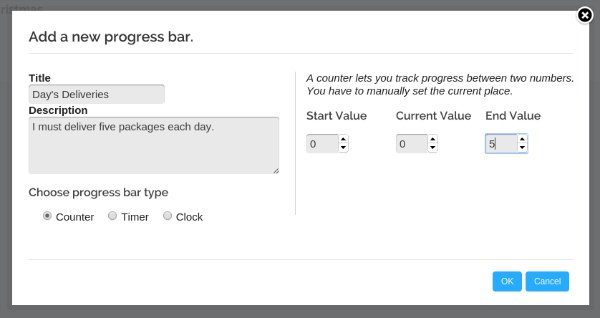
I’ve set my counter to start at 0 out of 5, and after I click “OK,” I am presented with an empty progress bar. After I make two deliveries and put them in by pressing the “+1” button twice, this is what I see.
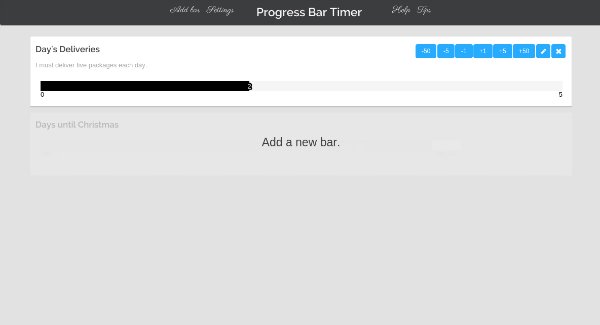
Awesome, I’m almost halfway done. How much time do I have left to deliver the remaining three packages? For that, I will need to create a “Timer” bar. It’s as simple as clicking on “Add a new bar” below my existing progress bar and filling out the form that appears.
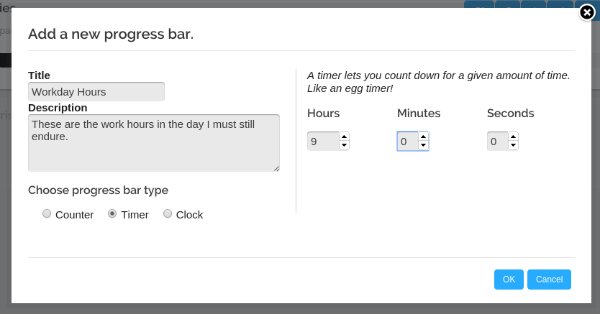
With that done, I’m now presented with my progress bars on display, one below the other. This makes it easier to track time and goals for the day.
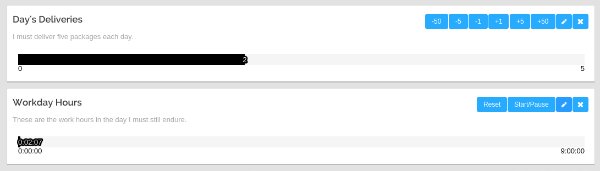
I didn’t think to create this bar at the beginning of the workday. My bar shows that I have nine hours remaining, but I’ve already spent over an hour delivering the first two packages. I will fix this tomorrow, but for now, this just won’t do. Maybe I should create a “Clock” bar instead. I click on “Add a new bar” again, but this time the form looks a little different.
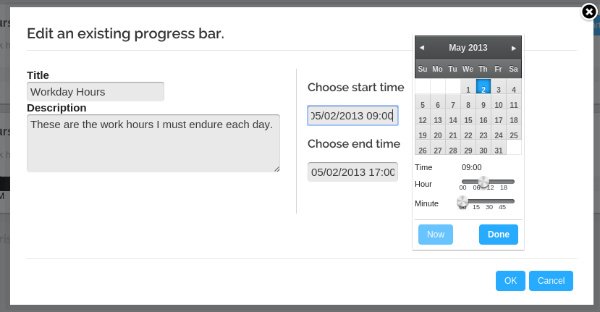
I can set the date and time either by typing them into the entry fields or by sliding the sliders in the popup that appears. When I am done, a third progress bar appears below my previous two.
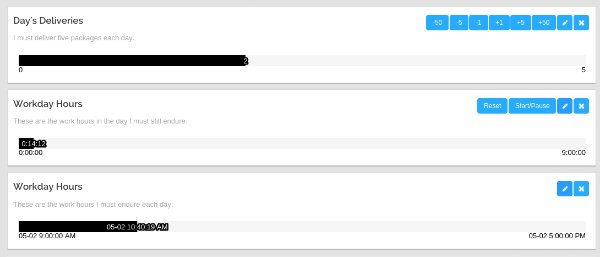
This is much better, as I can now see that I am way ahead of schedule. As long as the top bar remains higher than the bottom bar, I know I will finish my job on time. Keeping this page open beside me and glancing at it throughout the day is much easier than keeping a running tab in my head of how much time I have left to deliver my remaining packages.
In Summary
Okay, so I’m not a delivery man, I’m a blogger, but this tool is no less useful for people like me. Some of my commitments mandate that I meet quotas, and others require that I commit a certain amount of hours each day. A tool such as Progress Bar Timer could make it easier to balance all of these varying commitments. If you need help focusing more time on getting work done rather than tracking how much work you have left to do, consider leaving a couple of progress bars open in your browser to perform the latter for you. If you have another way to track time and goals, let us hear about it in the comments below.