Sometimes, while doing research on the Web, you may want to refer to two (or more) websites side by side to compare the data. In Chrome, the only way to do this is to open the websites in multiple Chrome windows so you can arrange each window side by side. With Tab Resize, you can easily split the screen layout to display multiple tabs in one tiled view.

How Tab Resize works

After installing the extension, you will spot the Tab Resize icon on the top right corner of the browser.
tab-resize2_icon

Left click on this to choose the layout you want to apply on your tabs. The layouts are labelled as 1×2, 2×2 or 1×1, referring to the number of columns x number of rows. Ideally, the number of tabs you want to split should match the layout, otherwise a blank tab will open to fill in an area.

By default, the extension splits the active tab and all other tabs to the right. If you want to view all tabs within a window, be sure that you have the first tab highlighted before splitting them.

If you don’t want to view all tabs, you can get it to skip a tab, or choose specific ones by holding down the Ctrl key (Command key for Mac) and clicking on the tabs.

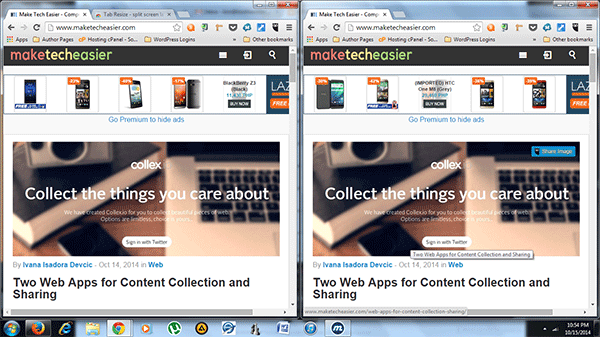
In the example below, only the first and third tabs were split, leaving the middle one untouched.
tab-resize2_skippedtab

The unselected tabs will appear beside the left-most tab (first window).

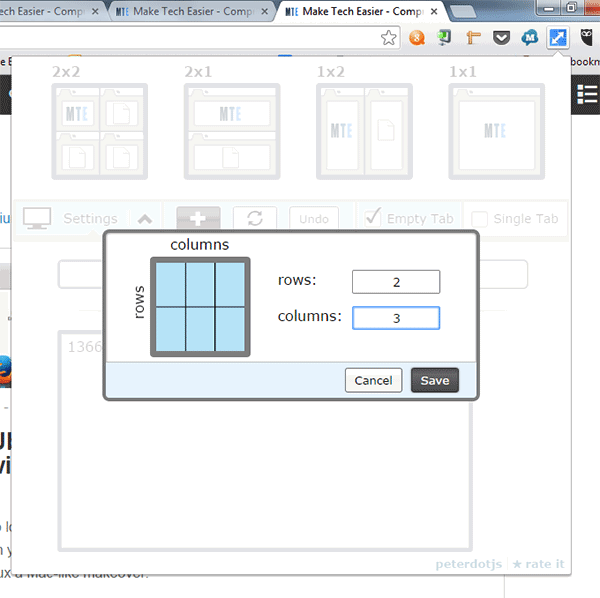
The layout options are a bit limited in terms of row and column numbers, but you can add custom layouts by clicking on the plus sign on the popup menu.
tab-resize2_custom

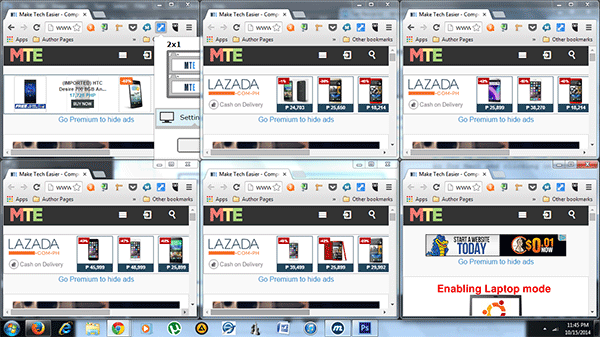
Specify the number of rows and columns, and you should get a preview of how your layout would look. In the example below, I arranged for two columns and three rows for six tabs. Here’s how it looked upon executing the layout:
tab-resize2_custom2

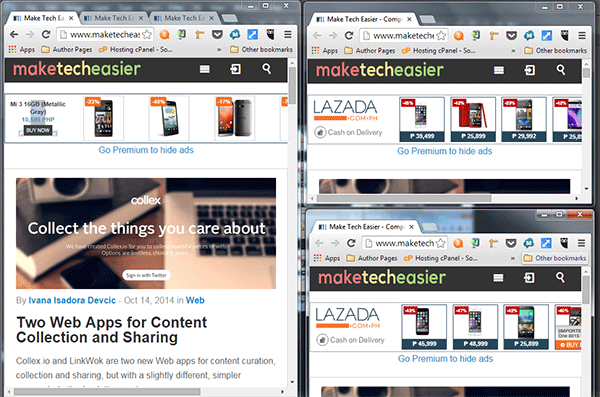
If, for some reason, none of these layouts work for you, you can always toggle “Single Tab” mode to manually resize each tab as you want them to be positioned on your screen.

For instance, you might want one column dedicated to one tab, while the next column will have two other tabs (example below).
tab-resize2_singletabs

To undo any resized tabs, click on the icon on the top right corner of the browser (from any tab) and select “Undo.”

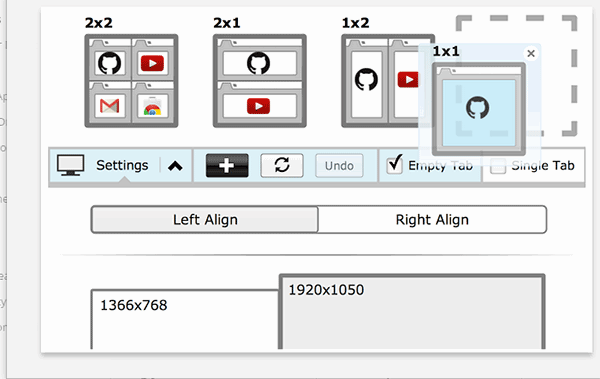
Tab Resize also supports multiple monitor support. To view available display devices, click on the icon and go to “Settings.” If you have dual monitors, they should show under this section and will indicate each monitor’s resolution.
tab-resize2_multiplemonitor

Conclusion

When it comes to splitting tabs, this extension is probably the most flexible tool. With the latest update, the user has even more options to arrange tabs as needed.

It takes a bit of practice to get used to Tab Resize’s many functions, but it’s well worth the effort. Once you get the hang of how it works, it’s easy to see why it’s one of the best tools for viewing multiple tabs at once.

How To Read ODT Documents Inside Your Browser

Various web services can open Microsoft Office files with ease, but what about files created with LibreOffice? The good thing is, you can also read ODT document in your browser as well.

Track Time and Goals Using Progress Bar Timer [Google Chrome]

Tracking your time and task can be a difficult job. While some may have no trouble keeping track of time in their heads, others may benefit from a more visual means of measuring progress. Progress Bar Timer is a Google Chrome extension that turns deadlines and quotas into convenient progress bars to help track time and goals.

How to Better Embed YouTube Videos Into Gmail

If you want to embed Youtube in email rather than just pasting a link, this guide will show you how to attractively embed a YouTube video into Gmail.

How to Fix Foreign Characters Not Showing Up issue In WordPress

If you enter foreign character in WordPress, but only see question marks (???) showing up, here is the fix for this issue without losing any data.

This Firefox Add-on Can Resurrect Dead Web Pages

Don’t browser away from that dead or broken web page! Use this Firefox add-on instead, used to resurrect dead web pages.

Identify the Fonts on Any Web Page [Chrome]

WhatFont is a Chrome extension that will identify the fonts used on any web page, just by hovering your mouse over them. No more web font guessing!

How to Enable Two-Factor Authentication in Buffer

Buffer has added a new 2-Step Login security feature to their web app. This tutorial will show you how to enable two-factor authentication in Buffer.

The Easiest Way to Automatically Open Websites in Incognito Mode [Chrome]

Are there websites that you only want to view in Incognito Mode? The Incognito-Filter Chrome extension will let you do that in a snap.

Using the Google Drive Form Feature as an Organizational Tool

Google Drive has a hidden function with Forms, and while it creates great surveys and quizzes, it can also be used as a useful organizational tool.

Import Email From Other Services to Outlook.com Using IMAP

With Outlook.com, it seems that Microsoft has hit the jackpot with an email service that competes with Gmail. Read on to find how to import IMAP messages.

How to Transfer the Contents of User Profiles in Firefox

If you are trying out a new Firefox-based browser, you can transfer the content of your old user profiles so all your items are intact. Here’s how to do it.

How to Add Emails to Google Tasks Within Gmail

If you use Gmail in Google Chrome, here’s a handy extension that allows you to see your Google Tasks along with your Gmail inbox.