Writing for any purpose requires a great deal of editing and proofreading. Most spelling and grammar checkers in word processors spot obvious writing errors, but not the less obvious ones. Slick Write is a web service with add-ons available for Firefox and Chrome. It’s a versatile tool that analyzes writing errors as well as performs the usual spelling and grammar check.
If you want immediate access to Slick Write’s writing tool, then you’ll need to install the add-on in Firefox or Chrome. The installation requires a restart for Firefox, but not for Chrome.
After installing the add-on, you should see a pen icon in the top right corner of the browser, but the easier way to access the tool is from the contextual menu (right-click). You can right-click at the end of the text you want to analyze, or you can highlight a portion of the text.
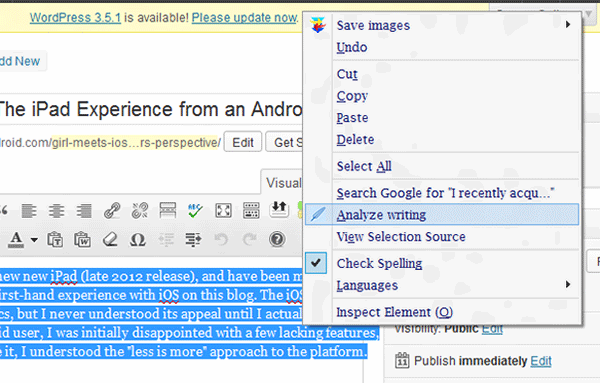
Click on Analyze Writing. This should open a new tab that leads to the Slick Write analysis page. The page has a few tabs on top, and there are four major areas of analysis: Critique, Structure, Flow and Stats.
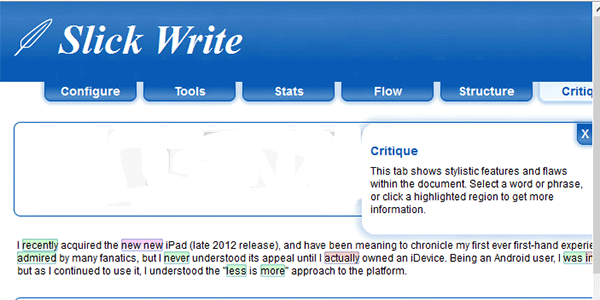
The page opens to the Critique tab by default. Critique identifies flaws within the writing including double words, unnecessary adverbs, overwriting and other stylistic errors. The errors are highlighted by color depending on the type of error, and mousing over them will analyze writing errors by identifying what’s wrong with the word or phrase.
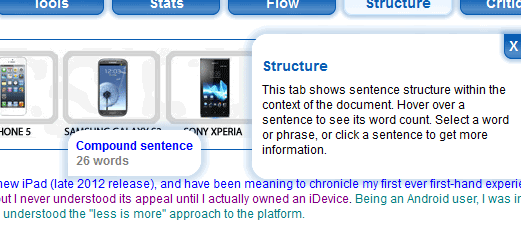
The Structure tab analyzes all sentences and categorizes them into Simple, Compound, or Compound-complex sentences. Hovering the mouse over a sentence shows the type of sentence structure, along with the word count. To know more about the sentence type, you can click on the sentence to get a brief explanation.
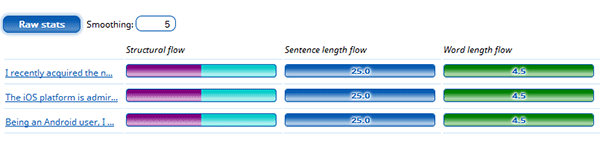
The Flow tab is a graphical representation of the distribution of sentence type, length and word length within the text. Colored bars called meters are shown for each sentence, with a rating for each analysis. Click on a meter to know more about the statistic shown.
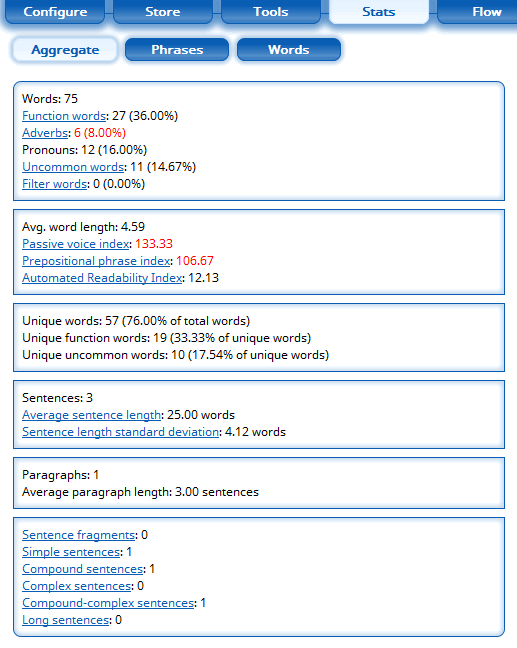
Finally, the Stats tab is divided into Aggregate, Phrases and Words. Aggregate is a statistics summary which includes word count, average word length, paragraph count, unique words, and more. You can further filter it down to the next two tabs, Phrases and Words. Under Words, you can see words that are repeated all throughout the text.
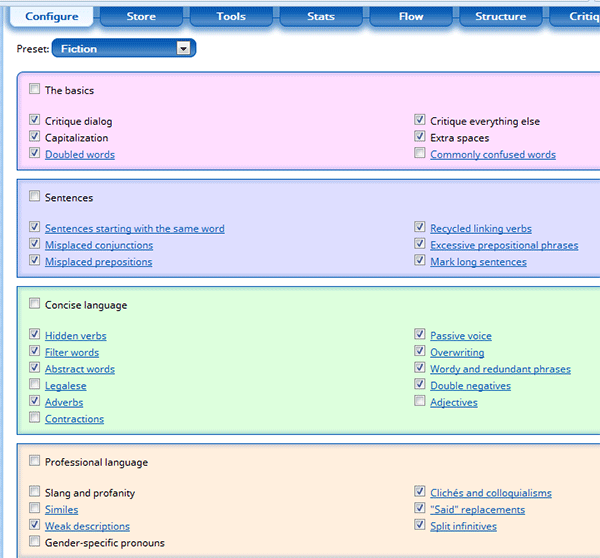
If you want to see all editing features, you can click on the Configure tab to enable or disable certain functions. Click on a function to know more about it. There are presets and the default one is set to Fiction, but you can click on Custom to make your own settings.
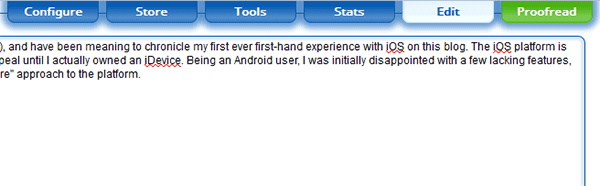
Additionally, if you want to edit the text within the Slick Write interface, you can click on the Edit tab and do it from there.
Slick Write’s vast and flexible features are perfect for creating excellent written work. It doesn’t require a lot of tweaks or steps. In a matter of a few clicks, an overwhelming amount of information is presented in an organized manner that is easily understood. Any writing task can be daunting, but not when you have this tool handy in your browser to analyze writing errors.
Do you have a favorite way to check for writing errors in Firefox and Chrome. Tell us about them in the comments section.