Chrome gets a lot of things right, but it also leaves users to fend for themselves in other ways. The extension manager in Chrome has always given users the bare minimum to work with when dealing with extensions, themes and apps. The SimpleExtManager for Chrome gives users the functionality they deserve.

How to Use SimpleExtManager in Chrome

1. You can install the SimpleExtManager for Chrome from the Chrome Web Store.

No restart is required during the process, so you can begin using your new super-charged extension manager right away.

2. Click the SimpleExtManager icon in the toolbar.
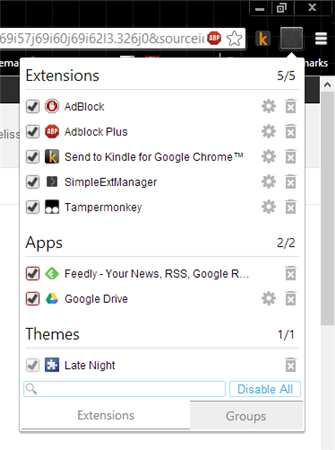
using the SimpleExtManager to replace the extension manager in chrome

This will open your new extension manager for you.

From here, you can enable, disable, head directly to extension settings and even uninstall extensions, apps and themes from Chrome.

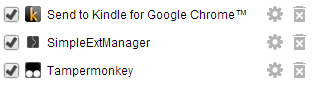
3. Clicking on the “Gear Icon” will open the extension, app or themes settings.
SimpleExtManager-components

Unfortunately, SimpleExtManager doesn’t change the layout for the settings themselves.

4. If you click on the “Trash Can” icon, you’ll be able to uninstall the extension from the SimpleExtManager panel.

5. Clicking on the “Check Mark” will enable or disable the extension quickly.

enable-or-disable-an-extension

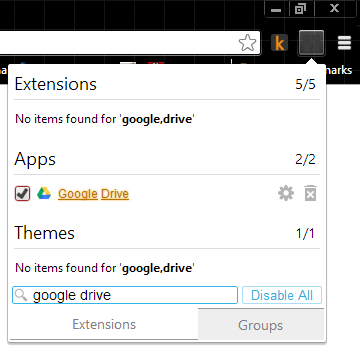
6. At the bottom of the SimpleExtManager panel, you’re able to search through your extensions, themes and apps.
searching-SimpleExtManager

The search is very basic, as you can see from the example of looking for the Google Drive app. It will search for each word individually to find a hit.

7. The “Disable All” command at the bottom of the panel lets you efficiently disable all extensions, apps and themes.

This can be a quick way to troubleshoot issues in Chrome where you suspect one of these items may be the cause. You can click it again to enable all of them once more.

8. Right-click the SimpleExtManager icon in the Chrome toolbar and click on “Options.”
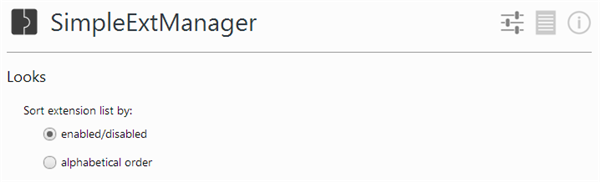
SimpleExtManager-options-looks

This will let you customize how the extension works in Chrome.

Looks lets you change the order of items in the panel.

You can customize the panel further with the options below that.
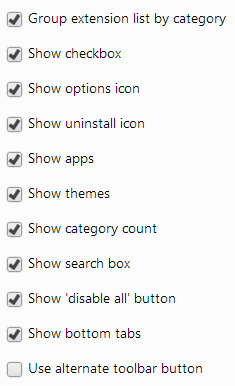
SimpleExtManager-options

At the bottom of the Options, you get to Groups.

Groups allows you to organize your extensions for easier access in the SimpleExtManager.
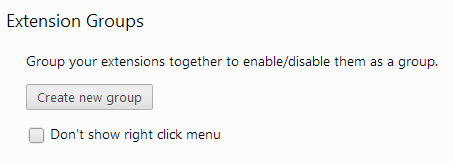
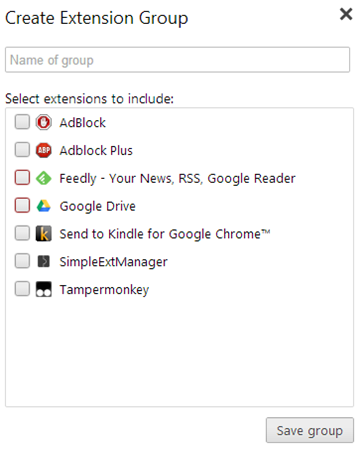
create-new-group

9. Click “Create new group.”

create-new-extension-group

You can name the group, then check each extension or app you want to add to it.

10. When finished adding apps and extensions, click “Save group.”

You can head back to the Options anytime you need to edit, delete or create a new group.
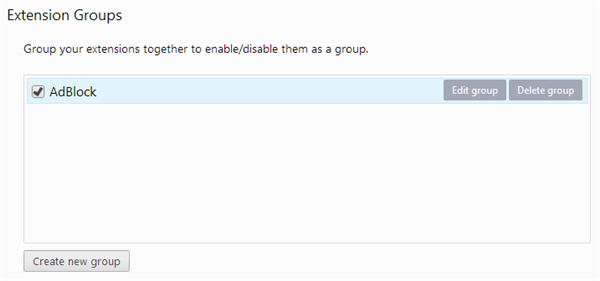
edit-groups

From the panel itself, when you click on “Groups,” you’ll see your newly created groups so you can easily enable or disable them as necessary.
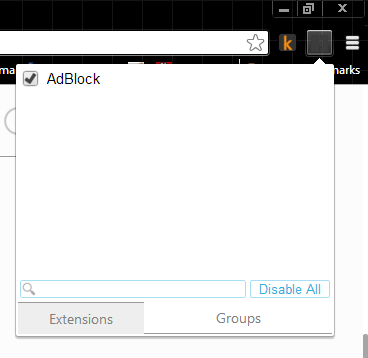
SimpleExtManager-groups-in-action

SimpleExtManager gives you much more ease of access and control over extensions, apps and themes than what Chrome has built-in to the browser.

Conclusion

SimpleExtManager is one of the better ways to get more from the extensions, apps and themes settings in Chrome. This extension offers the functionality that should have come with Chrome to begin with.

SimpleExtManager for Chrome

Best Plugins to Automatically Watermark Images In WordPress

One of the way to protect your images online is to add watermark to your images. Here are some of the best plugins that you can use in WordPress to automatically add watermarks to the images you uploaded.

How To Read ODT Documents Inside Your Browser

Various web services can open Microsoft Office files with ease, but what about files created with LibreOffice? The good thing is, you can also read ODT document in your browser as well.

How to Configure The Tabbed Inbox In Gmail

Google has recently introduced the new tabbed inbox in Gmail which will auto-sort your emails into various tabs and help you to be more productive. This new tabbed inbox interface is not activated by default. This article will show you how you can activate and configure the tabbed inbox in Gmail.

Don’t Want to Pay for Feedly? Feedspot Has You Covered

Feedly is now the go-to service for reading RSS feed. However if you are not willing to place for the premium service, Feedspot can be an alternative.

How to Create QR Code in Google Drive

There are tons of ways to create QR code. If you are a Google Drive user, here is one quick way to create R code in Google Document

Surfly Lets You Browse the Web with Friends Without Installing Software

Surfly is a free web app that lets you browse the web with friends in just a few quick steps; enter a website, share a short URL & start surfing.

Light – A Lightweight and Speedy Firefox Alternative

Light is a lightweight browser built with speed in mind and is ideal for old machines. It is a Firefox alternative with several non-essential features removed.

Can People Really Spy on Your Webcam?

There were news that the FBI was able to spy on people’s webcams without them knowing. How is this possible? Let find out how this hack was done.

Three Ways To Educate Yourself Right Now About Internet Censorship

The Internet isn’t free, as much as you like it to be. This article examines 3 of the best online resources where you can learn about Internet censorship.

How to Submit WordPress Site for Bing Indexing

If you want to get your site indexed in Bing search results, here is how you can submit your WordPress site to Bing and have it index your site.

Easily Make Old Extensions Work with Current Version of Firefox

Sometimes, you are not able to install old extensions as they are not compatible with your current version of Firefox. Here is how you can force compatibility and make them run.

How to Convert Images to Text (OCR) With Google Drive

Rather than using an expensive OCR software, you can now use Google Drive to convert image to text. Here’s how you can do so.