Google Drive may be widely used as a place to store and share documents for work, but it’s essentially a storage service for all types of files — including media files such as music and video. For people who work with music as a hobby or profession, this service can also prove a handy tool. Unfortunately, it’s not possible to play music in Google Drive, at least not without a workaround. Installing a Chrome extension called DriveTunes allows users to open and play music files straight from the Google Drive directory, including files within folders and ones that are shared from other users.
How to Play Music in Google Drive with DriveTunes
First, install the Chrome extension for DriveTunes.
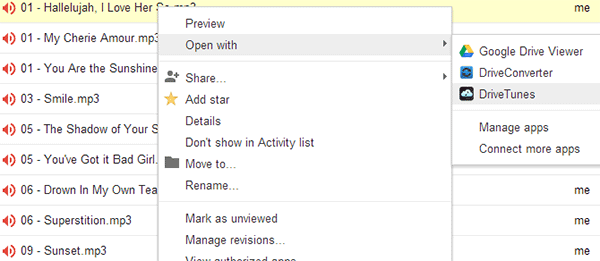
After installing the extension, open Google Drive and select the music file or files you want to play. If you want to play more than one file, then tick on the boxes next to the file name. Right click on a file and click on Open With. Select DriveTunes from the list. If you don’t see this option, then most likely the file is not supported by the app.
Upon clicking DriveTunes, a new tab will open with the files you have selected listed in the middle, and a big set of playback controls on top (Play/Pause, Next and Volume). Click on an audio file’s title, and it should begin playing. Note that a speedy Internet connection is crucial for uninterrupted playback.
A left panel provides three ways to filter what files you see in the playlist. Your choices are “Selected”, for viewing only files that you have previously selected, “My Drive”, for viewing audio files you have uploaded, and “All Music”, which should be all types of audio files in your drive or shared with you by other users. By default, you should arrive at the Selected tab.
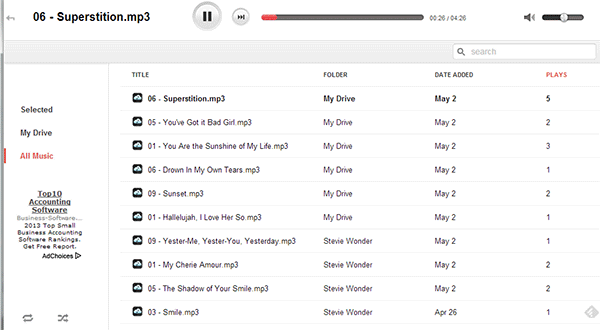
Another method of accessing the DriveTunes window is by opening another tab or window and going to drivetunes.org. You have to be logged in to your Google account before doing this, and the web address should automatically open to your music file’s playlist screen.
Other options include a Repeat and Shuffle button on the bottom left corner, as well as a Search bar on the top right.
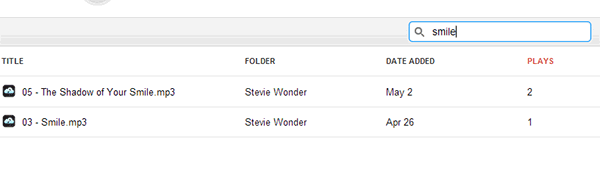
The last column on the right, “Plays,” indicates the number of times a file was played.
DriveTunes currently supports MP3 and M4a files. A note from the developer indicates future support for OGG and FLAC files, but not WMA due to its “proprietary nature”.
Note that you can only play music in DriveTunes; there is no added option to download or edit these files. This shouldn’t be an issue though as you can manage the files directly in Google Drive.
Streaming music in DriveTunes is a free and accessible alternative to expensive music hosting services and even other more complicated web applications. All you need is a Google Drive account, the DriveTunes extension in Chrome, and a reliable Internet connection. While file support and features are very basic, it’s a working solution to playing audio files on the go without having to install third party applications.