Dropbox has become a widely used method of file sharing and transfer. For users who need to share content with others or across multiple devices, Dropbox is one of the most reliable, if no, indispensable, tool one can use.
As an avid user, I always find it saves time to access the Dropbox website when using a computer that doesn’t have the official Dropbox software installed. That’s why I was bound to discover the extension for Google Chrome called EasyDrop. This extension lets you access your Dropbox files from Google Chrome, without leaving your current tab.
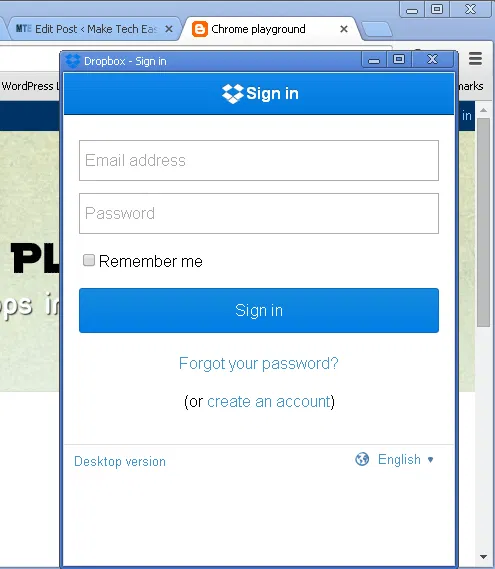
Upon installation, you’ll immediately notice the blue EasyDrop icon on the top right corner of the browser. Click on this to pull up the Dropbox sign in page.
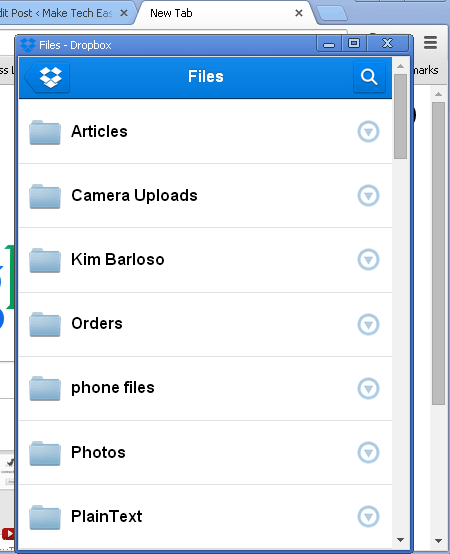
After logging in, you can then see your files and folders. The pop up screen can be maximized by clicking on the Maximize button on the top right corner of that window.
From your list of files, you can click on the file or folder name directly to access it, or you can click on the icon beside it to view more options. This enables you to either share the link to that file or folder or delete it.
In the example below, I shared a link to a text file. This brought me to another window (this may require a maximized or full screen view) which allows me to add the email address of the person with whom I am sharing the link.

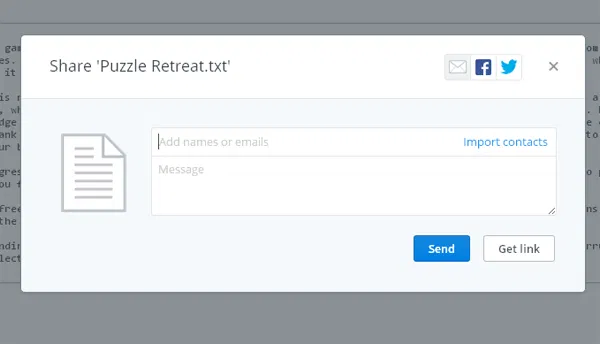
If you want, you can import your contacts from Google, Yahoo or Facebook by clicking on “Import contacts” on the “To:” field.
If you’d rather just have a URL of the link, you can click on “Get link” instead of “Send”. A pop-up message will appear telling you that the link has been copied to the clipboard, which then allows you to paste it in any text field or message.
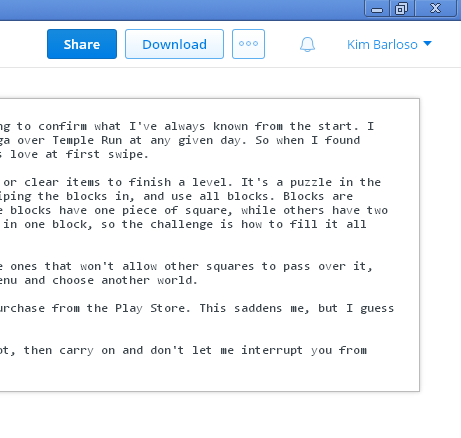
If you only want to download the file, you can close the same window. You will notice a Download button on the top right area of the page. Click on this and wait for the download to begin.
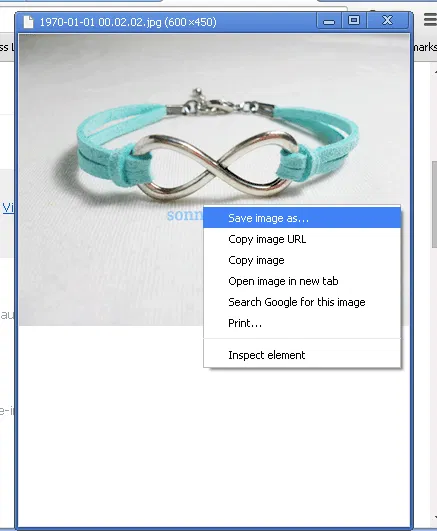
EasyDrop can open most common files such as photos, text, and documents including PDF files. The image below is from the Camera Uploads folder. The list of photos are shown only in file name view, so you’ll have to click on each one to see the actual photo. Once you have it opened, you can right-click on the image to save it to your computer.
For PDF files, the file opens the same way it does on a standard web browser, and you can click on the disk icon on the bottom right to save the file.
One thing to note is that EasyDrop does not let you edit files, specifically text or document files. It will simply show you the content, but will not let you revise it.
Despite this, EasyDrop is an efficient way of dealing with Dropbox on the go. When you need to quickly scan and download one or two files without taking too much time, this extension is a sensible solution.