Keeping track of word count might not be the least bit of concern to some, but for writers and researchers, the number of words in an article counts. Whether it’s a requirement, or a way of measuring article length, word counts are becoming a staple data required of any written work.
If you use Firefox, an add-on called Word Count Tool will make it easier for you to keep track of word and character count (and even more data) within the browser’s Add-on bar which is usually in the bottom area.
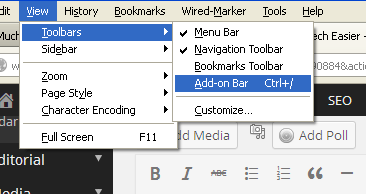
After installing the add-on, you will notice the “Word Count Tool” icon on the bottom. If you don’t see this, click on “View” from the top menu bar, select “Tool Bars” and click “Add-on Bar”. You can also hold down the CTRL key and press “/” to toggle viewing the bar.
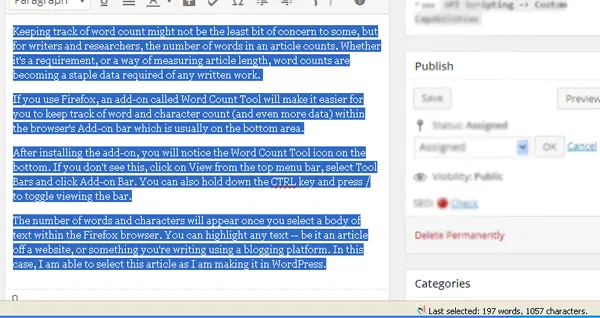
The number of words and characters will appear once you select a body of text within the Firefox browser. You can highlight any text – be it an article off a website, or something you’re writing using a blogging platform. In this case, I am able to select this article as I am making it in WordPress. Although WordPress has its own way of showing the word count, it’s not always visible – which gives Word Count Tool an edge by being immediately viewable from the bottom of the screen.
In other cases where you want to highlight text in a website, you only need to highlight it and the word count should automatically appear on the Add-on bar. In the example below, I highlighted an article at Forbes.com, and the word and character count instantly reflects on the bottom right corner of the browser.

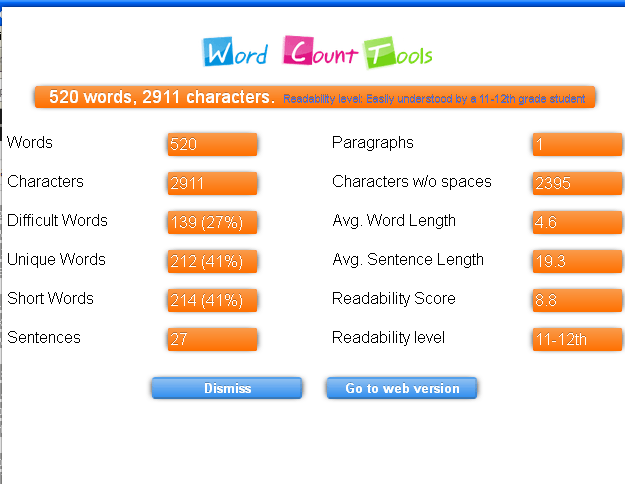
Another useful feature of this add-on is the additional information about the text you select. Simply click on the icon on the bottom or hold down “Ctrl + Alt + C” and you get a pop-up window with more information about the text. This includes the number of sentences, paragraphs, and different types of words (difficult, unique, short), as well as average word length and readability score/level. To know more about the readability score, you can visit the add-on’s website, www.wordcounttools.com.
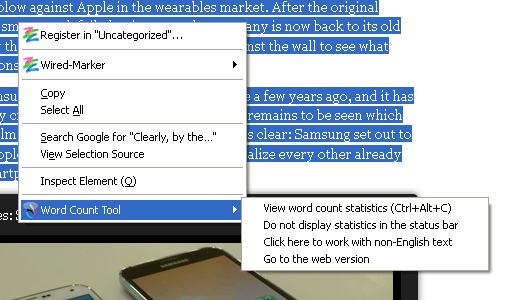
If, for some reason you don’t want to utilize the Add-on bar to use Word Count, you can use the context menu instead. After highlighting text, you can right-click and go to Word Count Tool. This gives you several options – some not accessible from the Add-on bar.
Here, you can view word count stats – which would be the more detailed pop-up window described earlier. You can also disable showing the word count from the Add-on bar from this menu. If you’re viewing a non-English text, you have the option to “Click here to work with non English text”.
Word Count Tool is a simple yet convenient way of keeping track of word counts and other text data when reading or writing. It not only tells of how many words there are, but also other insights such as readability, average word length and other information that may be essential to your research or writing.