Gmail filters is a good way for you to set rules for your email and allow you to organize your inbox without you doing the manual work. Here are a few ways that you can make good use of Gmail Fliters
1. Forward all incoming emails and archive them
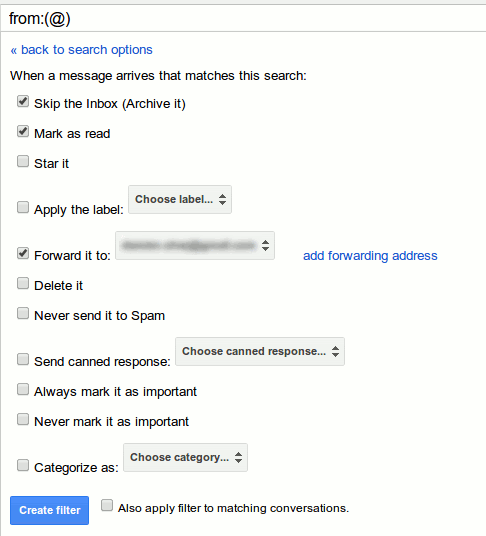
If you have multiple Gmail accounts, and you really only use one of them, a good way to manage all your emails is to forward all the emails from all the accounts to the primary account. In addition, you can mark the emails as read and archive all of them, so they won’t show up in the inbox.
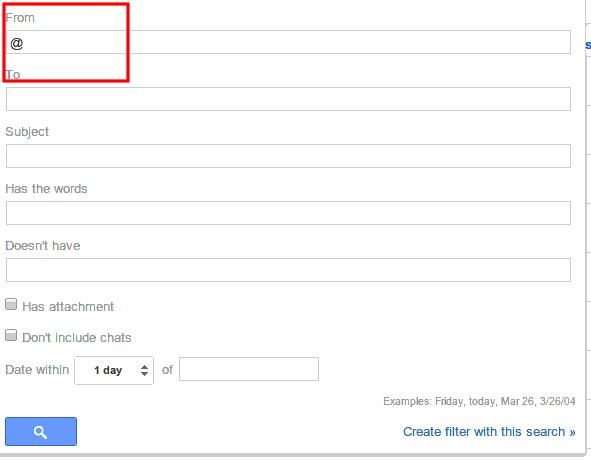
To accomplish this, create a new filter with @ in the “From” field. (It will work with * as well)
In the next section, you can select “Forward it” as well as “Mark as read” (or “Archive”).
2. Auto-reply to Email Using Canned Responses
If you always receive emails from the same user, or have the same pattern (like questions on a particular topic, guest post request, etc), you can compose a canned response and create a filter to auto-reply with the canned response for such emails.
Here’s the guide to setup the filter to autoreply with canned response.
3. Sort attachment of various size
The standard filter allows you to select emails with attachment. You can further improve this filter by specifying the attachment size. For example, to add a label “big file attachment” to emails with attachment of more than 10MB:
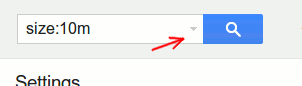
1. In the search bar at the top of Gmail, type:
size:10m2. Next, click the down arrow at the end of the search input field. This will pop up a filter window. You can add additional rule to further narrow down the search. Lastly, click the “Create filter with this search” link and you will be able to assign the specific label for this filter.
Yet another way to customize this filter is to sort attachment according to their file types, something like:
has:attachment .jpg .jpeg .png .gif .tiff .tifor
has:attachment .pdf .doc .docx .xls .xlsxand place the respective email either in “Picture” or “Documents” folder.
4. Configure tabbed inbox emails
For the new tabbed inbox interface in Gmail, Google is the one that decides which email go into which category/tab. By using the filters, you can set your own rule to override the default settings, like emails from Twitter will go directly into “Primary” instead of “Social” tab.
To do that, you just have to add “twitter.com” in the “From” field and select “Personal” under the “Categorize as” section.
5. Quickly organize old emails into label
After you have created a filter, it will only work for future incoming emails. If you already have thousands of emails in your inbox and you only just started out using filters, there is an option for you to quickly apply the filter to all the emails in your inbox.
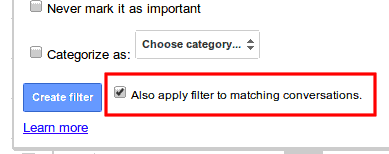
After you have selected the action for the filter, just before you click the “Create the filter” button, check the box beside “Also apply filter to matching conversations.” This will apply the filter to all the matching emails in your inbox.
6. Export/Import Filter to new Gmail account
If you have multiple Gmail accounts and you want all of them to have the same set of filters, instead of creating each filter one-by-one in all the accounts, you can simply export from one account and import to other Gmail accounts.
In the “Settings -> Filters” tab, scroll down all the way to the bottom. Click “All” to select all the filter and click the “Export” button. This will export all your filter in xml format. Altneratively, you can go through each filter and place a check beside the one that you want to export.
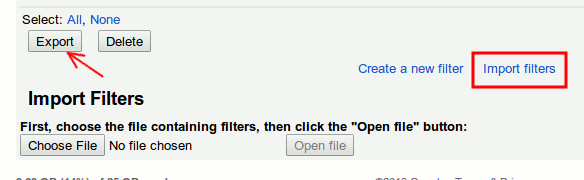
In the other Gmail account, click the “Import filter” link to import your filter.
7. Send a to-do list to yourself and auto assign it to label
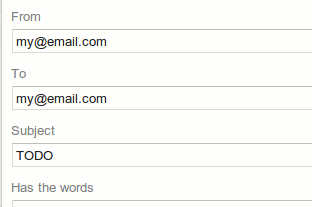
If you have the habit of recording down the things that you need to do, you can simply email yourself with the subject “TODO” and make use of a filter to add “TODO” label to the email.
8. Use Gmail as a RSS reader
Using a service like IFTTT, you can easily convert a RSS into an email and have it delivered to your inbox. You can then make use of a filter to assign “RSS” label to the email.
9. Create a disposable email address with the “+” alias
This is an old trick. You probably know that you can append a “+” sign to your email address and anything behind the “+” sign is ignored by Gmail. This means that you can quickly create a disposable email address of the form “[email protected]” to use for various signup.
For this to work, you have to create the filter:
TO: myemail+disposable@gmail.com
Action: Delete It
Conclusion
There are tons of ways to make use of Gmail filters and we have only scratched the surface. Do share with us the cool filters you have come up with and innovative ways to make use of them.
Image credit: file folder with slots for household expenses by BigStockPhoto