It is old news that Facebook doesn’t really care about your privacy. The latest news isn’t much different either, as we’ve now learned that Facebook is selling your search history to help advertisers better target you with specific products. This may be delightful for some, but is entirely bad news for many, particularly for those who are concerned about their privacy. Fortunately, there’s an option to opt out if you wish, and today, we’re going to show you how to do exactly that.

In a positive sense, tailored ads are a better deal all round. What tailored ads do is that they show specific ads based on your browser or search history. They prevent users from viewing absolutely irrelevant ads that are inappropriate to your particular taste. And more importantly, Facebook’s ad spots are more valuable if they’re shown to users who are interested in the advertised products. Facebook’s advertising system already checks on your likes and status updates to better determine the kinds of products and services you may buy, but interest-based ads will take the current system to new heights, which many didn’t really expect from the social media giant.

So, due to the main reasons above, Facebook will be utilizing your search history, alongside information on apps you use for tailored ads. This feature will initially roll out to the United States users, and will then continue to release in different countries worldwide.

We’ll be showing you how to opt out on your iOS and Android device, along with the Web app on your computer.

Opt Out On Your iOS Device

1. On your iOS device, open up the Settings app from the home screen.

Opt-Out-FB-Ads-Settings-App

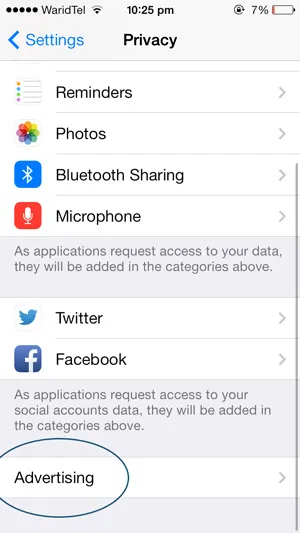
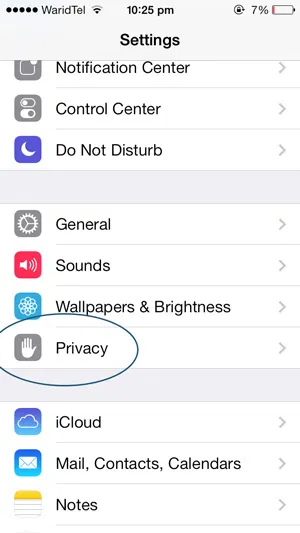
2. Tap on Privacy, and scroll down to Advertising, and click on it.
Opt-Out-FB-Ads-Privacy-iOS

Opt-Out-FB-Ads-Advertising-iOS

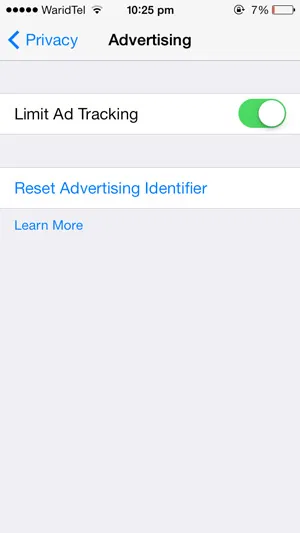
3. In the opening window, turn on “Limit Ad Tracking.”
Opt-Out-FB-Ads-Limit-Ad-iOS

Opt Out On Your Android Device

1. Open up the Google Settings app from the apps screen on your Android device.

Opt-Out-FB-Ads-Google-Settings

2. Navigate and click on the “Ads” option.
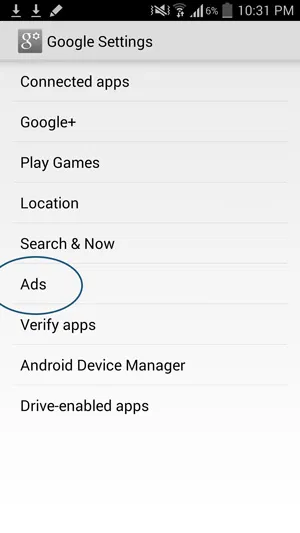
Opt-Out-FB-Ads-Ads-Android

3. Here, tap on the “Opt out of interest-based ads” options to enable ad tracking limitations.
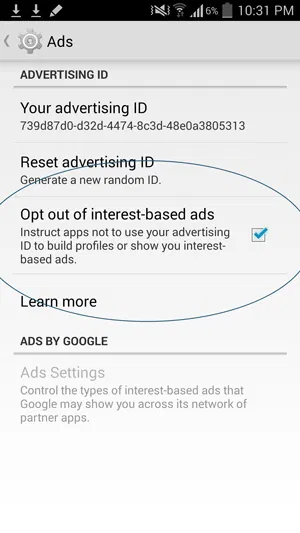
Opt-Out-FB-Ads-Android

Opt Out Via Facebook.com

The last method is to opt out on your Windows/Mac/Linux device by navigating to Facebook.com, and continuing from there:

1. Log in to your Facebook account. Click on the arrow in the top-right corner of the screen, and select “Settings.”
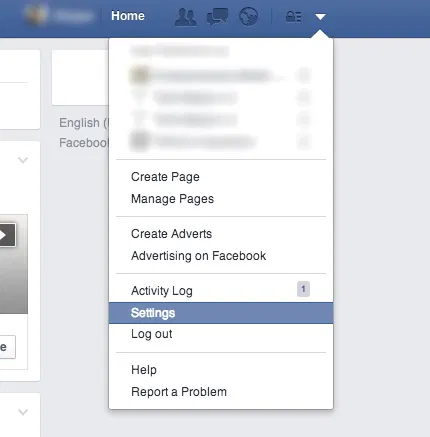
Opt-Out-FB-Ads-Settings

2. In the left-hand pane, click on “Adverts.”
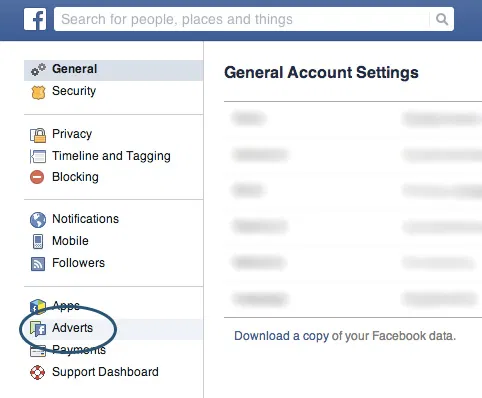
Opt-Out-FB-Ads-Adverts

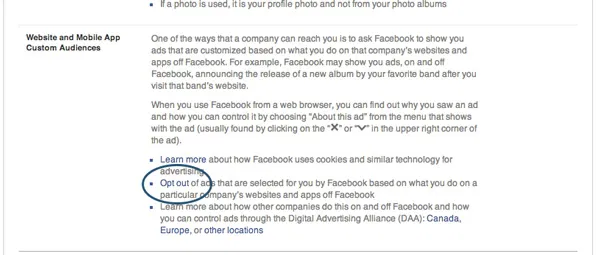
3. Click on the option to “Opt out” in the “Website and Mobile App Custom Audiences” section.
Opt-Out-FB-Ads-Link

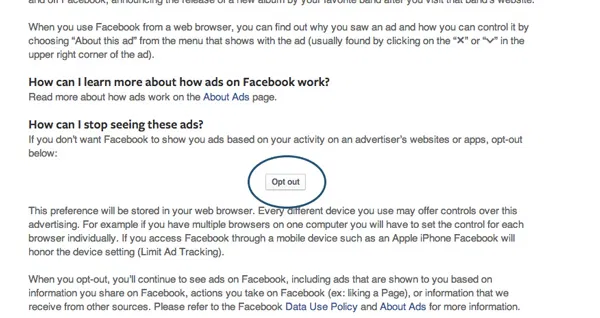
4. In the window that opens, click on the main button to “Opt out.”
Opt-Out-FB-Ads-Opt-Out

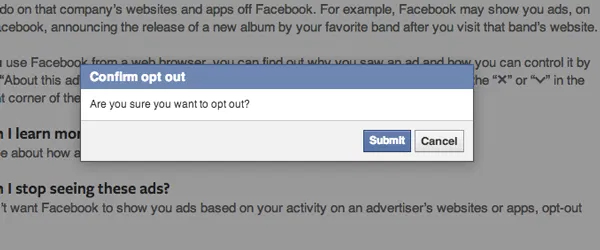
5. Click on “Submit” in the pop-up window.
Opt-Out-FB-Ads-Confirmation

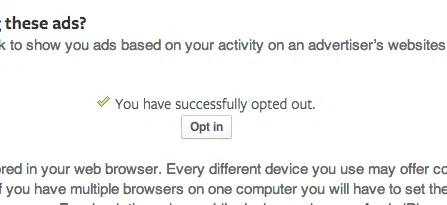
Opt-Out-FB-Ads-Successfully-Opted-Out

Facebook does note that you’ll have to disable this feature individually on different devices, as following the methods above simply changes a preference in your browser. Yet by using the methods detailed above, Facebook won’t be able to target using its new technique, and to be honest, it’s nice to know that Facebook still has the moral sense to at least allow people to opt out of such advertising techniques.

What do you think of Facebook’s new tailored ads? Is this an invasion of your privacy, or do you think that these can really help improve a user’s experience? Be sure to share your thoughts with us in the comments below.

Temporarily Suspend a Tab in Chrome to Free Up System Memory

Do you often open a lot of tabs in Google Chrome, just to leave most of them untouched for hours? One way to prevent it from eating away your computer’s memory is to suspend the tab until you’re ready to use it. Here’s how to do so.

Can Tor Really Protect Your Online Privacy From The NSA (And Other Government Organizations)?

When the news that the NSA are keeping records of your phone calls and web data transfers broke out, people start to worry if they are really safe online and some of them switched to Tor to protect their privacy online. The question is, is Tor really safe? Does it really protect you from the NSA’s clutches?

Internet Speeds Inconsistent With Your Plan? Read This!

Have you ever wondered why your Internet speed is always not as fast as your service provider said it would be? It never hurts to examine the most common causes of slower-than-advertised Internet speeds and determine whether one of these is happening to you so that you can determine how to remedy the situation.

How to Enable Two-Factor Authentication in Buffer

Buffer has added a new 2-Step Login security feature to their web app. This tutorial will show you how to enable two-factor authentication in Buffer.

Hands-on with Github’s Atom Text Editor

The developers of Github decided to come out with its own text editor – atom. Let’s check out Atom text editor and see how it fares with other text editors.

Should I Use a Website Creator or Hire a Web Designer?

If you are starting to setup your website, it can be hard to decide whether to hire a web designer or go with the different DIY website creators out there. Here are some points you should consider.

5 Mistakes That Every WordPress User Should Avoid Making

As we focus all our attention to post great content, we tend to make some mistakes on WordPress that can be fatal. Here are top 5 mistakes that every WordPress user should avoid making.

How to Perform Search and Replace in WordPress

WordPress doesn’t come with a search and replace function. Luckily, there are several plugins that you can use. Let check them out.

5 Cool IFTTT Recipes to Automate Your Social Life

IFTTT has a bunch of other cool and super useful social media recipes. Check out these 5 cool IFTTT recipes to automate your social life.

How to Run Android Apps in the Google Chrome Browser

Have you ever used an Android app and find that it could be useful for your desktop as well? Here’s how you can run Android apps in Chrome browser.

8 Common Browser Error Messages That You Should Know

While surfing the web, you probably have come across error codes like 404, 502, etc. Here are some of the most common browser errors that you should know.

How to Manage Saved Passwords in Various Web Browsers

Most modern browsers come with a password manager for us to save our passwords. This article will take you through the steps to manage your saved passwords in various browsers.