While most email users find Gmail to be their go-to email service provider, most of us still maintain a Yahoo account since it’s been around longer than Gmail. Also, some users still prefer Yahoo’s interface simply because it’s what they’re used to.

If you use Yahoo Mail for most of your email correspondence, then there is a quicker, more compact way of tracking your emails within your browser. Fastest Notifier for Yahoo Mail is an add-on for Firefox that lets you check your Yahoo mail and receive Yahoo mail notifications from the browser’s add-on bar.

The add-on does not require a restart after installation, so you immediately see the Yahoo icon on the top-right corner of the browser. The number of unread emails appear in red on top of the icon.
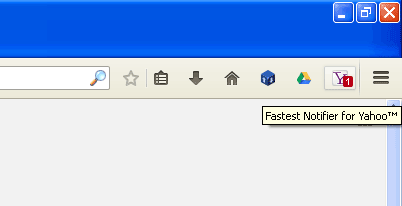
fastest-notifier-for-yahoo_icon

To use the add-on, click on the Yahoo icon. This brings up a sign-in page that will prompt you to enter your log in details. Enter your Yahoo user name and password and click on “Sign In”.

You should then see your inbox, and unread messages will be listed on top of the page in bold letters.
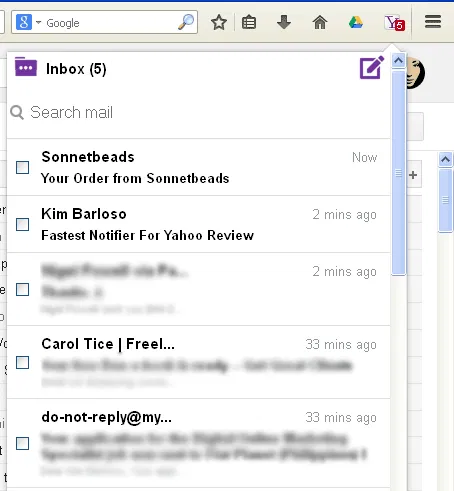
fastest-notifier-for-yahoo_inbox

You can batch edit messages and delete, move to another folder, or mark them as spam from the buttons located at the bottom of the inbox.

You can click on a message directly and it opens in the same pop-up window. You can reply or forward messages when you open them.  These options are also located at the bottom of the email content.
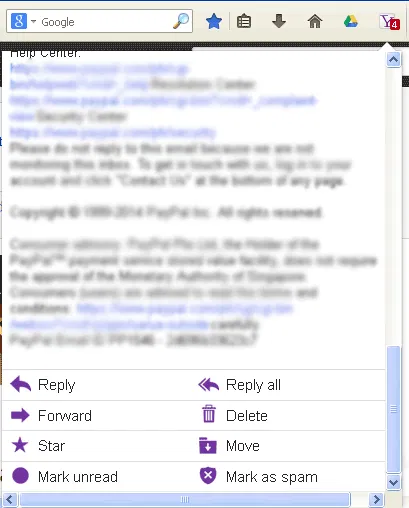
fastest-notifier-for-yahoo_reply

Note that opened email messages will be marked as read, and these changes will reflect on the notifier icon. A clear Yahoo icon (without red numbers) means that there are no new messages at the moment.

Other than accessing the Yahoo inbox, you can also access your Yahoo Contacts and Calendar from this tool.

To do this, you’ll need to click on the envelope icon on the top-left corner of the pop-up window. Here, you will see other folders such as Contacts and Calendars as well as well as your Sent and Trash folders. You can even add folders by clicking on “Add folder”.
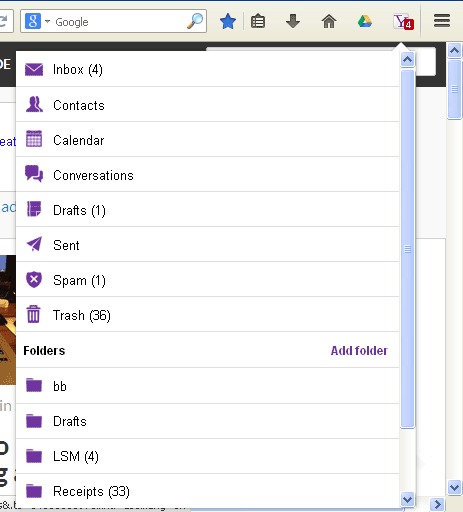
fastest-notifier-for-yahoo_folders

To compose a message, click on the “Compose” icon on the top-right corner of the screen when viewing the inbox.

Since this add-on has access to your Yahoo Contacts, you can use this to add recipients to your email.

Fastest Notifier for Yahoo, as the name implies, notifies you of new Yahoo email in a timely manner. It takes under a minute from the time an email is received to get notified using this add-on.

Surprisingly, the ability to compose a new message and reply to existing ones are added features that make the add-on even more useful. Due to the limited space provided when viewing and composing emails, this interface is suited more towards quick email scanning and writing short replies.

Nevertheless, for notification alone, this add-on does the job without the fuss of a lengthy set-up process. It’s fast and anyone can do it.

How To Open Multiple Links in Chrome

You might come across a webpage with several links that you want to check them out. If you’re looking for a fast, efficient way to open links in the fastest way possible, then LinkClump might just help you with that.

Best Plugins to Automatically Watermark Images In WordPress

One of the way to protect your images online is to add watermark to your images. Here are some of the best plugins that you can use in WordPress to automatically add watermarks to the images you uploaded.

Converting Files In Google Drive With DriveConverter

If you’re looking for a built-in tool to convert files in Google Drive, then try DriveConverter, a web app and Chrome extension specially built for Google Drive. It offers more flexible conversion features for documents, images and music files.

Analyze Writing Errors with SlickWrite for Firefox and Chrome

Most spelling and grammar checkers in word processors spot obvious writing errors, but not the less obvious ones. Slick Write is a web service that analyzes writing errors as well as performs the usual spelling and grammar check.

Edit Google Drive Videos Inside Chrome With WeVideo

What if you left your laptop at home and there is an urgent need to edit a video that you saved in Google Drive? Thankfully you can make use of WeVideo to edit the video directly in Google Drive.

How to Create QR Codes From The Context Menu In Your Browser

QR codes are becoming increasingly popular these days. In this article, we will show you how you can quickly create QR codes directly from your browser’s context menu.

Identity Theft on The Internet: Can You Prevent It?

What if someone else had enough information about you from the web to become you? What can you do to prevent identity theft? We’re here to help you out.

Is Your Email Provider Leaking Your IP Address to Recipients? Here’s How to Find Out

If you care about your privacy, you need to make sure that your email provider is not leaking your IP address to recipients. Here’s the tool for the job!

Don’t Like Gmail’s New Always Display External Images Feature? Here’s How to Disable It

By default, Google has decided to make it so that Gmail will always display external images in your email. If you don’t like this, here’s how to disable it.

How to Import your Instapaper Articles into Pocket

If you are planning to import Instapaper articles to Pocket, the procedure to is extremely easy and shouldn’t take more than a few minutes. Here’s how.

How To Access Dropbox from Google Chrome

EasyDrop is an extension for Google Chrome that lets you access your Dropbox files from Google Chrome, without leaving your current tab.

8 Common Browser Error Messages That You Should Know

While surfing the web, you probably have come across error codes like 404, 502, etc. Here are some of the most common browser errors that you should know.