Most browsers allow you to disable javascript in their Settings page, but doing so will not give you a good browsing experience as most sites require javascript to function properly. Wouldn’t it be good if you can block javascript only for a specific site/page? Google Chrome comes with a native feature that allows you to block javascript for sites that follow a specific pattern.

1. In Google Chrome, go to its Settings page.

2. Scroll all the way down to the bottom and click “Advanced Settings”. Under the Privacy section, click “Content Settings”.

chrome-content-settings

3. Under the Javascript section, click “Manage exceptions”. Now you can enter the site’s URL that you want to block javascript and select “Block” under the Behavior selection.
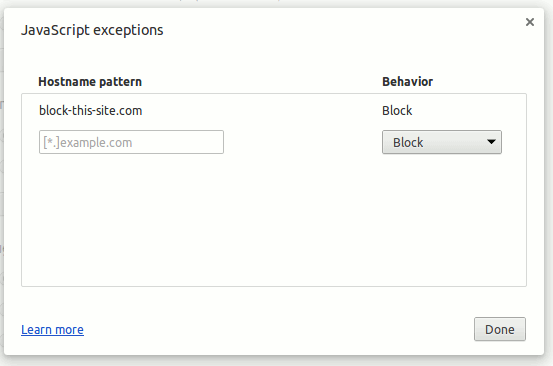
chrome-javascript-exception

Click Done. That’s it. Javascript will now be blocked on the site(s) that you added in the list.

Converting Files In Google Drive With DriveConverter

If you’re looking for a built-in tool to convert files in Google Drive, then try DriveConverter, a web app and Chrome extension specially built for Google Drive. It offers more flexible conversion features for documents, images and music files.

4 Reasons Why A Third Party DNS Server Is Better Than What Your ISP Gives You

You’ve probably heard of alternate DNS servers and how they could probably help you in some way or another. You may also wonder why you need to switch over. I’m going to give you some reasons why you probably should be using third party DNS server. You will end up wondering why you haven’t done it yet.

9 Ways to Make Better Use of Gmail Filters

Gmail filters is a good way for you to organize your inbox without you doing the manual work. Here are a few ways that you can make good use of Gmail fliters.

Secure Your Yahoo Account With Second Sign-in and App Password

Yahoo has added a feature called Second Sign-in that allows you to secure Yahoo account with two factor authentication. Here’s how you can enable it.

6 Alternative Uses of WordPress, Other Than Blogging

You can be sure of one thing, Wordpress: it’s not just for blogs anymore. Here are 6 alternative uses of Wordpress that aren’t blogging.

How to Fix Chrome’s Extension Security Problems

Some of the extensions in Chrome store are using hidden adware to make money off of you. Here are some fixes for you to tackle the extension security problems.

Syncthing: An Open Source Alternative for Dropbox and BitTorrent Sync

If you want to keep your files safe while synchronizing them between computers, Syncthing is a good alternative for Dropbox that you can use.

Everything You Need to Know About The “Rosetta” Flash Exploit

You are probably not aware that Flash has an “Rosetta” exploit. Here is what you need to know about Rosetta Flash exploit and what you can do about it.

What’s New in WordPress 4.0 – Features Round Up

WordPress released the beta version of WordPress 4.0 that includes some new and improved features to improve back-end user experience. Let’s check out what’s new in this WordPress 4.0 Beta 1 Release.

The Best Markdown Editor for Web

There are numerous tools for writing in Markdown via the web. We’ll be taking a look at some of the best markdown editor for web. Read on for more detail.

A Beginner’s Guide to Not Being Compromised on the Internet

You may understand what social engineering is, but are not sure how to properly defence against it. Here are a couple of advices for you.

8 Common Browser Error Messages That You Should Know

While surfing the web, you probably have come across error codes like 404, 502, etc. Here are some of the most common browser errors that you should know.