Shopping online is a convenience most people enjoy, and it’s going to be done more because of the holiday season. Online stores offer discounts and vouchers to get more customers, and while this is useful, it can be confusing for the average online buyer.
If you’re looking for an easier way to know which online stores offer a product for a lower price, then a Firefox add-on called Ciuvo Price Comparison can help you do just that. Also available for Google Chrome, Ciuvo works in the background when you visit a product-related page. It then displays a notification tab on the top of the browser giving you information about the product, a cheaper price from other online stores and any vouchers offered.
To start using this tool, you’ll need to install it for Firefox or Chrome. Once done, browse to a product page from a retail site like Amazon.com. If Ciuvo finds a better price offer for the same or similar product, the pop-up banner will appear on top of the browser.
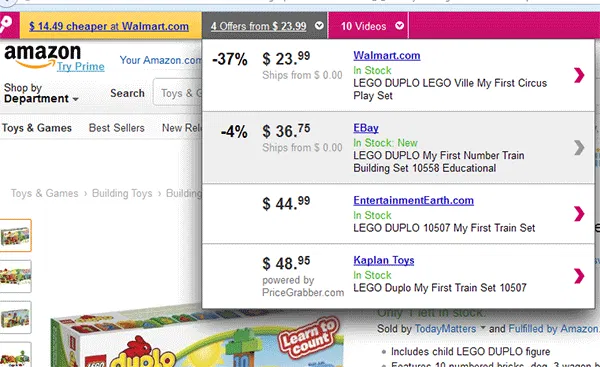
Here you can see which store offers a lower price and the price difference. There’s also a drop down of other stores selling the same product, albeit with slightly higher prices.
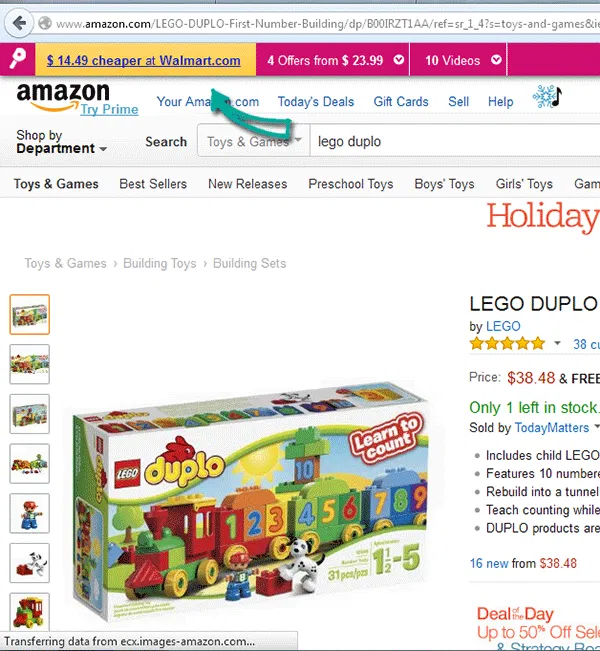
In the example above, a product page for a Lego toy in Amazon initiated the Ciuvo tool and sent a notification of a lower price for the same toy at Walmart.com. To go to this offer, simply click on the link. To see more stores, mouse over the area where it says “x offers from x price”.
One thing to note is that the tool will not return results for exactly the same product. In the example below, a product page for a Mickey Mouse sleepwear in Target returned a “better deal” at Swap.com. However, when clicking on the link, it turns out the product is for a Mickey Mouse puzzle.

This can happen with brands that have a wide variety of merchandise, so it’s important to check for accuracy when using this tool. Otherwise, if you’re searching for a fairly popular product like the Apple iPad or a Sony Playstation, then there shouldn’t be a lot variations in the results.
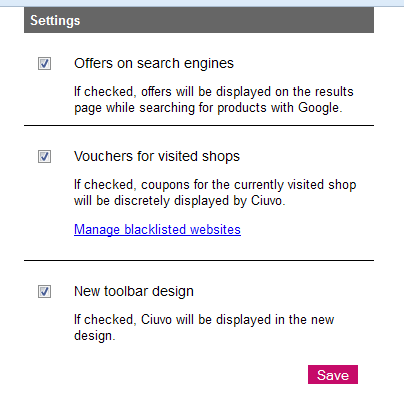
Ciuvo also works with Google search results when searching for products. To check if you have this enabled, go to the Ciuvo settings page by clicking on “Tools -> Add-ons” in the menu bar. Click on “Options” beside the Add-on called Ciuvo Price Comparison.
You should see the Settings page. The first option should be checked to enable the tool in Google results. Other options such as voucher display and using the new toolbar can be enabled or disabled here.
While shopping online can be an enjoyable experience, it can get a bit time-consuming. Ciuvo addresses that with its user-friendly interface when displaying better deals for a product. It’s straightforward and easy to use, although it does take a bit of double-checking to ensure you’re looking at the correct product. Despite this small requirement, it’s a useful tool to have this holiday season.