This week, Feedly announced it would begin charging for premium services at $5 per month or $45 per year. It is definitely not the end of the world, but it is also one-hundred-percent more than all of us paid before. There are alternatives of course, but many seem less than ready for prime time.
Feedspot has taken its time coming to market and, in so doing, has created a service that seems truly ready to step in and take over for what is lost.
Getting Started
While there are many alternatives, Feedspot attempts to come fairly close to the design of Google Reader, while adding a number of new features to modernize what had become a rather dated service.
Upon your first visit to the site, you will find that you can sign up for an account in any of several ways – traditionally (with an email) or using a Twitter, Facebook or Google+ account. I opted for plain, old email, but that is up to you.
Once you have signed up, you can either add feeds manually or, as most of you will likely do, import your OPML or XML file from elsewhere. To do the latter, click “choose file”, browse to the location of your exported data and then hit the “upload” button and wait a bit for the data to be imported. In my case, with a rather large file (as far as OPML goes) it still took less than one minute.
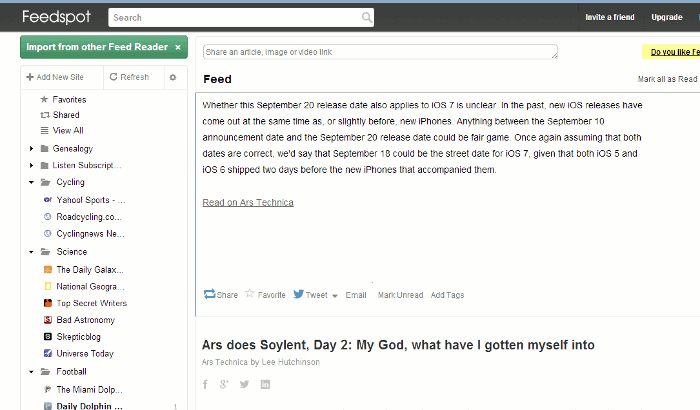
You will find the basic layout that is tried and true in this genre of web app – categories and feeds in the left column, with a central pane for the stories.
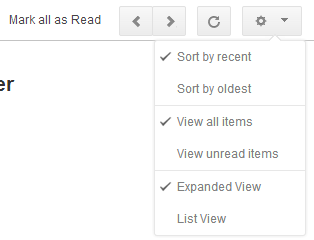
Controls are located along the top right, including “mark as read”, “previous”, “next”, “reload” and a dropdown list that provides several option for how you wish to view your content.
Adding another feed can be carried out from the top of the list in the left column. You can also drag and drop feeds between different folders to keep things organized however you prefer. Likewise, you can also edit a feed by hovering the mouse pointer over it and clicking the pencil icon that appears. From the edit box, you will be able to rename the item, create a new folder or simply choose to stop following that particular site.
Sharing
As in the late-lamented Google Reader, each story contains a set of “share” options along both the bottom and top. You can choose to share a post with other Feedspot users who are in your friends list (more on that in a bit) or you can tweet, email, like or +1 an article.
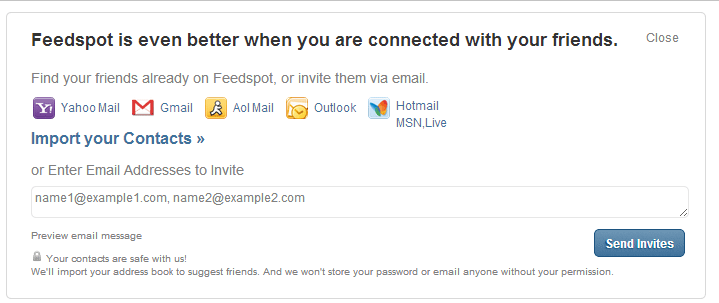
The social aspect I referenced above is accessed by clicking “friends activity” at the top of the page. From here you can allow Feespot to crawl your contact lists in Gmail, Yahoo Mail, AOL Mail or Outlook to search for others already on the service. Alternatively, you can send out invitations via email to those who aren’t.
Conclusion
Feedspot is one of many competitors that aims to fill Reader’s shoes, but it is one of the better looking for those currently in the market. Like Feedly, there is a Premium version, though at $1.99 per month it is considerably cheaper. This is for those wish to not see ads and would like additional sharing features, such as Evernote.