For those of us who use multiple computers for one reason or another, being able to copy from one of them to another is extremely beneficial. However, there’s few resources out there that allow us to do that. Clipboard Sync for Google Chrome provides a good solution for users to copy and paste information between the browser from PC to PC.

How to Use Clipboard Sync

In order to use Clipboard Sync, you’ll need to have Chrome Sync enabled on both computers. You’ll also need to install Clipboard Sync from the Chrome Web Store. Since you have sync enabled, it’ll automatically install it in both Chrome browsers so long as you’re logged in at the time.

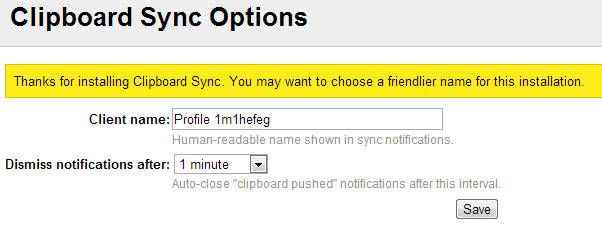
1. Once installed, you can start using Clipboard Sync by customizing its options.
clipboard-sync-options

2. You’ll want to name each client that will be using Clipboard Sync to differentiate between who copied something.

You can name your client anything you want so you can keep track of which computer something copied comes from.

3. Then, you can choose how long copy notifications appear in your browser window.

notifications time limit for clipboard sync

If you’re going to be switching back and forth quickly between PCs, you can set this time limit low. If it’s going to take you awhile, setting it higher or using the “Never” option may be better so you don’t forget you copied something to be pasted later.

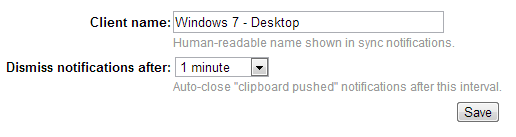
4. Make sure to click “Save” to apply your settings.
Clipboard Sync options saved

At the moment, Clipboard Sync can only copy and paste text between browsers. It’ll ignore images or other media if you highlight them.

The only other limitations besides text Clipboard Sync has in Chrome is what its API limits you to:

  • A maximum of 4096 characters can be copied
  • Up to 10 syncs per minute in either browser

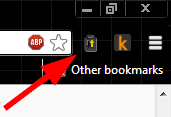
5. Find the text you want to copy, highlight it and click the “Clipboard Sync” icon in the upper right-hand corner of the Chrome toolbar.

Highlighting text to copy in Clipboard Sync

6. Once it lights up yellow, it’s successfully saved it to your clipboard and is ready to be pasted on the other PC running Chrome.
ClipboardSync Copy is a go

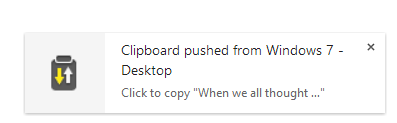
If you head over to your other PC with Chrome up, you’ll see a pop-up has appeared to let you know you have copied something that is ready to be pasted.
clipboard-sync-notification

7. You can now paste what you copied in one browser anywhere you want on another PC.

You can paste the contents of the clipboard to whatever you want, such as Word, an e-mail, into your browser or wherever necessary.

Conclusion

Clipboard Sync is an easy solution to your multi-PC copy and paste needs. It’s easy to use, works quickly and allows you to copy text from one computer to another efficiently. Once some additional functionality, such as being able to copy images, is added, this’ll be the perfect copy and paste extension for Chrome.

Image Credit: Clipboard and Pens

How to Add Links to Your WordPress Widget Titles

Do you use numerous widgets on your WordPress blog? Have you ever wished that you could add WordPress Widget Titles? If so, you’re in luck thanks to a WordPress plugin called Widget Title Links.

Play Music In Google Drive with DriveTunes [Chrome]

it’s not possible to play music in Google Drive, but installing a Chrome extension allows users to play music straight from the Google Drive directory,

Speed Dial with Full Online Sync For Firefox

Even being a veteran browser, Firefox has not been able to implement the Speed Dial function well. That’s where FVD Speed Dial comes into play. This fully functional Firefox addon fundamentally changes the Speed Dial feature to what it should have been all along.

Get a Better Extension Manager In Chrome With SimpleExtManager

The extension manager in Chrome has always given users the bare minimum to work with when dealing with extensions, themes and apps. The SimpleExtManager for Chrome gives users the functionality they deserve.

How to Quickly Close Multiple Tabs in Browser

There are times when you opened too many tabs in your browser and it is causing the whole system to slow down. A quick and easy way to fix this is to close as many unused tabs as possible to minimize the memory usage. However, it can be a chores if you have tons of opened tabs. Luckily, most browsers come with a way for you to quickly close multiple tabs with a single click.

Identity Theft on The Internet: Can You Prevent It?

What if someone else had enough information about you from the web to become you? What can you do to prevent identity theft? We’re here to help you out.

Save and Restore Groups of Tabs in Chrome with This Quick Trick

Looking for a way to overcome having too many tabs open? Use this quick trick to save and restore groups of tabs in Chrome without installing an extension.

Skrill, a Trustworthy PayPal Alternative

Paypal may be the biggest online payment platform, it is definitely not the best. Skrill is a good Paypal alternative that is available in 200 countries.

How To Share Web Content Fast With Cortex for Chrome

If you want to try a faster way to share web content online, you might want to try an extension for Google Chrome called Cortex.

Can People Really Spy on Your Webcam?

There were news that the FBI was able to spy on people’s webcams without them knowing. How is this possible? Let find out how this hack was done.

Just How Secure Is Your Bank Account?

You probably have an online banking account. What if someone decided to hack into your account and steal from it? How secure do you think your bank account is?

How to Close and Snooze Tabs in Chrome to Reduce the Clutter

It’s common to have multiple tabs open in a web browser. Here is how you can close and snooze tabs in Chrome to free up space in your web browser.