The Internet is filled with information and is a valuable resource for anyone who’s doing research work. However, certain types of online research require more than just bookmarking links. While bookmarking is helpful for quickly referring back to a site, it doesn’t allow you to add your own notes about that site.
If you want to be able to add notes and save webpages at the same time, a Chrome extension called AnnoPad is a great solution.
AnnoPad allows you to save a webpage and add lengthy notes along with it, making it easier for you to remember some details about a certain website without having to open it. It’s also ideal for long annotations, as the tool acts just like a notepad, allowing you to type as many lines as you want with ease.
Upon installation, a blue notepad icon will appear on the top-right corner of the browser.
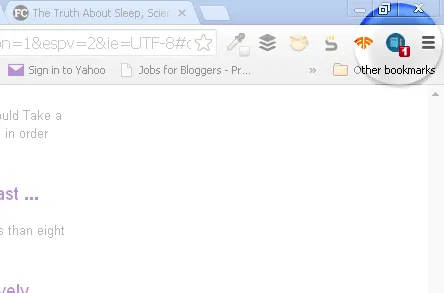
Making sure that you are on the webpage that you want to save and annotate, click on the icon. Click on the “New” button to add your notes for the current webpage.
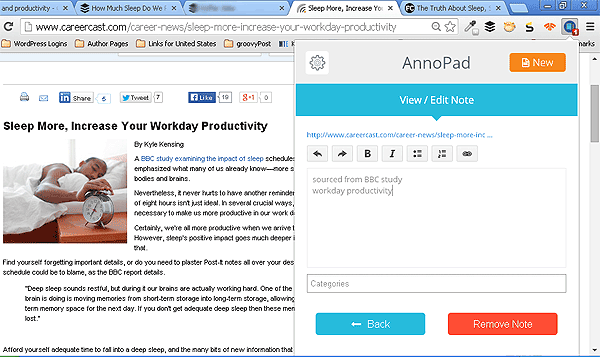
You don’t have to click on a Save button (there is none) because your notes are automatically saved. You can add formatting styles to your notes such as bold and italic, as well as add links within the content of your notes.
Note that you can add as many individual notes as you want for the same website or webpage.
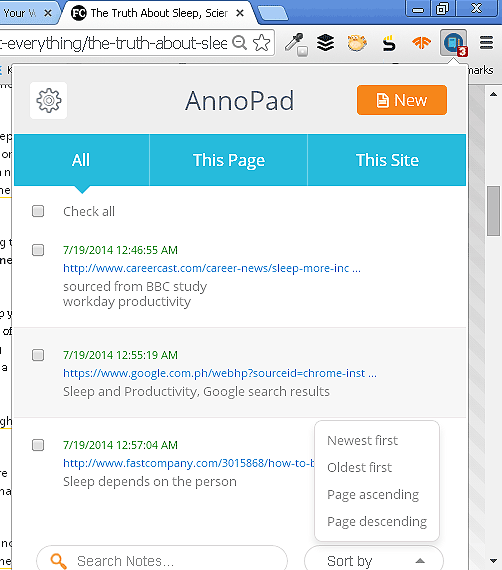
Once you have more than one URL note saved, you can view all of them under the “All” tab. Here, you can hover over each URL to view the full link. If you want to delete a certain URL entry, click on the x mark to the right of the URL.
To hide the AnnoPad menu, simply click on the note icon again to close the window to return to normal browser view.
When the AnnoPad window is hidden, the number of URLs saved will appear in red below the blue notepad icon.
If you want to find a certain keyword across all notes, you can use the Search bar on the bottom of the notepad. There’s also an option to sort the list into a specific order.
URLs can also be viewed according to certain tab categories such as “This Page,” which shows your notes for that specific webpage only, or “This Site,” which will show all notes for a specific website.
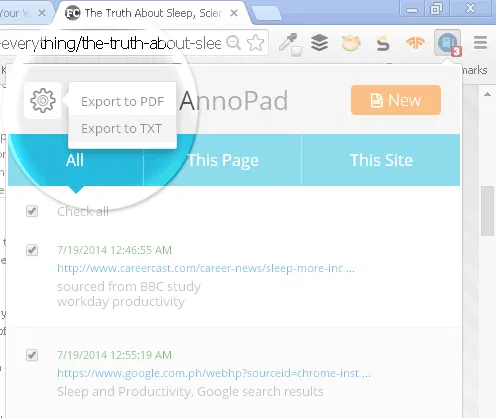
Another handy feature is being able to export all URL with notes to either a PDF or text file. To do this, you need to click on the cog icon in the top-left corner. You can select whether to export to PDF or text file.
AnnoPad’s note-taking and bookmarking feature is an excellent combination for anyone who finds it useful when doing their work. The interface is fairly easy to use, and it saves your notes as you go. It’s a definite must-have tool for those who want to add extensive notes about webpages and websites that they visit.